Analytics & Tracking Setup: GA4 Implementation for E-commerce Growth
Turn this article into takeaways for your work.


Each assistant summarizes the article only for you and suggests best practices for your work.
Getting your analytics right isn't optional for e-commerce growth. Every optimization decision you make, from conversion rate optimization to retargeting campaigns, depends on accurate tracking. Yet most stores have tracking gaps that cost them thousands in misattributed revenue and missed optimization opportunities.
GA4 changed the game by moving from session-based to event-based tracking. This shift gives you better cross-device measurement, more granular product data, and attribution modeling that actually reflects customer behavior. But the setup complexity increased significantly. You need proper implementation from day one, or you'll build optimization strategies on flawed data.
Why Analytics Infrastructure Matters
Your tracking infrastructure determines which decisions you can make confidently and which ones you're guessing at. When tracking is incomplete, you can't trust your e-commerce metrics, your A/B testing framework produces unreliable results, and your marketing budget gets allocated based on incomplete attribution data. The cost of poor tracking shows up everywhere. You credit organic search for sales that started with paid ads. You optimize product pages based on engagement data that doesn't capture micro-conversions. You pause profitable campaigns because you can't see their full contribution to revenue. One retailer discovered they were underspending on Facebook ads by 40% because their tracking didn't capture assisted conversions, they thought the channel had a 2.1x ROAS when it actually delivered 3.5x.
GA4 differs fundamentally from Universal Analytics. Instead of tracking pageviews and sessions, you track events and parameters. Everything becomes an event: page views, product clicks, add to cart, purchases. This flexibility means you can track exactly what matters for your business, but it also means you need to configure everything intentionally. There's no default "revenue by product" report unless you set up the item-scoped parameters correctly.
Modern tracking requirements go beyond basic e-commerce events. You need cross-device tracking to understand customer journeys that start on mobile and convert on desktop. You need user-ID implementation to connect authenticated and anonymous sessions. You need custom dimensions for product categories, customer segments, and promotion codes. And you need all of this to respect privacy regulations while still providing actionable data.
GA4 Setup Fundamentals
Creating your GA4 property correctly from the start saves hours of reconfiguration later. Start in Google Analytics, create a new GA4 property (not Universal Analytics, that's sunset), and configure your property settings immediately. Set your timezone, currency, and industry category. These seem minor but affect how data gets processed and displayed. Your web data stream is where measurement begins. Add a new data stream for your website, enter your primary domain, enable enhanced measurement, and copy your Measurement ID. This ID (format: G-XXXXXXXXXX) is what connects your site to GA4. Enhanced measurement automatically tracks scrolls, outbound clicks, site search, video engagement, and file downloads. Turn these on, they're valuable for understanding engagement without additional configuration.
Connect your GA4 property to Google Merchant Center if you run product feeds for Google Shopping. This connection enables automatic product data import and creates item-scoped dimensions for product performance reporting. Go to Admin > Product Links > Merchant Center Links and connect your accounts. This makes your product catalog available within GA4 for richer reporting.
Link Google Ads early, even if you're not running campaigns yet. The connection needs to mature before attribution data becomes fully reliable. In GA4 Admin, go to Product Links > Google Ads Links and connect your accounts. Enable auto-tagging, import GA4 conversions as primary conversion actions, and enable personalized advertising. This gives you conversion tracking, audience sharing for retargeting, and proper attribution for traffic acquisition.
Enable e-commerce settings in your data stream configuration. Under Enhanced Measurement, ensure "File downloads" is off if you don't sell digital products (it creates noise), but keep "Page views," "Scrolls," "Outbound clicks," and "Site search" enabled. These provide baseline engagement data that informs your product page optimization efforts.
Your data stream ID appears in the data stream details. You'll need this for GTM configuration. Note both the Measurement ID and Stream ID, they're different values used in different contexts.
Data Layer Implementation
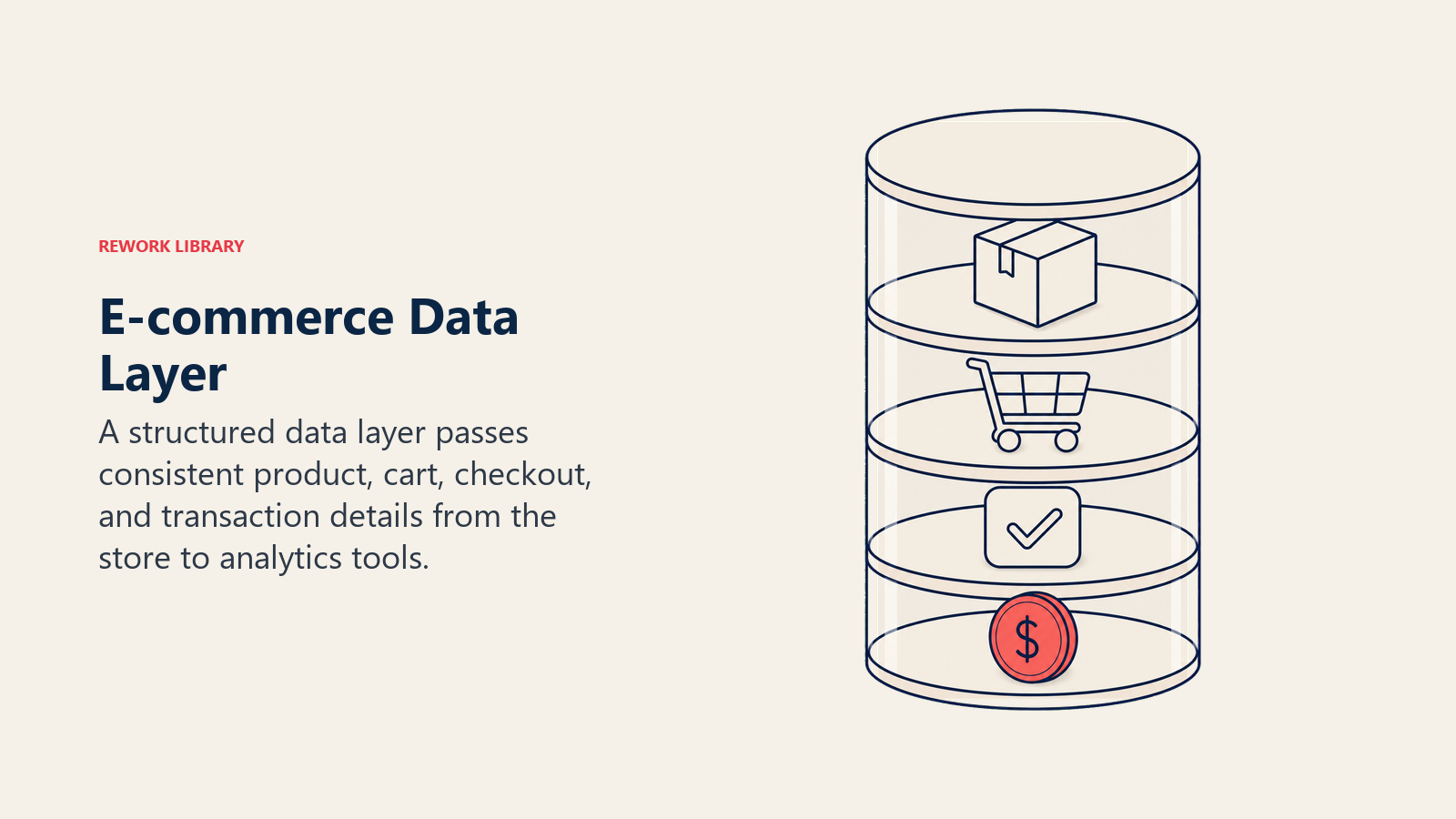
The data layer is JavaScript's way of sending structured data from your website to Google Tag Manager. Think of it as a standardized format that bridges your website code and your analytics tools. Without a properly structured data layer, your tracking becomes fragile and breaks whenever developers change page structure.
GTM's data layer lives as a JavaScript array called dataLayer. You push objects to this array at key moments, page load, add to cart, purchase completion. Each object contains variables that describe what happened. For e-commerce, you're primarily pushing product and transaction data in a format GA4 expects.
The e-commerce data layer structure follows Google's specification. For a purchase event, your data layer push looks like this:
dataLayer.push({
  event: 'purchase',
  ecommerce: {
    transaction_id: 'T12345',
    value: 157.50,
    tax: 12.50,
    shipping: 5.00,
    currency: 'USD',
    coupon: 'SUMMER2025',
    items: [{
      item_id: 'SKU_123',
      item_name: 'Blue Cotton T-Shirt',
      affiliation: 'Online Store',
      coupon: 'SUMMER2025',
      discount: 5.00,
      index: 0,
      item_brand: 'BrandName',
      item_category: 'Apparel',
      item_category2: 'Shirts',
      item_category3: 'T-Shirts',
      item_list_id: 'related_products',
      item_list_name: 'Related Products',
      item_variant: 'Blue',
      location_id: 'L_12345',
      price: 30.00,
      quantity: 3
    }]
  }
});
Product object requirements vary by event, but certain fields are critical for proper reporting. item_id and item_name are required for all e-commerce events. price and quantity determine revenue. item_category through item_category5 create your product taxonomy for reporting. item_variant captures size, color, or other options. Include these consistently across all events: view_item, add_to_cart, begin_checkout, purchase.
Transaction data appears at the ecommerce level alongside the items array. transaction_id must be unique per order and consistent between your data layer and your backend. value represents total revenue including tax and shipping. GA4 calculates product revenue separately from transaction revenue. tax and shipping are optional but recommended for accurate profit analysis.
Custom dimensions extend the data model with your specific business context. Push these as top-level properties in your data layer:
dataLayer.push({
  event: 'purchase',
  user_id: 'USER_67890',
  customer_ltv: 450.00,
  customer_segment: 'VIP',
  acquisition_channel: 'paid_social',
  ecommerce: { /* ... */ }
});
Then configure corresponding custom dimensions in GA4 under Admin > Custom Definitions. Map customer_segment to a user-scoped dimension, acquisition_channel to session-scoped. This data powers your customer data platform integration and enables sophisticated customer segmentation for targeted campaigns.
Consistency beats perfection. Push your data layer as early as possible on page load. Use the same field names across all events. Test in staging before deploying to production. Document your data layer specification so developers know exactly what to implement. One missing field breaks your entire product reporting.
Event Tracking Architecture
GA4's event-based model means everything you track is an event with parameters. Some events come automatically (enhanced measurement), some come from the GA4 e-commerce specification (purchase, add_to_cart), and some you create custom to track business-specific actions. Out-of-the-box GA4 events include page_view, scroll, click (outbound links), form_start, form_submit, and video engagement. These run automatically when you enable enhanced measurement. They provide baseline engagement data but don't capture e-commerce actions. You'll need to supplement these with e-commerce and custom events. Custom event design starts with identifying what actions matter for your business. Beyond standard e-commerce events, you might track filter usage on collection pages, size guide opens, review submissions, wishlist additions, or promotional banner clicks. Each event should answer a specific question about user behavior that informs optimization decisions.
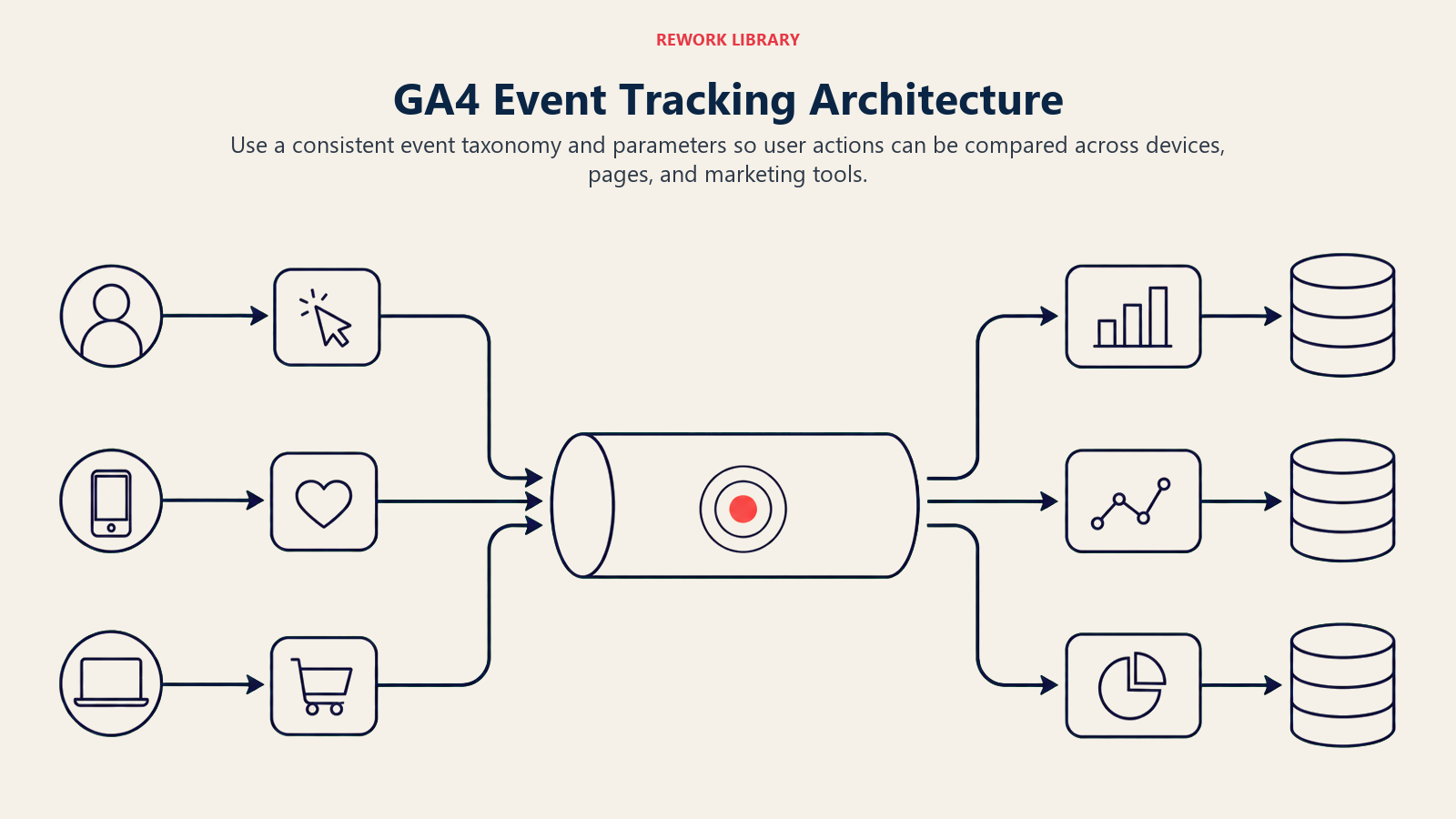
Event naming conventions matter for maintainability. GA4 reserves certain event names (purchase, add_to_cart, view_item, etc.) for standard e-commerce events. For custom events, use lowercase with underscores: size_guide_open, filter_applied, promo_clicked. Avoid spaces or special characters. Be descriptive but concise. Your future self will thank you when you're creating segments six months later.
Event parameters add context to events. For a filter_applied event, send parameters like filter_type: 'color', filter_value: 'blue', result_count: 23. These parameters become dimensions in GA4 for detailed analysis. You get 25 custom parameters per event, use them to capture the context that turns raw event counts into actionable insights.
User ID implementation connects authenticated user sessions. When someone logs in, set the user_id parameter in your configuration and push it to the data layer. This enables cross-device tracking and connects pre-login browsing to post-purchase behavior. For privacy compliance, use an anonymized internal ID, not email addresses or names.
Cross-device tracking works when you implement user ID correctly. GA4 uses Google signals (signed-in Google users) plus your user ID to stitch sessions across devices. Enable Google signals in Admin > Data Collection, implement user ID throughout your site, and GA4 builds unified user journeys. This is critical for understanding how mobile browsing converts to desktop purchases.
Core E-commerce Events
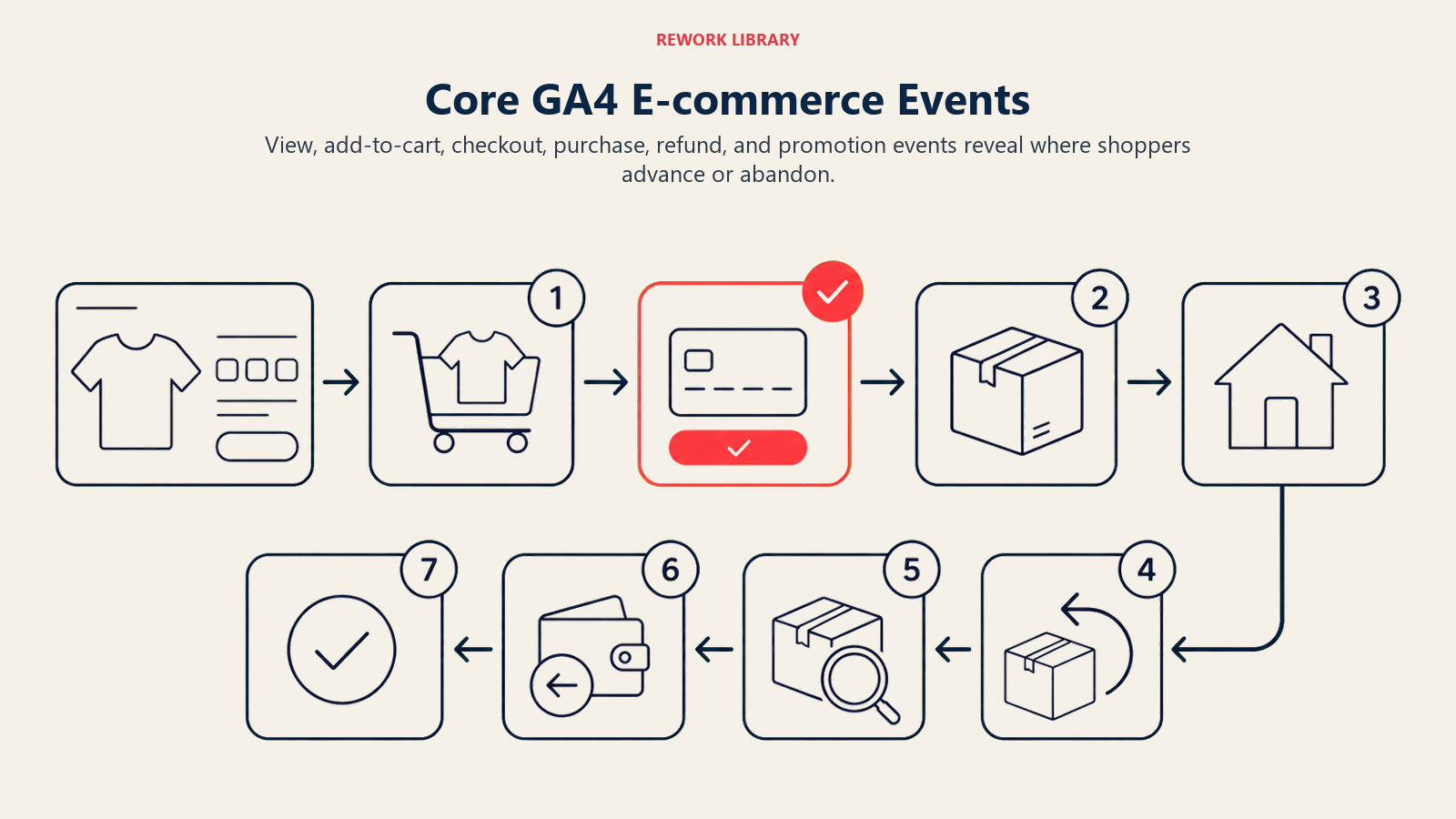
Start with the standard GA4 e-commerce events. These form the foundation of your e-commerce reporting and enable built-in reports without custom configuration. Page view and engagement come automatically, but you can enhance them with e-commerce context. On product pages, push item details with page_view so you can analyze which products get views but not engagement. On collection pages, track the number of products displayed. This baseline tracking informs your product page optimization efforts. view_item and view_item_list track product visibility. Fire view_item when someone lands on a product detail page:
dataLayer.push({
  event: 'view_item',
  ecommerce: {
    items: [{
      item_id: 'SKU_123',
      item_name: 'Blue Cotton T-Shirt',
      price: 30.00,
      item_brand: 'BrandName',
      item_category: 'Apparel'
    }]
  }
});
Fire view_item_list on collection pages, search results, and recommendation widgets. Include all visible items in the items array. This populates GA4's item-scoped reporting and enables product performance analysis.
select_item and add_to_cart track progression toward purchase. select_item fires when someone clicks a product from a list, this tells you which placement drove clicks. add_to_cart is self-explanatory but critical. Both events use the same item structure as view_item, maintaining consistency.
begin_checkout, add_payment_info, and add_shipping_info track checkout progression. Fire these at each checkout step to build funnel reports. Even if your checkout is single-page, you can fire these events when users complete each section. The granularity helps you spot where abandonment happens, which tells you exactly what to fix first.
purchase event is your revenue truth source. Fire it only on the order confirmation page after successful payment. Include complete transaction and item data:
dataLayer.push({
  event: 'purchase',
  ecommerce: {
    transaction_id: 'T12345',
    value: 157.50,
    tax: 12.50,
    shipping: 5.00,
    currency: 'USD',
    items: [/* all purchased items */]
  }
});
Use your order ID as transaction_id. This prevents duplicate purchases if users refresh the confirmation page. Implement server-side logic to push the data layer only once per transaction.
refund tracking captures returns. When orders get refunded, fire a refund event with the original transaction_id and refunded items. This adjusts your revenue reports and ensures your ROAS calculations reflect actual revenue, not gross sales.
Custom funnel events fill gaps between standard e-commerce events. Track abandoned cart email clicks, return visitor product views, repeat purchase indicators, or subscription sign-ups. These custom events connect to your marketing automation strategy and show you the full customer journey.
Conversion Tracking Setup
Conversions are events that matter for your business goals. In GA4, you mark important events as conversions, which makes them available for attribution reporting, Google Ads bidding, and executive dashboards. Define key conversions based on business impact. Purchase is obvious, it directly generates revenue. But also consider: newsletter sign-ups (they feed your email list), account creation (indicates high intent), specific product category views (high-value segments), or quiz completions (engagement indicator). Each conversion should represent a meaningful step toward revenue or retention.
Goal configuration in GA4 happens in Admin > Events. You'll see all your events listed. Toggle "Mark as conversion" for events you want to track as conversions. Simple, but strategic selection matters. Too many conversions dilute your reporting focus. Too few and you miss optimization opportunities.
Purchase as your baseline conversion enables revenue reporting, ROAS calculation, and Google Ads Smart Bidding. This conversion must be set up correctly or your entire attribution model fails. Verify the purchase event fires on successful transactions, includes accurate revenue data, and uses unique transaction IDs.
Lead generation conversions work for stores with high consideration products. Mark form_submit as a conversion when it represents a catalog request or consultation booking. Track these conversions through to actual purchases to calculate lead-to-customer conversion rates. This informs how you value top-of-funnel actions.
Newsletter tracking becomes a conversion when your email list drives significant repeat purchases. Mark newsletter_signup as a conversion, then use GA4 audiences to exclude existing subscribers from signup campaigns. Connect this data to your marketing automation platform to calculate email subscriber value.
Form submission mapping varies by form purpose. Contact form submissions indicate intent but don't directly generate revenue. Quiz completions qualify leads for personalized product recommendations. Waitlist sign-ups show demand for out-of-stock products. Map each form type to appropriate conversion treatment based on its position in your funnel.
Attribution Modeling
Attribution assigns credit for conversions across the touchpoints that led to them. Get this right, and you'll know exactly which marketing channels deserve more budget. GA4 data-driven attribution uses machine learning to assign conversion credit based on actual customer behavior in your account. Unlike rule-based models (first-click, last-click), data-driven attribution analyzes thousands of conversion paths to determine which touchpoints most influence purchases. This becomes available once you have sufficient conversion volume (typically 400+ conversions per month). Cross-channel attribution tracks touchpoints across paid search, organic, social, email, direct, and referral traffic. GA4 uses UTM parameters and the ga_session_id to connect touchpoints. Ensure consistent UTM tagging across all campaigns. Without it, attribution breaks and you can't trace customer journeys.
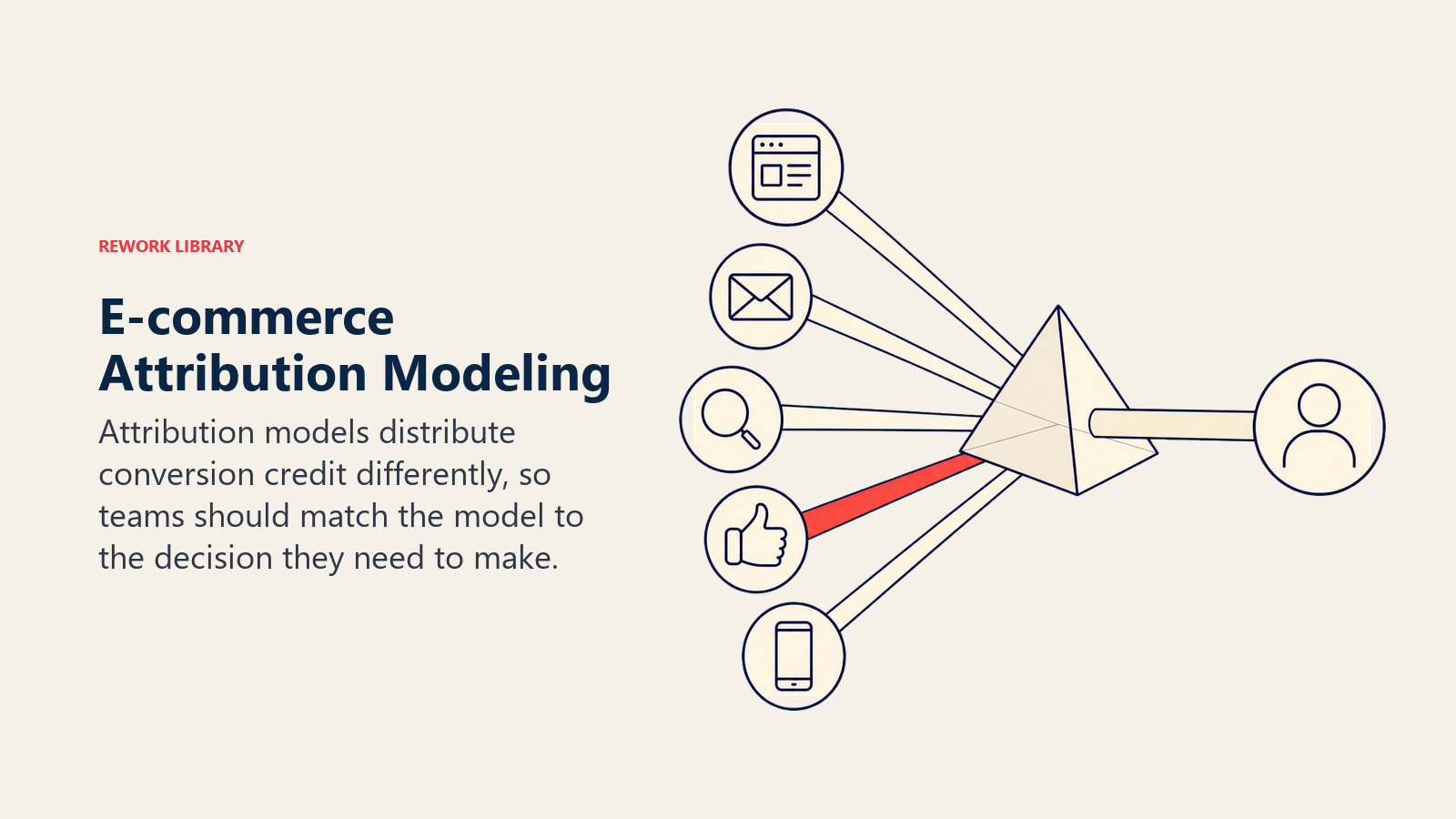
First-click versus last-click represents two extremes. First-click gives all credit to the initial touchpoint that introduced the customer, valuable for understanding acquisition effectiveness. Last-click credits the final touchpoint before conversion, useful for understanding what closes deals. Neither tells the full story, which is why data-driven attribution matters.
Time decay models give more credit to recent touchpoints. Someone who clicks your ad, browses for 30 minutes, leaves, then returns via organic search and purchases. Should organic or paid get credit? Time decay says paid initiated interest (gets some credit) but organic closed the sale (gets more credit). This model works well for products with short consideration cycles.
Attribution windows determine how far back GA4 looks to assign credit. The default is 30 days for click-based attribution, 1 day for view-through. Adjust these based on your typical purchase cycle. High-ticket items with longer consideration need 60-90 day windows. Impulse purchase products work fine with 7-14 days. Match your windows to customer behavior or you'll mis-attribute conversions.
Check Advertising > Attribution > Model comparison to see which channels get undervalued by last-click attribution. Compare last-click against data-driven models. You'll often find that social and display get more credit under data-driven models because they assist conversions even when they don't close them. This insight can completely change your traffic acquisition strategy.
Google Ads Integration
Connecting GA4 to Google Ads unlocks conversion import, audience sharing, and attribution data that directly improves campaign performance. Connect your accounts in GA4 Admin > Product Links > Google Ads Links. Select your Google Ads account, enable auto-tagging (adds gclid parameters to URLs for better tracking), and activate all linking features. This connection lets GA4 conversions flow into Google Ads as conversion actions.
Conversion import brings your GA4 conversions into Google Ads for use in automated bidding. In Google Ads, go to Tools > Conversions > New Conversion Action > Import > Google Analytics 4. Select your GA4 property and choose which conversions to import. Mark your primary conversion (usually purchase) as the primary conversion action for bidding.
Enhanced conversions improve accuracy by hashing customer data (email, phone, address) and sending it to Google for matching. This recovers conversions that cookies miss due to browser restrictions. Set up enhanced conversions in Google Ads, then implement the additional data layer variables on your conversion pages. You can improve conversion tracking accuracy by 15-20% this way.
Cross-account linking matters if you manage multiple GA4 properties or Google Ads accounts. Link all relevant accounts to see unified attribution reporting. For agencies managing client accounts, proper linking structure prevents data silos and enables portfolio-level optimization.
ROAS reporting combines GA4 revenue data with Google Ads cost data to calculate return on ad spend. After linking accounts, ROAS appears automatically in Google Ads campaigns and ad group reports. Use ROAS as your primary paid acquisition metric. It tells you exactly how much revenue you generate per dollar spent, making budget allocation straightforward.
Bidding strategy optimization leverages GA4 conversion data for Smart Bidding. Once you import conversions, switch campaigns to Target ROAS or Maximize Conversion Value bidding. Google's algorithm uses your conversion data and attribution model to optimize bids in real-time. This works significantly better than manual bidding for most e-commerce stores, especially when combined with accurate retargeting campaigns.
Dashboard and Reporting Setup
GA4's default reports provide basic insights, but custom dashboards surface the specific metrics that drive your decisions. Custom dashboards live in Explore > Blank. Start with a template: create a Free Form exploration, add dimensions and metrics relevant to your KPIs, and save it as a reusable dashboard. Build dashboards around specific questions: "Which products drive repeat purchases?" "What's my CAC by channel?" "Where do users abandon checkout?" Revenue by channel reporting combines Source/Medium dimension with Purchase revenue metric. Create a table showing sessions, transactions, revenue, and conversion rate by source/medium. Add secondary dimensions like campaign or landing page for deeper analysis. This report guides your traffic acquisition strategy by showing which channels actually drive revenue, not just traffic.

Conversion rate by segment uses audiences as dimensions. Create audiences for new vs. returning users, geographic segments, device types, or custom segments based on behavior. Compare conversion rates across segments to identify high-value opportunities. If mobile traffic has a 1.2% conversion rate versus 3.1% on desktop, you know where to focus your product page optimization.
Funnel analysis lives in Explore > Funnel exploration. Build funnels showing progression from view_item → add_to_cart → begin_checkout → purchase. Add breakdown dimensions like device, source, or new vs. returning user. Funnel visualization shows exactly where users drop off, prioritizing optimization efforts. A 40% drop between add_to_cart and begin_checkout indicates checkout friction worth investigating.
Custom reports supplement explorations with scheduled reports. Create an audience engagement report showing returning user behavior, a product performance report ranking items by revenue and conversion rate, or a campaign ROI report combining GA4 and Google Ads data. Schedule these reports to email weekly so stakeholders get consistent data without logging into GA4.
Real-time monitoring uses the Realtime report for time-sensitive tracking. Launch a new campaign? Watch realtime conversions to verify tracking works. Running a flash sale? Monitor conversions and revenue in realtime to ensure technical systems handle traffic. Use realtime monitoring for verification, not strategic decisions. The data isn't sampled for long-term patterns.
Privacy and Data Compliance
Privacy regulations affect how you collect, store, and use analytics data. Non-compliance risks fines, but overly restrictive implementations break your attribution model. GDPR and cookie consent require user permission before tracking in the EU. Implement a cookie consent banner that clearly explains data collection, gives users opt-in choices, and respects their decisions. Store consent preferences and only load GA4 after users consent. Use tools like OneTrust or Cookiebot for compliant consent management.
Anonymizing data balances privacy with analytics value. GA4 automatically anonymizes IP addresses, but you should also avoid collecting personal identifiable information in custom dimensions. Don't send email addresses, names, or phone numbers as event parameters. Use hashed IDs instead. This protects user privacy and cuts down your data liability.
Data retention policies determine how long GA4 stores event-level data. Go to Admin > Data Settings > Data Retention and choose between 2 months or 14 months. Longer retention enables year-over-year comparisons and deeper analysis. Shorter retention reduces privacy risk. For most e-commerce stores, 14 months provides sufficient historical data for seasonal analysis.
PII prevention requires developer discipline. Audit your data layer to ensure no personal data gets pushed. Check URL parameters. Don't let customer IDs or email addresses appear in tracked URLs. Review custom dimensions for accidental PII collection. One retailer accidentally tracked customer names in a form_submit parameter, violating GDPR and requiring a complete data purge.
Cookie banner implementation affects data collection timing. When users don't consent, you can't track them with GA4. This creates a bias in your data. Users who consent skew toward certain demographics. Monitor consent rates and assume some data blindness. If only 60% of EU users consent, your EU data represents a subset of your actual traffic.
User consent tracking itself becomes a metric. Create a custom event that fires when users accept or reject cookies. Track consent rates by country, device, and source. Declining consent rates might indicate banner fatigue or user privacy concerns worth addressing.
Quality Assurance and Validation
Implementation errors corrupt your data and lead to bad decisions. Systematic QA catches issues before they affect reporting.
Testing tracking implementation starts in GTM Preview mode. Open GTM, click Preview, enter your website URL, and a debug panel appears showing which tags fire on each event. Trigger all e-commerce actions, view products, add to cart, start checkout, complete purchase, and verify corresponding tags fire with correct data.
GA4 DebugView provides real-time event verification. In GA4, go to Admin > DebugView, then add ?debug_mode=true to your URL. GA4 shows events firing in real-time with all parameters and values. Check that e-commerce events include complete item data, transaction IDs are unique, revenue values are correct, and custom parameters appear as expected.
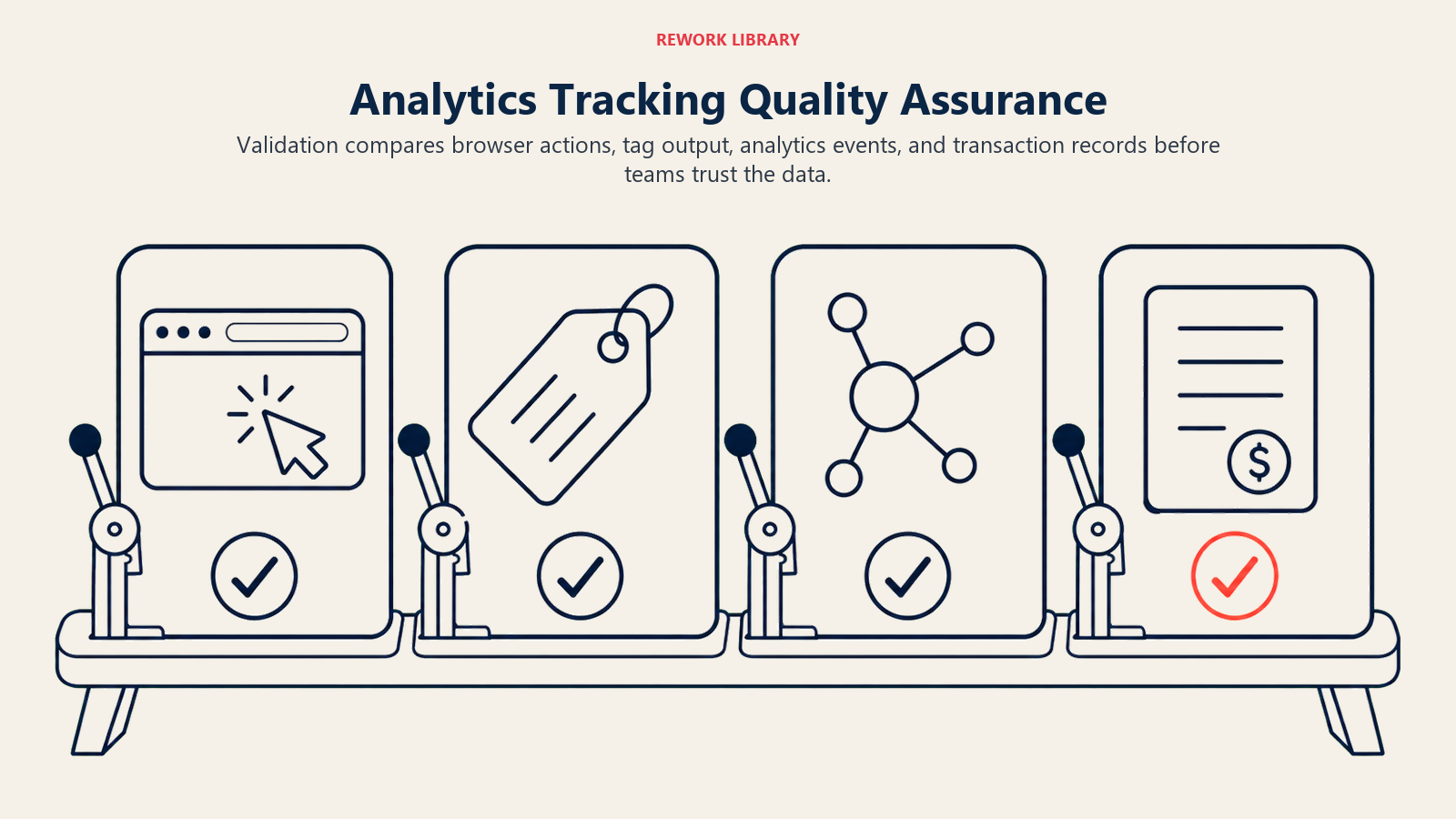
Event validation checklist ensures nothing gets missed:
- All standard e-commerce events fire (view_item, add_to_cart, purchase)
- Item parameters are complete (item_id, item_name, price, category)
- Transaction data is accurate (transaction_id, value, tax, shipping)
- Custom dimensions populate correctly
- User ID sets for authenticated users
- Conversions marked correctly in GA4
- Google Ads conversions import successfully
- No PII appears in any parameters
- Events fire exactly once per action (no duplicates)
Cross-browser testing catches browser-specific issues. Test in Chrome, Safari, Firefox, and Edge. Test on both desktop and mobile browsers. Safari's Intelligent Tracking Prevention (ITP) limits cookie duration, which affects attribution. Firefox's Enhanced Tracking Protection blocks some third-party analytics. Verify tracking works across all major browsers or you'll have data gaps.
Mobile verification requires real device testing. Use GTM Preview mode on mobile devices, check that touch events trigger properly, test the full purchase flow on phones and tablets. Mobile tracking often breaks due to different interaction patterns: swipe gestures, touch targets, viewport differences. A 30% mobile traffic share with broken tracking means 30% of your data is wrong.
Fixing tracking gaps starts with identifying them. Compare GA4 revenue to your actual revenue in Shopify/WooCommerce/your platform (your e-commerce platform selection determines integration complexity). If GA4 shows $9,200 but you sold $10,000, you're missing $800 in tracked revenue. Work backward to find where tracking fails: specific products, payment methods, browsers, or geographies.
Advanced Implementation Strategies
Basic tracking captures purchases. Advanced tracking captures the behavioral patterns that predict purchases and lets you optimize proactively. Custom user properties segment users based on lasting characteristics. Create user properties for customer lifetime value, preferred category, purchase frequency, or average order value. Set these via data layer when users log in:
gtag('set', 'user_properties', {
  customer_ltv_tier: 'high',
  preferred_category: 'electronics',
  purchase_frequency: 'monthly'
});
These properties enable audience creation for retargeting campaigns and segment analysis in reports.
Audience segmentation for retargeting creates audiences based on behavior patterns. Build audiences for "Added to cart but didn't purchase," "Viewed product 3+ times," "High-value past purchasers," or "Engaged with sale category." Export these audiences to Google Ads for targeted campaigns. Behavioral audiences convert 2-4x better than broad targeting because they reflect demonstrated intent.
Item performance tracking adds product-level metrics beyond revenue. Track which items get added to cart but not purchased (pricing or shipping cost issues), which items have high view-to-purchase rates (winners worth promoting), and which items appear in high-value carts (cross-sell opportunities). Use item-scoped custom dimensions to track attributes like margin, vendor, or seasonality.
SKU-level attribution connects marketing spend to specific product performance. If you're running Google Shopping campaigns, pass item_id from your product feed through to GA4. This enables reports showing which products drive profitable ROAS and which ones burn budget. One retailer discovered that 12% of their SKUs generated 78% of profitable revenue. They shifted their feed optimization and bidding to focus on those winners.
Abandoned cart tracking identifies users who add items but don't complete checkout. Create an event that fires when users leave the cart page without checking out. Push the cart contents to GA4 with cart_value parameter. Build audiences of high-value cart abandoners (cart_value > $100) for aggressive retargeting campaigns. Track recovery rate to measure retargeting effectiveness.
Post-purchase measurement tracks what happens after the sale. Fire events for review submissions, support ticket creation, subscription management, or repeat purchase timing. This data feeds your customer data platform and shapes retention strategies. High review submission rates correlate with repeat purchases. Track it as a leading indicator.
Your analytics implementation determines the quality of every decision you make. Get tracking right from the start, and you build optimization strategies on solid data. Let tracking drift, and you'll optimize based on incomplete information that leads you in wrong directions.
Most stores treat analytics as an IT project. Set it up once, forget about it. But customer behavior changes, marketing channels evolve, and privacy regulations tighten. Your analytics implementation needs regular maintenance: quarterly audits to verify accuracy, monthly reviews to ensure new features get tracked, and continuous validation that the data you're seeing matches business reality.
The stores that grow consistently treat analytics as a core competency. They invest in proper implementation, validate data quality obsessively, and build reporting dashboards that surface insights automatically. When they run an A/B test, they trust the results because they trust their tracking. When they shift budget between channels, they do it based on attribution data they've validated against actual revenue.
Start with the foundation: implement core e-commerce events correctly, verify revenue accuracy, and set up conversion tracking that feeds Google Ads. Then layer on custom tracking for your specific business model, build audiences that power your retargeting strategy, and create dashboards that answer your most important questions. Your analytics infrastructure should make optimization decisions obvious, not mysterious.
Learn More
Ready to put your analytics data to work? These related resources will help you leverage your tracking infrastructure for growth:
- E-commerce Metrics & KPIs - Learn which metrics to track and how to interpret them for actionable insights
- A/B Testing Framework - Build a systematic testing program powered by your analytics data
- Attribution Modeling - Deep dive into multi-touch attribution strategies and implementation
- Marketing Automation - Connect your analytics to automated campaigns that drive retention and repeat purchases

On this page
- Why Analytics Infrastructure Matters
- GA4 Setup Fundamentals
- Data Layer Implementation
- Event Tracking Architecture
- Core E-commerce Events
- Conversion Tracking Setup
- Attribution Modeling
- Google Ads Integration
- Dashboard and Reporting Setup
- Privacy and Data Compliance
- Quality Assurance and Validation
- Advanced Implementation Strategies
- Learn More