Best AI Video Repurposing Tools in 2026: 13 Tools for Turning Webinars and Podcasts into Clips
Turn this article into takeaways for your work.


Each assistant summarizes the article only for you and suggests best practices for your work.
If you record a lot of long video and need short clips out of it, Vizard and Klap are the easiest to price, because Vizard tells you that one credit equals one minute of source video and Klap charges per clip. Opus Clip is the best-known name and the hardest to budget, since it meters in credits without saying what a credit buys. Submagic is the caption specialist, and it works on short clips rather than hour-long recordings. Descript is the pick when someone needs to edit the transcript, not just cut clips.
This guide is for the CMO, head of growth or agency owner whose team already holds a backlog of webinars, podcast episodes, product demos and YouTube uploads, and wants an AI video repurposing tool to turn them into short vertical clips, captions and social posts. We evaluated 13 tools on the questions that decide a purchase: how long a source file each tool accepts, what unit it meters, what a real month costs, and where each one stops being useful. Every price below is the vendor's own figure with its billing term. Munch, which used to be on lists like this one, now sells a done-for-you content service rather than clipping software, so it gets one sentence near the end and no rank.
Key Facts
- 91% of businesses use video as a marketing tool, and 63% of video marketers have used AI to create or edit video, up from 51% a year earlier, per Wyzowl's State of Video Marketing 2026.
- Social media videos are the most common type that video marketers create, at 69%, ahead of explainer videos at 68%, per Wyzowl.
- 51% of video marketers say 30 to 60 seconds is the most effective video length, which is exactly the range most clip tools target, per Wyzowl.
- 82% of video marketers say video gives them a good return on investment, down from 93% the year before, per Wyzowl.
- 92% of marketers plan to spend the same or more on video in 2026, per Wyzowl.
Quick Comparison Table
| Tool | Best For | Entry Paid Price | Key Strength | Key Limitation |
|---|---|---|---|---|
| Opus Clip | Long-to-short clipping at volume | $15/mo (Starter, monthly only); Pro $29/mo or $14.50/mo billed annually | Scheduler on 9+ platforms in Pro | Credit unit is not defined in minutes |
| Vizard | Budgeting clips by source minutes | Creator $29/mo or $14.50/mo billed annually | "1 credit = 1 minute of video" | Free plan is 720p with a watermark |
| Klap | Predictable per-clip pricing | Basic $29/mo or $14/mo billed yearly | Pay for clips generated | Free plan details not published |
| Submagic | Animated captions on short clips | Starter $19/mo or $12/mo billed annually | 3 credits = 1 video | Starter accepts 2-minute videos |
| Descript | Editing the transcript itself | Hobbyist $24/mo or $16/mo billed annually | Text-based editing | Not a pure auto-clipper |
| Kapwing | Browser editing plus subtitles | Pro $24/mo or $16/mo billed annually | Subtitles and dubbing in one editor | Free plan exports 4 minutes max |
| VEED | Subtitles and quick edits | Creator $20/mo or $116 per seat per year | Unlimited subtitles on fair use | Priced per seat |
| Captions | Talking-head creator videos | Max $24.99/mo | AI Translate and Lipdub on Max | Annual rate not published |
| CapCut | Cheap mobile and desktop finishing | Pro $19.99/mo or $179.99/yr | Large free tier | Tiers renamed; pricing varies by region |
| Riverside | Recording webinars and cutting clips | Pro $24/mo billed annually ($288/yr) | Magic Clips on every plan | Recording tool first, clipper second |
| Pictory | Turning scripts and blogs into video | Starter $29/mo or $25/mo billed annually | 200 video minutes on Starter | No free plan, only a 14-day trial |
| Canva | Finishing and scheduling in a brand kit | Pro US$144 per year | One brand kit across formats | Not a long-to-short clipper |
| Clipchamp | Free 1080p editing in Windows | Free; Premium through Microsoft 365 | No watermark on the free tier | No standalone paid plan |
What "Repurposing" Actually Means in 2026
Repurposing covers three separate jobs, and most disappointment with these tools comes from buying one tool for a different job.
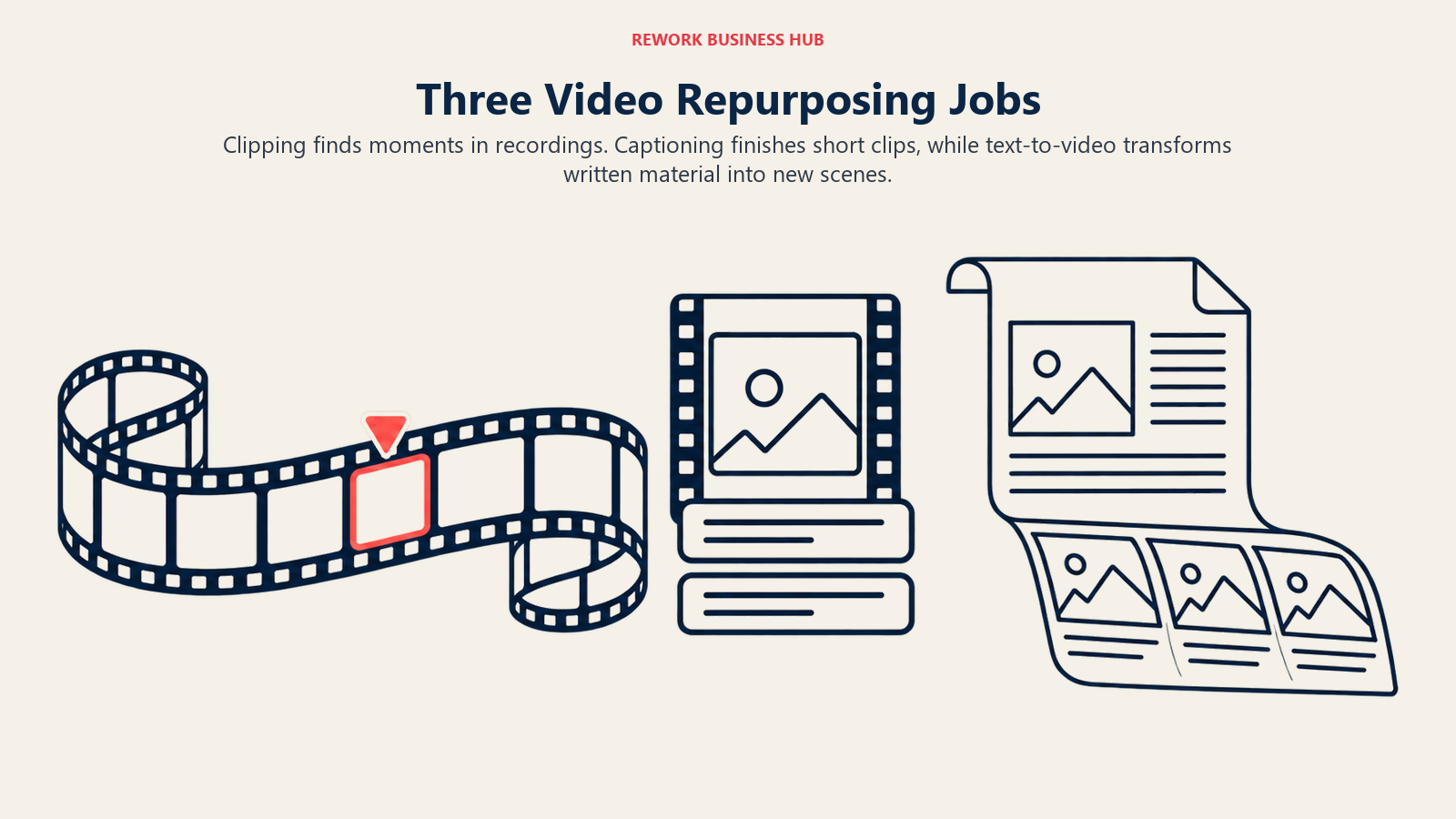
| Job | What happens | Typical input | Typical output | Tools built for it |
|---|---|---|---|---|
| Clipping | AI finds the best moments and reframes them vertically | A 30 to 90 minute recording | 10 to 60 second clips | Opus Clip, Vizard, Klap, Riverside |
| Captioning | AI transcribes and styles the words on screen | A finished short clip | The same clip with animated captions | Submagic, Captions, VEED, Kapwing, CapCut |
| Transforming | Text or transcript becomes a new video or post | A blog, script or transcript | A slide-style or stock-footage video | Pictory, Descript, Canva |
A webinar team usually needs the first job, then a light version of the second. A solo creator filming to camera needs the second job most. A content team with a blog and no camera needs the third. Pick the job before you pick the tool.
Video is also not optional anymore. With 91% of businesses using it, per Wyzowl, the question has moved from whether to publish video to how many pieces you can get out of each recording. If you are also choosing an editor, our guides to AI video editing tools and AI tools for YouTube cover the neighbouring decisions.
How Long a Source File Each Tool Accepts
This is the first filter for a webinar team, and the one that surprises buyers. A tool can be excellent and still refuse your file.
| Tool | Source or output limit published by the vendor | What it means for a one-hour webinar |
|---|---|---|
| Opus Clip | Free tier stores media for 3 days; Starter 30 days | Clips from long uploads; confirm the per-upload length limit in a trial |
| Vizard | Free: 1 GB or 60 minutes per upload and 10-minute export length; paid plans higher | Free plan can take a full hour; paid plans give 4K export |
| Klap | Not published | Confirm the maximum upload length before committing |
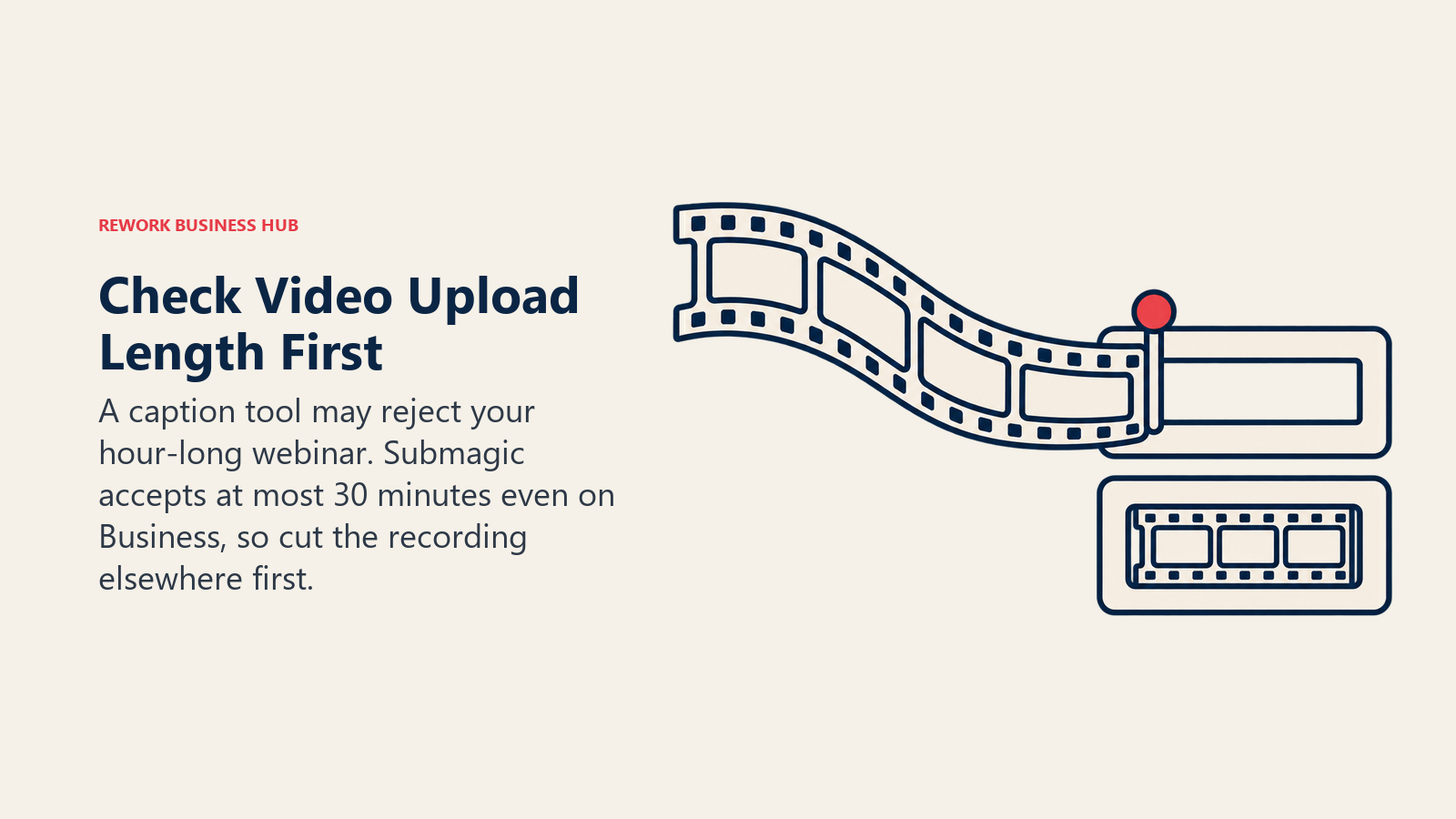
| Submagic | Starter 2 minutes, Pro 5 minutes, Business 30 minutes per video | Cannot ingest a one-hour webinar on any plan |
| Descript | Free 60 media minutes a month; Hobbyist 600 | A one-hour file uses 60 of those minutes |
| Kapwing | Free 4-minute export; Pro 120-minute export length | A one-hour video needs Pro |
| VEED | Confirm with the vendor | Confirm per plan |
| Captions | Not published | Built around short creator videos |
| CapCut | Not published | Strong on short edits; confirm long uploads |
| Riverside | Records the session itself; Free gives 2 hours of multi-track recording | Clips come from a recording made in the tool |
| Pictory | Starter 200 video minutes a month | Four one-hour webinars would not fit in Starter |
| Canva | Not published for long video | Treat as a finishing tool |
| Clipchamp | Free exports up to 1080p, unlimited exports | Editing, not auto-clipping |
The Submagic row is the one to remember. It is a captioning product for videos you have already cut, which is why it pairs well with a clipper and does not replace one.
What Each Tool Meters, and Why It Changes the Ranking
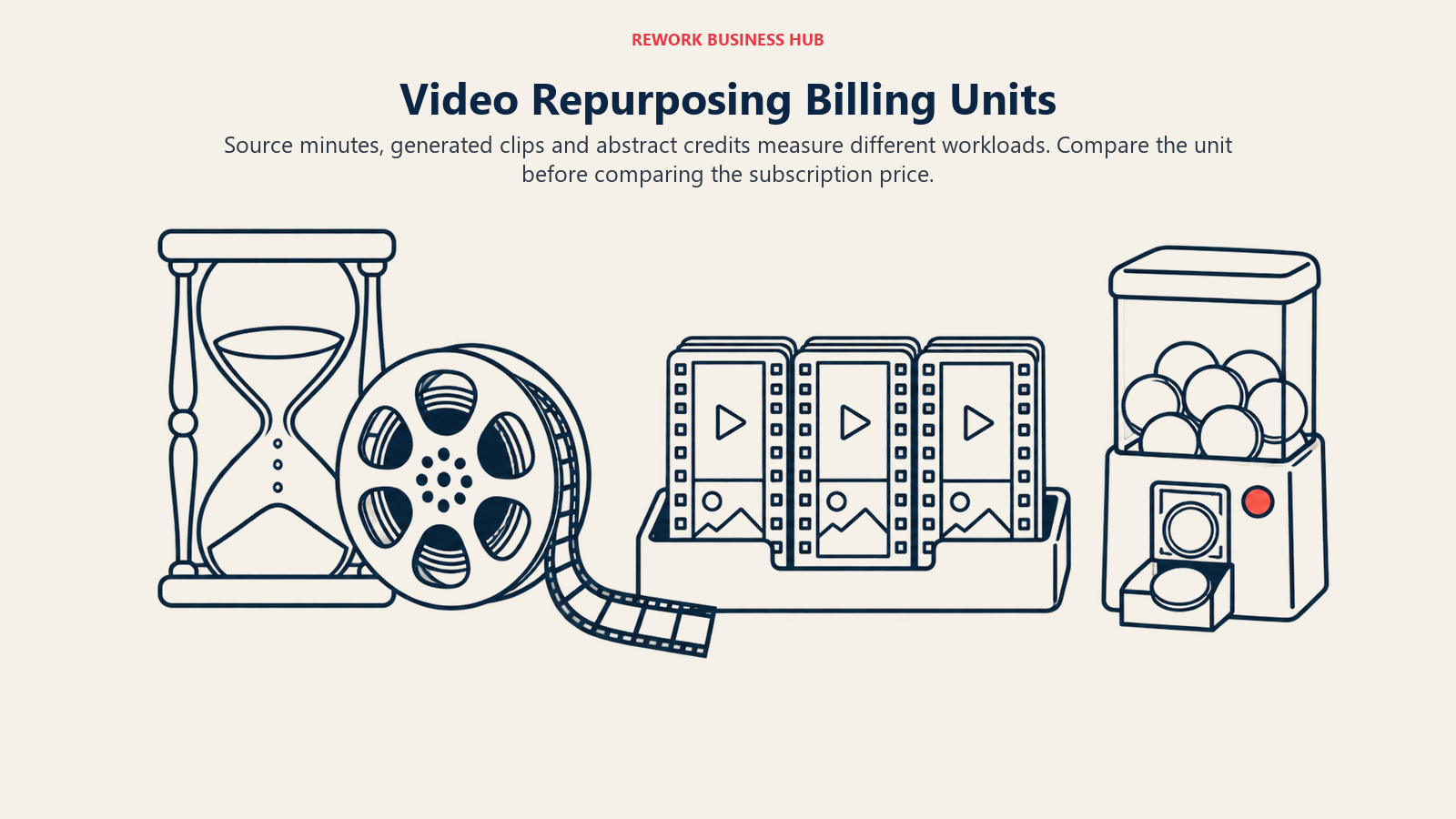
Prices only compare if you know the unit being charged.
| Tool | Metering unit | What a unit is worth |
|---|---|---|
| Opus Clip | Credits | The vendor does not equate a credit to a minute; confirm in a trial |
| Vizard | Credits | 1 credit = 1 minute of video, as the vendor states |
| Klap | Clips generated | Basic 100 clips a month, Pro 300, Pro+ 1,000 |
| Submagic | Credits | 3 credits = 1 video |
| Descript | Media minutes plus AI credits, per editor | Hobbyist 600 media minutes and 400 AI credits |
| Kapwing | AI credits, plus caps on subtitle and dubbing minutes | Pro 1,000 credits, 1,000 subtitle minutes, 50 dubbing minutes |
| VEED | Per seat plus AI credits | Creator 6,000 credits a year |
| Captions | Credits | Max 500 credits a month |
| CapCut | AI credits | Pro 1,200 a month |
| Riverside | Plan tiers with recording and AI credit allowances | Pro includes unlimited transcription and Magic Clips |
| Pictory | Video minutes, AI credits and seats | Starter 200 minutes and 100 AI credits |
| Canva | Per person, with limited Premium AI uses | Pro up to 200 Premium AI uses |
| Clipchamp | A bundled subscription | No separate unit |
Three of these measure the source (Vizard, Descript, Pictory), one measures the output (Klap), and the rest measure an abstract credit. If your input is heavy and your output is light, per-clip pricing wins. If you cut many clips from a short source, per-minute pricing wins.
What Four One-Hour Webinars a Month Costs
Here is a worked scenario. A team runs four one-hour webinars a month, so 240 minutes of source video, and wants about 40 short clips out of them, roughly ten per webinar. We priced the plan that fits that load on each tool that publishes enough to price it.
| Tool | Plan that fits the load | Monthly-billed | Annual-billed | Why this plan |
|---|---|---|---|---|
| Vizard | Creator | $29/mo | $14.50/mo | 240 minutes fits inside the plan's 600 credits a month |
| Klap | Basic | $29/mo | $14/mo billed yearly | 40 clips fits inside 100 clips a month |
| Descript | Hobbyist | $24/mo per editor | $16/mo per editor | 600 media minutes covers 240 |
| Pictory | Professional | $59/mo | $35/mo | Starter's 200 minutes is short of 240; Professional gives 600 |
| Kapwing | Pro | $24/mo | $16/mo | Needed to export a one-hour video |
| Submagic | Pro | $39/mo | $23/mo | 40 clips at 3 credits each is 120 credits, which is Pro's allowance |
| Opus Clip | Pro | $29/mo | $14.50/mo | Credit use per hour of video cannot be priced from the vendor page |
| Riverside | Pro | $29/mo | $24/mo ($288/yr) | Only if the webinars are recorded in Riverside |
Three things stand out. First, the cheapest-looking plan often does not fit: Pictory Starter and Submagic Starter both fail this workload on limits, not on price. Second, Vizard and Klap come out at the same $29 a month if you pay monthly and $14.50 versus $14 on annual billing, so the decision between them is the unit (source minutes versus clips), not the money. Third, Opus Clip's $29 Pro price buys a pack of 300 credits, but because the vendor does not say how many credits an hour of video consumes, you cannot tell from the page whether 240 minutes of webinar fits. Run one real webinar through the free plan's 60 credits and read the balance afterwards. That ten-minute test replaces a guess.
Submagic is a special case. At 3 credits per video, 40 clips cost 120 credits, which matches the Pro allowance, but only if each clip is under Pro's 5-minute limit and you have already cut the clips elsewhere. In practice you would pay for a clipper and Submagic together.
Monthly Versus Annual Billing
| Tool | Monthly-billed entry | Annual-billed entry | Note |
|---|---|---|---|
| Opus Clip | Starter $15 (monthly only); Pro $29 | Pro $14.50/mo ($174/yr) | Starter has no annual option |
| Vizard | Creator $29 | Creator $14.50/mo ($174/yr) | Business is $39 monthly or $19.50 annually |
| Klap | Basic $29 | Basic $14/mo | Pro $79 or $39; Pro+ $189 or $94 |
| Submagic | Starter $19 | Starter $12/mo | Pro $39 or $23; Business $69 or $41 |
| Descript | Hobbyist $24 | Hobbyist $16/mo | Creator $35 or $24; Business $65 or $50 |
| Kapwing | Pro $24 | Pro $16/mo ($192/yr) | Business $64 or $50/mo ($600/yr) |
| VEED | Creator $20 per seat | Creator $116 per seat per year ($10/mo) | Pro $44 or $257/yr; Studio $70 or $414/yr, per seat |
| Captions | Max $24.99 | Not published | Frontier $69.99 |
| CapCut | Pro $19.99 | Pro $179.99 per year | Ultra $79 monthly or $900 per year |
| Riverside | Pro $29/mo | Pro $24/mo ($288/yr) | Higher tiers listed on its pricing page |
| Pictory | Starter $29 | Starter $25/mo | Professional $59 or $35; Team $199 or $119 |
| Canva | Not published | Pro US$144 per year | Business US$250 per year per person |
| Clipchamp | Free | Free | Premium bundled into Microsoft 365 |
Annual billing cuts the monthly rate by about 15% to 50% across the tools that publish both, with Opus Clip Pro, Vizard Creator and Klap Basic near half. If you can commit for a year, the cost table above shifts a lot. If you are testing a workflow, pay monthly and set a reminder to switch once the tool has earned its place.
1. Opus Clip: The default name, with a unit you have to test
Opus Clip takes a long video and returns short, vertically framed clips with animated captions. It is the tool most buyers have heard of, and the 2026 pricing makes it one of the more careful purchases on this list, because the unit is the credit and the vendor never says what a credit buys in minutes.
The Free plan gives 60 credits a month, up to 1080p, with a watermark on animated captions and media stored for 3 days. Starter is $15 a month, monthly only, with 150 credits, no watermark, 30-day storage and posting to YouTube Shorts, TikTok and Instagram, but no scheduler. Pro is $29 a month, or $14.50 a month billed annually ($174 a year), sold in packs of 300 credits that include two seats, with up to 15 packs and four users. Unused credits roll over for one month on monthly billing and two months on annual. Pro adds a scheduler across nine or more platforms, 100 GB of storage and Zapier access up to 300 credits a month. Business is custom, with unlimited seats and 4K.
Best for: teams that clip at volume and want scheduling in the same tool. Real limitation: you cannot convert credits to minutes from the vendor's own page, so run a real file through the Free plan before you size a plan. For a head-to-head against Descript, see Descript vs Opus Clip vs ElevenLabs.
2. Vizard: The clipper that tells you what a credit is
Vizard does the same core job as Opus Clip and states its unit plainly: one credit equals one minute of video. That makes it the easiest tool here to budget for a webinar program. There is no plan called Pro; the tiers are Free, Creator and Business.
Free gives 60 credits a month, 720p export with a watermark, a 10-minute export length, 1 GB or 60 minutes per upload, 3-day storage and one social account. Creator is $29 a month, or $14.50 a month billed annually ($174 a year), starting at 600 credits a month with 4K export, no watermark, six social accounts, post scheduling and 100 GB. Business is $39 monthly or $19.50 annually, adds a shared workspace and 20 social accounts, and charges $5 a month per extra seat.
Best for: marketing teams that want per-minute budgeting and scheduling in one place. Real limitation: the free plan's 720p and watermark make it a test, not a workflow.
3. Klap: Pay for the clips you generate
Klap meters by clips rather than minutes, which flips the usual math. The pitch is that you only pay for clips you generate, so a long source that yields few good moments costs less than it would on a per-minute tool.
Basic is $29 a month, or $14 a month billed yearly, with 100 clips a month. Pro is $79 monthly or $39 yearly with 300 clips. Pro+ is meant for teams, at $189 monthly or $94 yearly with 1,000 clips. Unlimited social accounts across TikTok, Instagram and LinkedIn are included on every plan. Klap's own blog mentions one free video; the page does not publish watermark, resolution or seat details for it. Klap also runs pricing experiments, so the yearly discount shown to you may differ from the figure here.
Best for: agencies and teams that think in clips per month. Real limitation: maximum source length and free-plan terms are not published, so test before you commit.
4. Submagic: Captions that earn their keep on short clips
Submagic is a captioning product. You give it a cut clip, it adds animated captions, and you export. The metering is credits, at 3 credits per video.
Starter is $19 a month or $12 a month billed annually, with 45 credits (15 videos), a 2-minute maximum length, one user and 1080p without a watermark. Pro is $39 monthly or $23 annually, with 120 credits (40 videos), a 5-minute maximum, three users. Business is $69 monthly or $41 annually, with 300 credits (100 videos), a 30-minute maximum, unlimited users, 4K at 60 frames per second and three publishing profiles per platform. A custom plan is by contact, and API packs start from $57 a month for 250 minutes. There is no free plan, only a free trial without a card.
Best for: teams that already cut clips and want the best-looking captions. Real limitation: it will not take a one-hour recording on any plan, so it is a second tool, not a replacement for a clipper.
5. Descript: Edit the transcript, then clip
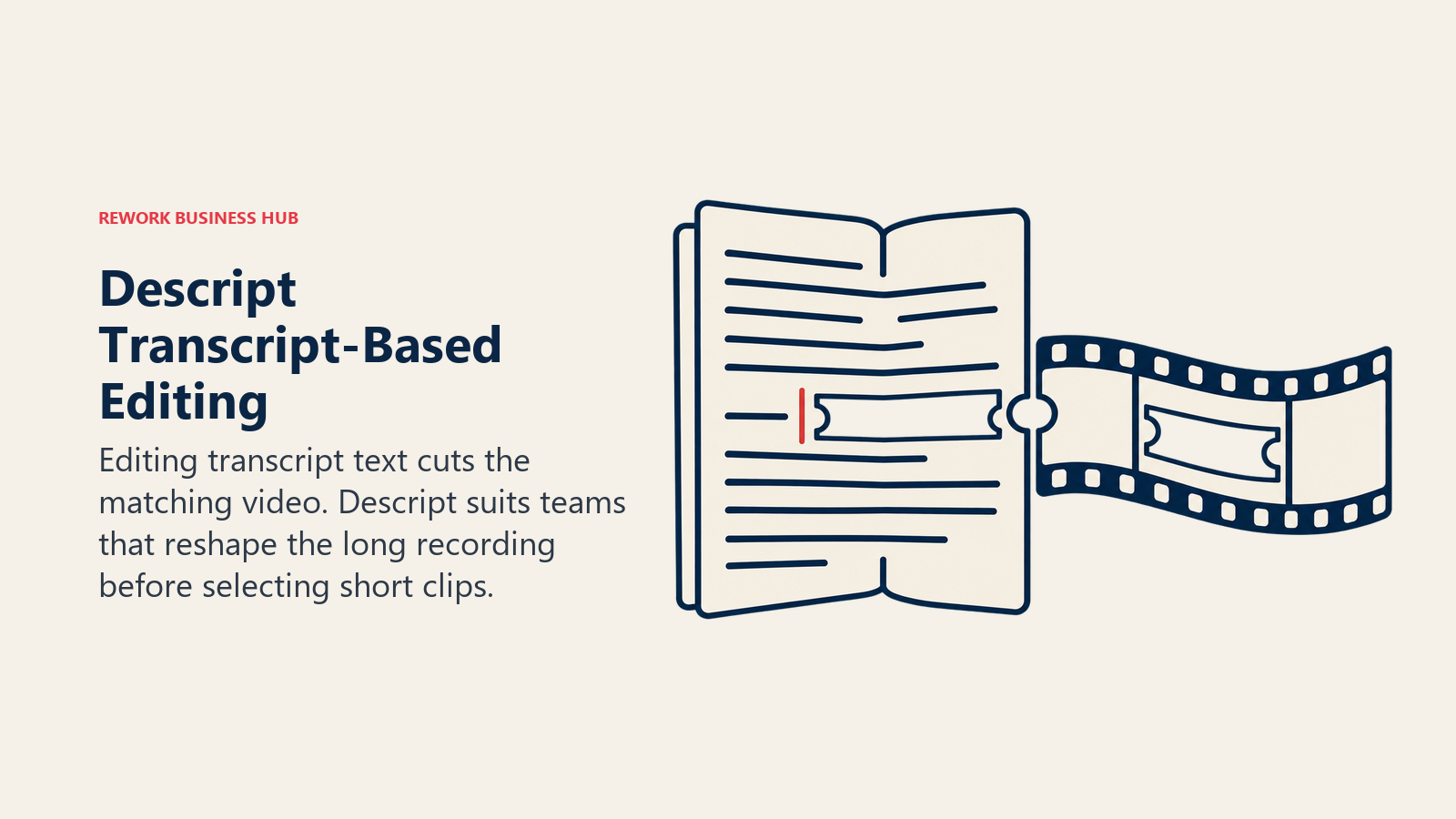
Descript edits video by editing text. Delete a sentence in the transcript and the matching video is cut. For repurposing, that means you can reshape a webinar into a tighter long-form piece before pulling clips, which an auto-clipper cannot do.
Pricing is per editor. Free is $0 with 60 media minutes a month, 100 one-time AI credits, 720p watermarked export and 5 GB. Hobbyist is $24 a month or $16 billed annually, with 600 media minutes and 400 AI credits at 1080p. Creator is $35 or $24 annually, with 1,800 media minutes, 800 AI credits and 4K. Business is $65 or $50 annually, with 2,400 media minutes, 1,500 AI credits and up to five seats. Transcription covers 25 languages.
Best for: teams that want to produce a polished long cut and the clips from the same file. Real limitation: it is an editor first, so finding the best moments takes more of your own judgment than in a dedicated clipper. For the editing-side comparison, see Descript vs Opus Clip vs ElevenLabs and our guide to AI transcription tools.
6. Kapwing: A browser editor with subtitles and dubbing included
Kapwing is a browser-based editor with AI subtitles, dubbing and clipping tools in one workspace, which suits a small team that does not want four subscriptions.
Free is $0 with 10 credits, unlimited watermarked exports, a 4-minute maximum export, 720p, a 30-minute monthly export cap and projects kept for 3 days. Pro is $24 a month or $16 a month billed annually ($192 a year), with 1,000 credits, 4K, a 120-minute export length and 200 GB. Business is $64 monthly or $50 annually ($600 a year), with 4,000 credits, 800 GB and custom voice clones. The metering is AI credits with feature caps: 1,000 subtitle minutes and 50 dubbing minutes on Pro, 4,000 and 200 on Business. The page describes the plans as for your team workspace and does not state per-member pricing.
Best for: small teams that want subtitles, dubbing and light editing together. Real limitation: the free plan cannot export a full webinar, so you need Pro to test the real job.
7. VEED: Subtitles and edits for teams that live in the browser
VEED is a browser editor with strong subtitle tooling. Subtitles are unlimited on a fair-use basis of 50 hours a month, which is generous for caption-heavy work.
The plans are Free, Creator, Pro, Studio and Enterprise. On annual billing per seat, Creator is $116 a year with 6,000 AI credits and no watermark, Pro is $257 a year with 30,000 credits, AI voice up to 144 hours a year and translation in 50+ languages, and Studio is $414 a year with 180,000 credits and up to 960 hours of AI voice a year. Billed monthly, the same plans are $20, $44 and $70 per seat. Enterprise starts at three users. VEED tests plan layouts and prices by region, so confirm the figure and the free-plan limits at your own checkout.
Best for: caption and subtitle work in a browser editor. Real limitation: the pricing is per seat, so a five-person team multiplies the annual figure by five. For a wider look, see our guide to AI video editing tools, or the best VEED alternatives if you already use it.
8. Captions: Built for creators who talk to camera
Captions is a creator app aimed at talking-head video. Its parent company is now Mirage, and the product is one of that company's offerings. The old $9.99 Pro tier is gone.
Free is limited and excludes AI Translate and AI Lipdub. Max is $24.99 a month with 500 credits and includes AI Translate and AI Lipdub. Frontier is $69.99 a month with 1,400 credits, and Frontier 2x and 4x are $139.99 (2,800 credits) and $279.99 (5,600 credits). Enterprise is custom. The page says annual plans bill 12 months upfront at a discount but does not print the rate.
Best for: founders and creators who film themselves and want captions, translation and lip-synced dubbing in one app. Real limitation: it is not designed to ingest an hour of webinar footage. If dubbing is part of your plan, see AI dubbing tools.
9. CapCut: Cheap finishing with a big free tier
CapCut is the finishing tool many social teams already use. The US plans are Free, Pro, Ultra and Teams. There is no longer a Standard tier.
Pro is $19.99 a month or $179.99 a year, with 1,200 AI credits a month and 1 TB of storage. Ultra is $79 a month or $900 a year, with 8,645 AI credits. Teams is per seat with a two-seat minimum, at about $12 to $12.49 a month per seat for two to seven seats, with 1,200 credits per seat. CapCut's pricing is shown for reference and varies by region, so quote the figure your own checkout displays.
Best for: teams that finish short clips on a budget. Real limitation: pricing and plan names move often, and it is not a long-to-short clipper.
10. Riverside: Record the webinar, then cut the clips
Riverside is a recording studio that also edits and clips. If your webinars or podcast episodes are recorded in it, Magic Clips is available on every plan, including Free, so the clipper sits next to the source file.
Free gives 2 hours of multi-track recording, up to 720p, 44.1 kHz audio, a Riverside watermark, full editing tools and Magic Clips. Pro is $29 a month billed monthly or $24 a month billed annually ($288 a year), with up to 4K, no watermark, unlimited transcription and text-based editing, show notes and publishing to major platforms. Higher tiers add social scheduling, podcast hosting, live streaming and, at the Webinar tier, registrant management and webinar analytics. Business is custom. Confirm the monthly-billed rate and the current tier allowances at checkout.
Best for: podcast and webinar teams that record and repurpose in one place. Real limitation: it is a recording tool first, so it only helps if you record there. See also AI podcast tools.
11. Pictory: Turn scripts, blogs and transcripts into video
Pictory works from text. Paste a script, a blog post or a transcript and it assembles a video with stock footage and voiceover. It transforms rather than clips.
There is no free plan, only a 14-day trial with 15 video minutes, a 5-minute maximum video and 720p export. Starter is $29 a month or $25 billed annually, with one user, 200 video minutes, 100 AI credits, 60 minutes of ElevenLabs voice and 1080p without a watermark. Professional is $59 or $35 annually with 600 video minutes and 500 AI credits. Team is $199 or $119 annually, for three or more users, with 1,800 video minutes. Enterprise is custom.
Best for: turning written content into short explainers. Real limitation: it does not pick moments from a recording the way a clipper does. For alternatives, see best Pictory alternatives.
12. Canva: Finish and schedule inside a brand kit
Canva is the tool you reach for when a clip needs a branded intro, a lower third and a publishing slot. It is a finishing and scheduling layer. Its video tools are aimed at finishing, so pair it with a clipper for the long-to-short step.
Free is $0. Pro is US$144 a year for one person, with up to 200 Premium AI uses, a video background remover and social scheduling. Business is US$250 a year per person. Canva Teams is no longer available to new sign-ups. Confirm the monthly-billed rate at checkout. For the platform itself, see best Canva alternatives.
Best for: teams that need every clip in the same brand template. Real limitation: AI usage is capped, and it is not a clipper.
13. Clipchamp: Free editing for Windows teams
Clipchamp is Microsoft's video editor. The free plan exports up to 1080p with no watermark and unlimited exports, and includes AI subtitles, voiceover and silence removal. Premium features, including 4K export and a brand kit, come bundled with Microsoft 365 Personal at $9.99 a month or $99.99 a year, and Family at $12.99 a month or $129.99 a year. Some work and education plans include the standard tier, and full AI video creation needs a Copilot license.
Best for: teams on Windows who want captions and trims without a new bill. Real limitation: no auto-clipping from a long recording and no standalone paid plan.
Munch, an older name in this category, now sells a done-for-you social content service at munchstudio.com rather than clip software, so we have not ranked it.
Who Should Run Which Tool
| Team shape | Seats and owner | Most likely fit |
|---|---|---|
| Solo founder filming to camera | One seat, the founder | Captions, CapCut or Submagic |
| Webinar and demo team of two to five | One producer, shared login | Vizard, Klap or Opus Clip |
| Podcast network | Producer plus host | Riverside or Descript |
| Agency serving several clients | Many seats, one brand kit each | Vizard Business, Klap Pro+ or Opus Clip Pro packs |
| Content team that starts from blogs | Writer owns the output | Pictory, with Canva for branding |
Free Tier and Test Drive
| Tool | Free option | Enough to judge a webinar workflow? |
|---|---|---|
| Opus Clip | 60 credits a month, watermarked captions, 3-day storage | Yes, for one file |
| Vizard | 60 credits a month, 720p, watermark, 60 minutes per upload | Yes, for one hour |
| Klap | One free video, per Klap's blog | Barely |
| Submagic | No free plan; trial without a card | Only for captions |
| Descript | 60 media minutes, 720p watermarked | Yes, for one hour |
| Kapwing | 10 credits, 4-minute export cap | No, for long files |
| VEED | Free plan exists; confirm limits | Confirm |
| Captions | Limited free plan | For short videos |
| CapCut | Free tier | For short edits |
| Riverside | 2 hours of recording, watermark, Magic Clips | Yes, if you record there |
| Pictory | 14-day trial, 15 video minutes | For text-to-video only |
| Canva | Free plan | For finishing |
| Clipchamp | Free, 1080p, no watermark | Yes, for editing |
Publishing and Scheduling
A clip that stays in a download folder earns nothing. These are the publishing features the vendors list.
| Tool | Publishing or scheduling the vendor lists |
|---|---|
| Opus Clip | Starter posts to YouTube Shorts, TikTok and Instagram; Pro adds a scheduler on 9+ platforms |
| Vizard | Creator schedules posts with six social accounts; Business has 20 |
| Klap | Unlimited social accounts across TikTok, Instagram and LinkedIn |
| Submagic | Business includes three publishing profiles per platform |
| Riverside | Publishing to major platforms on Pro; social scheduling on higher tiers |
| Canva | Pro schedules social content |
| Descript, Kapwing, VEED, Captions, CapCut, Pictory, Clipchamp | Confirm with the vendor |
Where Each Tool Is Weakest
| Tool | The honest weakness |
|---|---|
| Opus Clip | You cannot budget in minutes from the page |
| Vizard | The free export is low resolution with a watermark |
| Klap | Source-length limits are not published |
| Submagic | Not for long source files |
| Descript | More manual than an auto-clipper |
| Kapwing | The free plan cannot export a long video |
| VEED | Per-seat pricing scales with headcount |
| Captions | Aimed at short, solo creator video |
| CapCut | Plan names and regional pricing keep changing |
| Riverside | Only helps if you record in it |
| Pictory | Does not clip from recordings |
| Canva | Not a clipper |
| Clipchamp | No auto-clipping |
Pairing Tools: Three Stacks That Work
Most teams end up with two tools, not one. These pairs follow from the limits above.
| Stack | Who it suits | Rough monthly outlay (annual billing) |
|---|---|---|
| Vizard Creator plus Submagic Pro | Webinar team that wants 4K clips and polished captions | $14.50 plus $23 |
| Riverside Pro alone | Podcast team that records in one place | $24 |
| Descript Hobbyist plus Canva Pro | Editor who shapes the long cut and brands the clips | $16 plus US$144 per year |
The outlay column adds each tool's published annual-billed monthly figure, or its yearly price where only that is published. Keep the stack to two tools unless a third solves a problem you can name. A third subscription that overlaps the first two is the usual way repurposing budgets double.
How to Choose: Decision Framework
| If you need | Pick this | Why |
|---|---|---|
| To budget by source minutes | Vizard | 1 credit = 1 minute |
| To budget by clips | Klap | Pay for clips generated |
| The best-known clipper with scheduling | Opus Clip | Scheduler on 9+ platforms, but test the credit unit |
| Standout animated captions | Submagic | Caption specialist, short clips only |
| Transcript-based editing | Descript | Edit text, cut video |
| Subtitles and dubbing in a browser | Kapwing or VEED | Subtitle tooling in the editor |
| Talking-head creator videos | Captions | Translate and lip-sync on Max |
| Cheap finishing | CapCut or Clipchamp | Large free tiers |
| Record and clip in one place | Riverside | Magic Clips on every plan |
| Blog or script to video | Pictory | Text-to-video |
| Brand templates and scheduling | Canva | One brand kit |
If you are weighing the video side more broadly, our guides to AI video generators, AI tools for social media and AI tools for content creators cover the neighbouring categories, and AI translation tools help if clips need to go multilingual.
What to Do Next
Take one real webinar, upload it to the free plans of your top two picks, and compare the clips you would actually post. Check how many credits the file consumed, whether the export is watermarked, and how much cleanup each set of clips needed. Then multiply the plan price by the months you would commit to, using the cost table above, and buy the one that fits both the output and the unit you can budget for.

Principal Product Marketing Strategist
On this page
- Key Facts
- Quick Comparison Table
- What "Repurposing" Actually Means in 2026
- How Long a Source File Each Tool Accepts
- What Each Tool Meters, and Why It Changes the Ranking
- What Four One-Hour Webinars a Month Costs
- Monthly Versus Annual Billing
- 1. Opus Clip: The default name, with a unit you have to test
- 2. Vizard: The clipper that tells you what a credit is
- 3. Klap: Pay for the clips you generate
- 4. Submagic: Captions that earn their keep on short clips
- 5. Descript: Edit the transcript, then clip
- 6. Kapwing: A browser editor with subtitles and dubbing included
- 7. VEED: Subtitles and edits for teams that live in the browser
- 8. Captions: Built for creators who talk to camera
- 9. CapCut: Cheap finishing with a big free tier
- 10. Riverside: Record the webinar, then cut the clips
- 11. Pictory: Turn scripts, blogs and transcripts into video
- 12. Canva: Finish and schedule inside a brand kit
- 13. Clipchamp: Free editing for Windows teams
- Who Should Run Which Tool
- Free Tier and Test Drive
- Publishing and Scheduling
- Where Each Tool Is Weakest
- Pairing Tools: Three Stacks That Work
- How to Choose: Decision Framework
- What to Do Next