Best AI Video Editing Tools in 2026: 13 Tools Ranked by Use Case
Turn this article into takeaways for your work.


Each assistant summarizes the article only for you and suggests best practices for your work.
There's no single best AI video editing tool in 2026, there's a best one for the footage you already have and the output you need from it. Descript and Adobe Premiere Pro lead for editors who want AI woven into a real timeline. Opus Clip and Vizard lead for turning long recordings into short social clips. Gling and Wisecut lead for auto-cutting silence and filler words out of raw YouTube footage. CapCut, Veed, and Kapwing lead for fast, browser-based editing that doesn't require an editing background. This guide ranks 13 tools across those use cases so you can pick the right one instead of subscribing to whichever app has the loudest TikTok ads.
This is a guide to editing tools, not generation tools. Every tool below works with footage you already shot, whether that's a webcam recording, a podcast, a phone clip, or professional camera footage. If you need a tool that creates video from a text prompt with no source footage to start from, see our best AI video generators guide instead, they're a different category solving a different problem. Every tool here was evaluated on editing quality, pricing transparency, and real-world adoption inside its category, not marketing claims.
Updated July 2026: What Changed
AI video editing pricing has been unusually unstable through the first half of 2026. CapCut restructured its subscription tiers in February 2026, renaming its old Pro plan to Standard ($10/month) and introducing a new, more expensive Pro tier at $20/month with 4K export, the full AI toolkit, and 1TB of cloud storage. VEED replaced its old Lite/Pro/Business naming with a five-tier structure (Free, Creator, Pro, Studio, Enterprise) and moved to per-editor seat pricing on team plans, which means a 3-person team on the Pro tier pays closer to $63/month than the advertised $21/month headline price. Adobe folded its generative video features (Generative Extend, AI Object Mask, Media Intelligence search) directly into the standard Premiere Pro subscription rather than gating them behind a separate Firefly product, so anyone already paying for Premiere Pro gets the AI toolkit at no extra cost. If you evaluated this category even six months ago, re-check pricing and tier names before you commit a budget line to it.
Key Facts
- 91% of businesses now use video as a marketing tool, back to an all-time high after a small dip in 2025 (Wyzowl, State of Video Marketing 2026: https://wyzowl.com/video-marketing-statistics/)
- 63% of video marketers say they've used AI tools to help create or edit marketing video, up from 51% a year earlier (Wyzowl, State of Video Marketing 2026: https://wyzowl.com/video-marketing-statistics/)
- Over half of companies now repurpose long-form video into short social clips, and 67% of teams that do post those clips to LinkedIn, ahead of Instagram (49%) and YouTube (41%) (Wistia/HubSpot, State of Video 2026: https://blog.hubspot.com/marketing/state-of-video-marketing-new-data)
- 60% of teams that repurpose video into short clips use those clips to link back to their own website, turning editing output into a traffic channel, not just a content channel (Wistia/HubSpot, State of Video 2026: https://blog.hubspot.com/marketing/state-of-video-marketing-new-data)
- 59% of video creators produce their video content in-house rather than outsourcing it, and another 32% use a mix of in-house and external editors (Wyzowl, State of Video Marketing 2026: https://wyzowl.com/video-marketing-statistics/)
Quick Comparison Table
| Tool | Best For | Starting Price | Key Strength | Key Limitation |
|---|---|---|---|---|
| Descript | Text-based podcast and webinar editing | Free; paid from $16/mo (annual) | Edit video like a text document; Overdub and filler-word removal | Not built for frame-by-frame color or VFX work |
| Adobe Premiere Pro | Professional editors and agencies | Free 7-day trial; single app from $22.99/mo (annual, paid monthly) | Industry-standard timeline plus built-in Generative Extend and Object Mask | Steep learning curve; full toolset needs Creative Cloud Pro |
| DaVinci Resolve | Free-to-start pro color and edit | Free; Studio $295 one-time | Hollywood-grade color grading and AI tools with no subscription | Interface intimidates first-time editors |
| CapCut | Mobile-first, social-native editing | Free; Standard ~$10/mo, Pro ~$20/mo | Fastest path from phone footage to a finished TikTok or Reel | Pricing varies by region and platform; recent tier restructure |
| Filmora | Budget desktop editing with AI extras | Free (watermarked); from $49.99/yr annual | Approachable desktop NLE with an AI credit toolkit | AI credits burn fast; core features gated behind add-ons |
| Veed | Browser-based team editing and subtitles | Free; Creator from $10/mo (annual) | Strong auto-subtitling and 50+ language translation | Per-seat pricing on team tiers adds up fast |
| Kapwing | Collaborative browser editing for teams | Free; Pro from $16/mo/member (annual) | Real-time collaborative editing, built for marketing teams | Per-member seat pricing; credits cap heavy AI use |
| Opus Clip | Long-form to short-clip repurposing | Free; Starter $15/mo, Pro $29/mo | Virality scoring finds the best moments automatically | Minutes-based credits drain fast on long source files |
| Vizard | Alternative long-to-short repurposing | Free; Creator ~$19/mo, Pro ~$42/mo | Multi-platform auto-posting and brand kit templates | Fewer viral-moment detection signals than Opus Clip |
| Gling | Auto-cutting silence and filler words | Free (1 hr/mo); Plus from $10/mo (annual) | Cuts a raw YouTube recording down to a rough cut in minutes | Needs a manual polish pass; not a full NLE replacement |
| Wisecut | Budget auto-editing with music sync | Free (1 hr/mo); Starter $15/mo | Automatic silence removal, subtitles, and background music | 4K and higher hour caps require the Professional tier |
| Pictory | Script and blog-to-video repurposing | No free tier (3-project trial); Starter $14/mo (annual) | Turns long-form text or webinars into short branded video fast | No permanent free plan; annual pricing needed to hit headline rate |
| Runway | AI-native video-to-video editing | Free; paid from $12/mo (annual) | Aleph model edits existing footage with text prompts (add, remove, restyle) | Built for creative experimentation, not a traditional timeline |
How to Choose an AI Video Editing Tool in 2026
Most teams start by asking "which AI video editor is best," which is the wrong first question when your inputs and outputs are so different from the next team's. A podcaster cutting a two-hour recording down to a clean episode has almost nothing in common with a social media manager turning that same episode into ten TikTok clips.
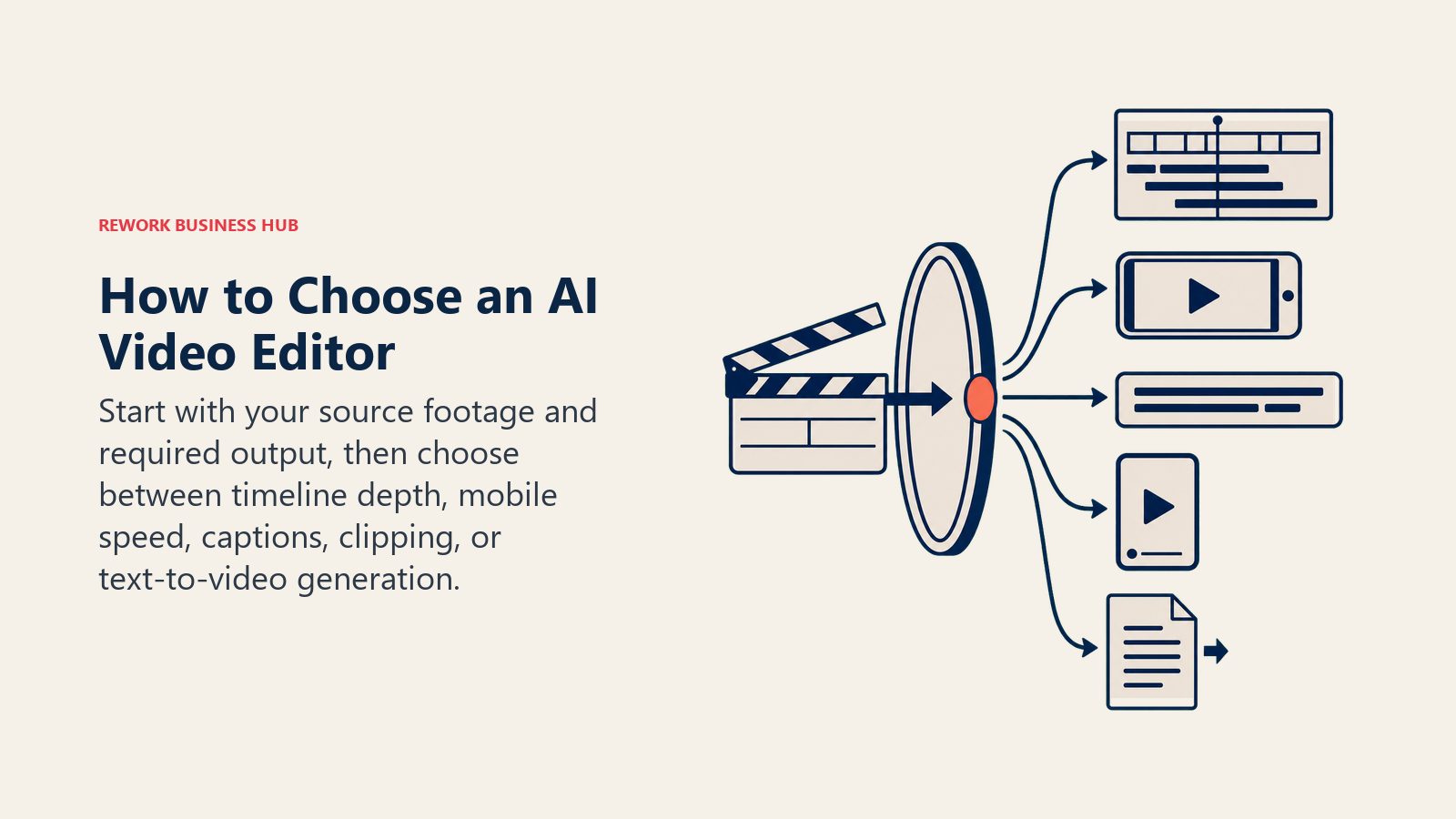
- What's your source footage? Talking-head recordings and podcasts favor text-based editors (Descript). Camera footage that needs color and VFX favors a pro NLE (Premiere Pro, DaVinci Resolve).
- What's the output? A single polished long-form video needs a real timeline editor. Ten short clips from one long recording need a repurposing tool (Opus Clip, Vizard, Pictory).
- How much manual control do you want to keep? Auto-cut tools (Gling, Wisecut) hand you a rough cut you still refine. Full AI editors (CapCut, Veed, Kapwing) get you closer to a finished export without a manual pass.
- What's your volume? Occasional social clips fit a $10-15/month plan. Daily production for a marketing or content team needs a $30-65/month tier with real credit or hour headroom.
- Do you need collaboration? Kapwing and Veed are built for teams editing the same project together in a browser. Descript and Premiere Pro are built more for a single editor's workflow, even on team plans.
If your team is also rebuilding its broader content and marketing stack around AI, the best AI tools for content writers, best AI tools for digital marketing, and best AI tools for social media roundups cover the adjacent categories this list doesn't. And if you're building the video pipeline itself, not just picking a tool, the best AI meeting assistants guide covers the recording and transcription layer that often feeds straight into Descript or Opus Clip.
Use-Case Fit Matrix
Use this matrix to shortcut past the individual write-ups if you already know your primary use case.
| Use Case | Best Fit | Also Consider |
|---|---|---|
| Podcast or webinar cleanup | Descript | Filmora |
| Professional color grading and VFX | DaVinci Resolve | Adobe Premiere Pro |
| Agency and studio timeline editing | Adobe Premiere Pro | DaVinci Resolve |
| Mobile short-form editing | CapCut | Veed |
| Long-form-to-short-clip repurposing | Opus Clip | Vizard, Pictory |
| Team collaborative editing in a browser | Kapwing | Veed |
| Auto-cutting silence and filler words | Gling | Wisecut |
| Budget desktop editing with AI extras | Filmora | CapCut |
| Script or blog turned into branded video | Pictory | Kapwing |
| Text-prompt editing of existing footage (add, remove, restyle) | Runway | Adobe Premiere Pro (Generative Extend) |
1. Descript: Text-Based Editing for Podcasts and Webinars
Descript's core idea is that editing video should work like editing a document. Delete a sentence in the transcript and the matching video or audio disappears from the timeline. That single feature removes the biggest bottleneck in spoken-word editing: scrubbing a waveform to find where someone said "um" for the fifteenth time.
Underlord, Descript's AI layer, handles filler-word removal, studio-quality audio cleanup, and Overdub (AI voice cloning that lets you fix a flubbed line by typing the correction instead of re-recording). For podcasters, course creators, and anyone editing long-form talking-head content, this is the fastest path from raw recording to a clean, publishable cut.
The tradeoff is scope. Descript isn't built for frame-accurate color correction, multi-camera sync at a professional level, or VFX compositing. Teams that need that depth should look at Premiere Pro or DaVinci Resolve instead.
| What you get | What you don't |
|---|---|
| Edit video by editing a text transcript | Not built for color grading or VFX work |
| Overdub voice cloning and filler-word removal | Multi-camera sync is more limited than a pro NLE |
| Studio Sound audio cleanup built in | Free tier caps at 60 media minutes per month |
| 4K export on the Creator tier | Business tier needed for brand-wide translation and dubbing |
Pricing: Free (60 media minutes/month, 720p watermarked export); Hobbyist $16/mo annual ($24/mo month-to-month); Creator $24/mo annual ($35/mo month-to-month); Business $50/mo annual ($65/mo month-to-month). Source: descript.com/pricing
Best for: Podcasters, course creators, webinar hosts, and marketing teams editing spoken-word video who want to skip the timeline entirely
2. Adobe Premiere Pro: Industry-Standard Timeline Plus Built-In AI
Premiere Pro's bet has always been the same: give professional editors the deepest, most flexible timeline in the industry, then layer AI on top without forcing anyone to leave it. In 2026, that AI layer includes Generative Extend (stretch a clip beyond its original length with AI-generated frames), AI Object Mask (isolate and track subjects without manual rotoscoping), and Speech-to-Text transcription in 18 languages, all built directly into the standard subscription.
For agencies, in-house video teams, and any senior video editor who needs frame-accurate control over color, audio mixing, and multi-camera sequences, nothing else on this list matches Premiere Pro's depth. The Media Intelligence search feature, which lets you search your footage by spoken words or visual content instead of manually scrubbing, has become genuinely useful for teams sitting on large footage libraries.
The cost is a real learning curve. Premiere Pro is built for editors who edit for a living, not for someone who needs one clip out the door by end of day. Teams in that second category are usually better served by CapCut or Veed.
| What you get | What you don't |
|---|---|
| Industry-standard professional timeline | Steep learning curve for non-editors |
| Generative Extend and AI Object Mask included | Full 20+ app toolkit needs the pricier Creative Cloud Pro plan |
| Speech-to-Text in 18 languages | Requires a capable machine for smooth 4K editing |
| Deep integration with After Effects and Photoshop | Overkill for a single short social clip |
Pricing: Single-app Premiere Pro from $22.99/mo (annual, paid monthly); Creative Cloud Pro (20+ apps including Photoshop and After Effects) $69.99/mo. Source: adobe.com/creativecloud/plans
Best for: Professional editors, agencies, and in-house video teams that need frame-accurate control and are already inside the Adobe ecosystem
3. DaVinci Resolve: Free-to-Start Pro Color and Edit
DaVinci Resolve's pitch is unusual in this category: a genuinely professional editor, colorist, and audio suite that's free to use, with a one-time $295 Studio upgrade instead of a subscription. Blackmagic Design built its business on hardware, and Resolve is the software that makes that hardware worth owning, which is why the free tier is so capable compared to most "free" competitors.
The AI tools (Magic Mask for subject isolation, speed warp, voice isolation, and automatic scene cut detection) sit inside the same color-grading engine that professional colorists have used for over a decade. For teams that want Hollywood-grade color without a monthly bill, or a videographer already doing serious post-production work, Resolve Studio's one-time cost pays for itself fast.
The interface is the real barrier. Resolve is organized around a professional post-production workflow (Cut, Edit, Fusion, Color, Fairlight, Deliver pages), which is more structure than most social or marketing editors need for a quick clip.
| What you get | What you don't |
|---|---|
| Professional-grade free tier, no subscription required | Interface intimidates editors coming from simpler tools |
| One-time $295 Studio license instead of monthly billing | No mobile app for on-the-go editing |
| Hollywood-standard color grading and audio tools | Steeper setup for a single quick social clip |
| Magic Mask and AI-assisted rotoscoping | Smaller AI-generation feature set than Premiere Pro or Runway |
Pricing: Free (full NLE, watermark-free); Studio $295 one-time license. Source: blackmagicdesign.com/products/davinciresolve/studio
Best for: Colorists, independent filmmakers, and post-production teams that want professional depth without a recurring subscription
4. CapCut: Fastest Path from Phone Footage to a Finished Social Clip
CapCut's philosophy is speed over depth. Built by ByteDance, it's the editor most short-form creators already have installed, whether they know it or not, because it's the default editing layer behind a huge share of TikTok and Reels content. Auto-captions, template-based edits, AI-generated B-roll, and one-tap background removal all live inside a mobile-first interface built for someone with no editing background.
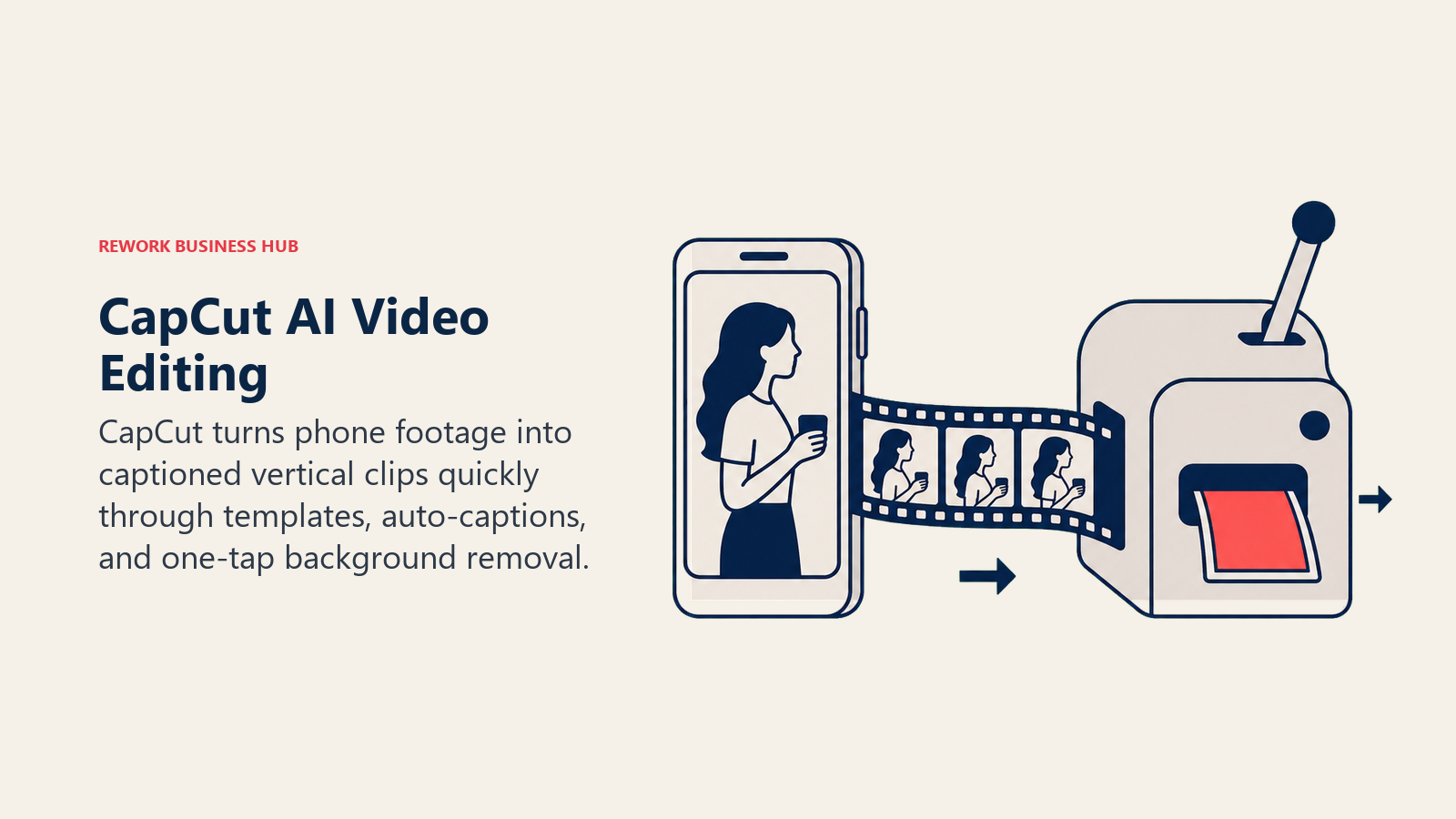
For solo creators and social teams turning phone footage into finished vertical video in minutes, CapCut is genuinely hard to beat on speed. The free tier is more capable than most competitors' paid tiers.
The pricing story got messier in 2026. CapCut restructured its subscription in February, splitting the old Pro plan into a cheaper Standard tier ($10/month) and a pricier new Pro tier ($20/month) with the full AI toolkit and 1TB of storage. Pricing also varies meaningfully by platform and region, so it's worth checking in-app before assuming the web price applies.
| What you get | What you don't |
|---|---|
| Fastest mobile-to-finished-clip workflow in this category | Pricing varies by region and platform; recent tier restructure |
| Free tier is unusually capable | Not built for long-form or multi-camera editing |
| Massive template library tuned for short-form platforms | 4K export and full AI toolkit require the Pro tier |
| One-tap background removal and auto-captions | Desktop version is less mature than the mobile app |
Pricing: Free; Standard approximately $10/mo; Pro approximately $20/mo (web pricing; varies by platform and region). Source: capcut.com/help
Best for: Solo creators, social media managers, and teams producing high volumes of short-form vertical video from phone footage
5. Filmora: Budget Desktop Editing with an AI Toolkit
Filmora's audience is the editor who's outgrown mobile apps but isn't ready for Premiere Pro's learning curve or price. Wondershare built a genuinely approachable desktop timeline, then layered AI features (text-to-speech, AI Portrait effects, auto-captioning, and increasingly, credit-gated generative tools like text-to-video) on top of it.
For small businesses, YouTubers, and prosumer editors who want a real desktop NLE without a steep ramp-up, Filmora hits a comfortable middle ground. The interface leans more toward templates and effects than Premiere Pro's professional depth, which is exactly the point for this audience.
The AI credit system is the honest catch. Generative features like AI voice cloning and text-to-video consume credits fast (a single AI video generation can burn 450 of a 1,000-credit monthly allotment), so heavy AI users will find themselves upgrading or buying credit top-ups more often than the headline price suggests.
| What you get | What you don't |
|---|---|
| Approachable desktop editor for non-professionals | AI credits burn fast on generative features |
| One-time perpetual license option available | Free tier exports carry a visible watermark |
| Large effects and template library | Less powerful than Premiere Pro or Resolve for pro work |
| Auto-captioning and AI Portrait tools built in | Commercial licensing requires the pricier Team plan |
Pricing: Free (watermarked); Monthly $19.99/mo; Annual $49.99/yr; Perpetual license $79.99 one-time. Source: filmora.wondershare.com
Best for: Small businesses, YouTubers, and prosumer editors who want a real desktop editor without Premiere Pro's complexity or price
6. Veed: Browser-Based Editing With Strong Auto-Subtitles
Veed's differentiator is that it runs entirely in the browser and treats subtitling and translation as first-class features, not an afterthought. Auto-generated captions, 50+ language translation, and AI voice dubbing make it a strong pick for teams publishing video across markets or platforms with very different caption expectations (LinkedIn versus TikTok, for instance).
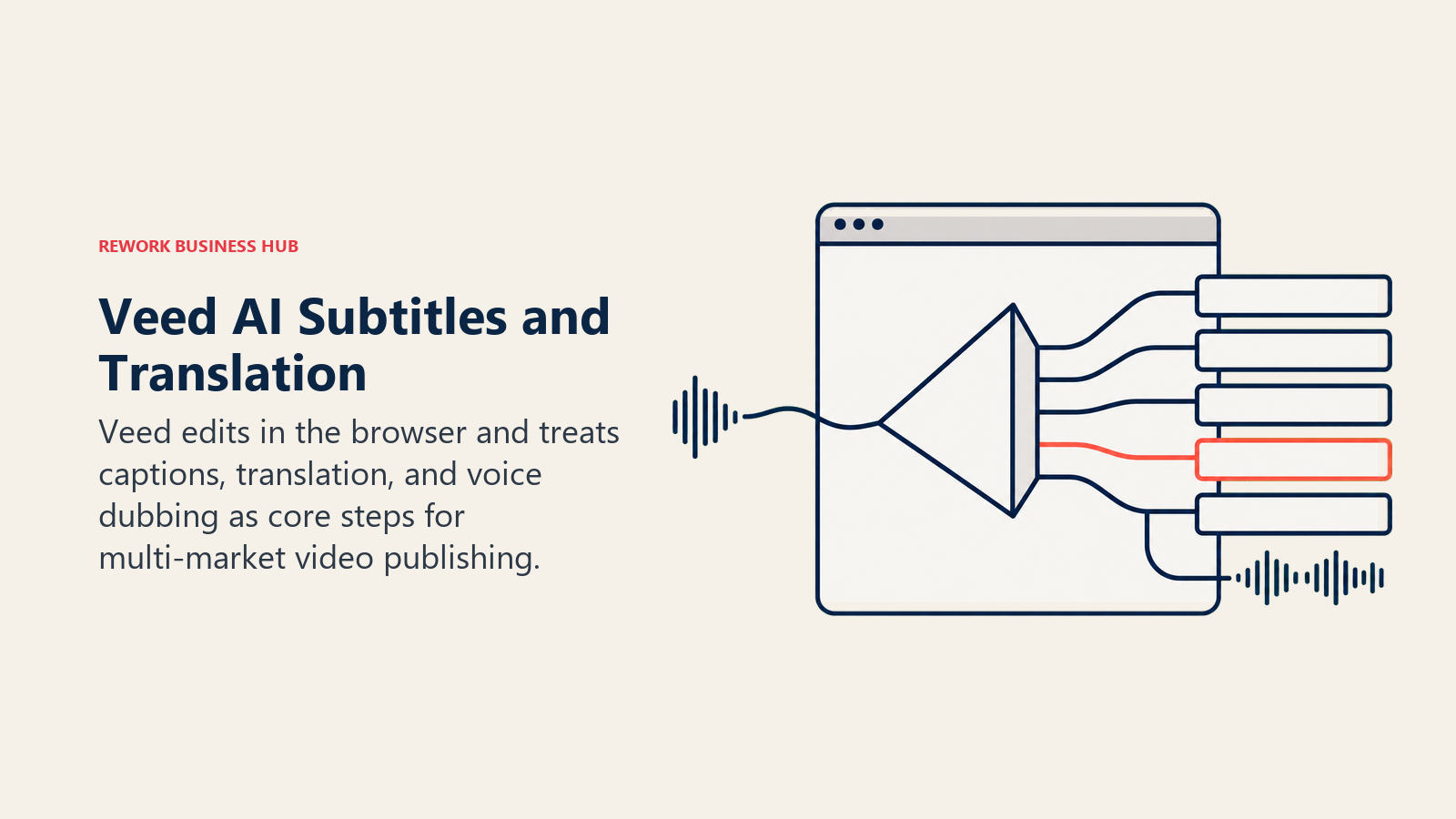
For marketing teams that need to go from raw footage to a captioned, on-brand, multi-language export without installing anything, Veed removes a lot of the friction that a desktop NLE adds. It's also worth noting that captions themselves move the needle on watch time, captioned video sees measurably higher view duration in Facebook's own internal ad-viewership research (via 3Play Media: https://www.3playmedia.com/blog/captions-increase-viewership-for-facebook-video-ads/), which makes Veed's subtitle-first workflow more than a nice-to-have.
The pricing model is the thing to watch. Veed's paid tiers are priced per editor seat, so a small team can hit real budget numbers fast: a 3-person team on the Pro tier runs closer to $63/month than the advertised $21/month headline figure.
| What you get | What you don't |
|---|---|
| Best-in-class auto-subtitling and translation | Per-seat pricing adds up quickly for small teams |
| Runs entirely in the browser, no install | 4K export requires the Pro tier and up |
| AI voice dubbing across 50+ languages | Less depth than a desktop NLE for complex edits |
| Clean, fast interface for non-editors | Storage caps on lower tiers fill up quickly with video |
Pricing: Free (720p, watermarked); Creator from $10/mo (annual, per editor); Pro from $21/mo (annual, per editor); Studio from $35/mo (annual, per editor). Source: veed.io/pricing
Best for: Marketing and localization teams publishing captioned, multi-language video across platforms
7. Kapwing: Collaborative Browser Editing Built for Teams
Kapwing's product philosophy is real-time collaboration, closer to how a team works in Google Docs than how a solo editor works in a desktop timeline. Multiple team members can edit the same project simultaneously, leave comments, and hand off work without exporting and re-importing files.
For marketing teams and content shops where more than one person touches a video before it ships, that collaborative layer is the real differentiator over CapCut or Filmora, which are built around a single editor's session. Kapwing's AI tools (auto-subtitling, smart cut, background removal) sit on top of that shared workspace.
The pricing is per-member, and AI usage is credit-capped even on paid tiers, so teams doing heavy subtitle or AI-editing volume across many videos a month should model out the credit math before committing.
| What you get | What you don't |
|---|---|
| Real-time collaborative editing, multiple editors at once | Per-member seat pricing scales with team size |
| Smart Cut and auto-subtitling built in | AI credits cap out even on paid tiers |
| Clean commenting and review workflow | Less suited to solo, deep-focus editing sessions |
| Unlimited cloud storage on paid tiers | Free tier caps exports at 3 projects and 4 minutes each |
Pricing: Free (3 exports/month, 720p, watermarked); Pro $16/mo/member (annual) or $24/mo/member (monthly); Business $50/mo/member (annual) or $64/mo/member (monthly). Source: kapwing.com/pricing
Best for: Marketing teams and content shops where multiple people collaborate on the same video before publishing
8. Opus Clip: Long-Form to Short-Clip Repurposing With Virality Scoring
Opus Clip solves a specific, high-volume problem: you have a 60-minute podcast or webinar, and you need ten short clips out of it without watching the whole thing three times to find the good parts. Its virality scoring model ranks moments in the source video by how likely they are to perform as standalone clips, then auto-generates captioned, reframed vertical cuts.
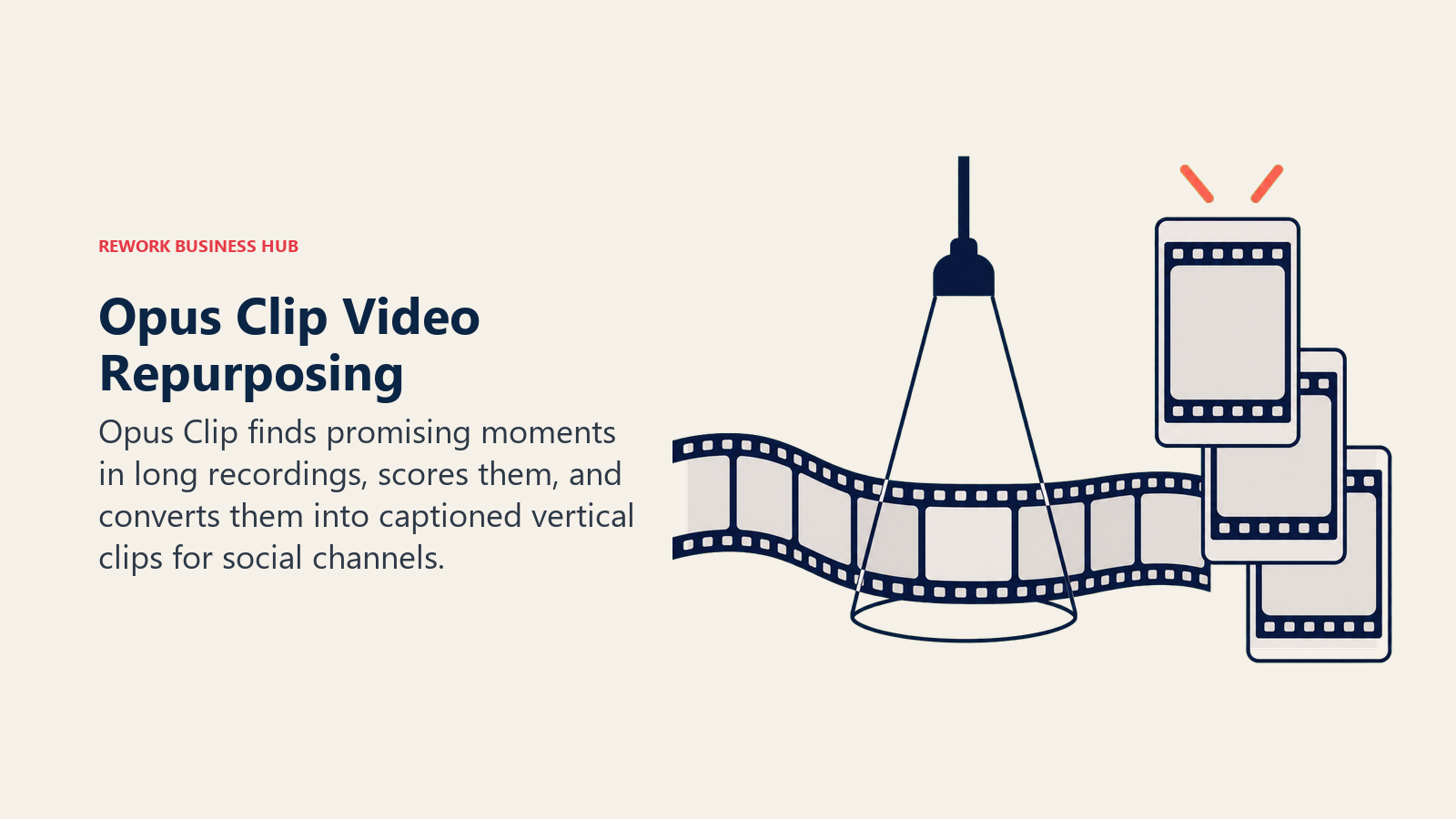
For podcasters, YouTubers, and marketing teams that treat long-form content as a raw material for short-form distribution, this is close to the category-defining tool. Multi-platform auto-posting to YouTube, TikTok, and Instagram removes another manual step from the pipeline. Given that over half of companies now repurpose long-form video into short clips, and 60% of teams doing so use those clips to drive traffic back to their site (Wistia/HubSpot, State of Video 2026: https://blog.hubspot.com/marketing/state-of-video-marketing-new-data), this is a genuinely high-leverage category to have a strong tool in.
The credit model is minutes-based and unforgiving: uploading a 60-minute source file spends 60 credits regardless of how many usable clips come out of it, so heavy podcast or webinar producers burn through the lower tiers fast.
| What you get | What you don't |
|---|---|
| AI virality scoring finds the best moments automatically | Minutes-based credits drain fast on long source files |
| Multi-platform auto-posting (YouTube, TikTok, Instagram) | Projects disappear 3 days after cancellation, even with unused credits |
| Speaker detection for multi-guest podcasts | Free tier exports are watermarked |
| Custom brand kit and caption styles on paid tiers | 1080p cap even on the Pro tier |
Pricing: Free (60 processing minutes/month, watermarked); Starter $15/mo (150 minutes); Pro $29/mo (300 minutes, 1080p, multi-platform posting); Business custom. Source: opus.pro/pricing
Best for: Podcasters, YouTubers, and marketing teams repurposing long-form recordings into short social clips at volume
9. Vizard: Alternative Long-to-Short Repurposing With Multi-Account Posting
Vizard competes directly with Opus Clip in the same repurposing category, with a slightly different balance of features. Its AI clip detection identifies highlight moments from long recordings, and its scheduling and multi-account posting tools (up to six connected social accounts on the Creator tier) lean further into being a full distribution tool, not just a clipping tool.
For teams that want repurposing and scheduled multi-platform posting in one subscription rather than stitching a clipping tool to a separate scheduler, Vizard's bundled approach is worth the look. The Brand Kit and public REST API on paid tiers also make it a reasonable fit for teams building repurposing into a larger automated pipeline.
The honest tradeoff against Opus Clip is detection quality. Several independent reviews and the tools' own comparison pages note Vizard's highlight detection is a step behind Opus Clip's virality scoring, even though Vizard's distribution features are arguably stronger.
| What you get | What you don't |
|---|---|
| Multi-account scheduled posting built in | Highlight detection generally rated behind Opus Clip |
| Public REST API for pipeline automation | Free tier limited to 10-minute exports at 720p |
| Custom Brand Kit on paid tiers | Fewer speaker-detection features for multi-guest content |
| Six connected social accounts on Creator tier | Annual billing needed to reach the lower headline price |
Pricing: Free (60 credits/month, 720p, watermarked, 3-day storage); Creator approximately $19/mo; Pro approximately $42/mo. Source: vizard.ai/pricing
Best for: Teams that want clip repurposing bundled with scheduled multi-platform posting in one subscription
10. Gling: Auto-Cutting Silence and Filler Words for YouTubers
Gling occupies a narrower, more specific niche than the other tools on this list: it's built to take a raw, unedited YouTube-style recording and auto-remove silences, filler words ("um," "uh," repeated takes), and dead air, handing you a rough cut you then polish rather than a fully finished export.
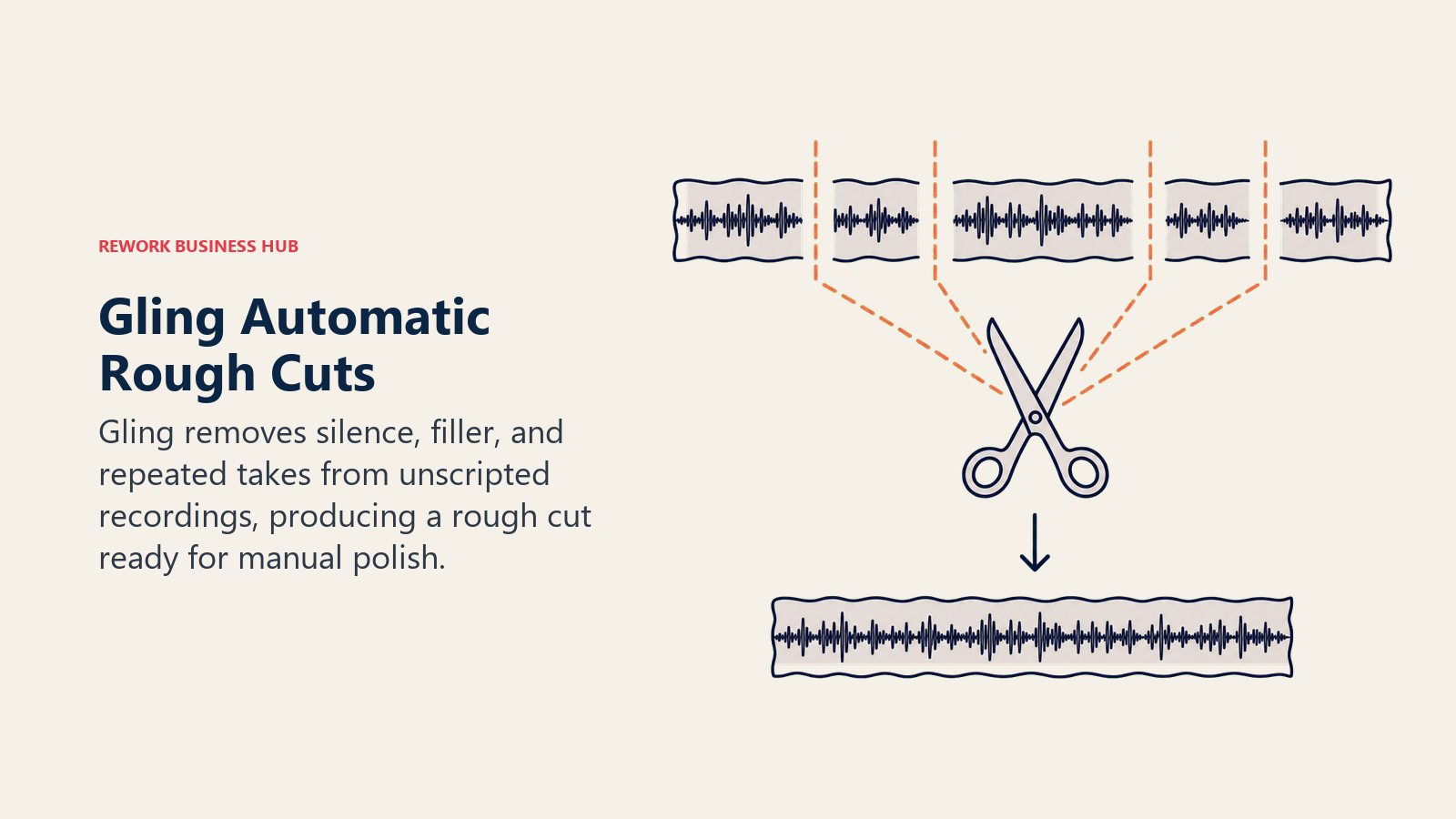
For YouTubers and course creators recording long, unscripted talking-head video, that first pass is usually the most tedious part of editing, and Gling's whole product is built around compressing it from hours to minutes. All paid tiers include identical features, they differ only by monthly hours of AI-edited media, which makes plan selection simple.
The tradeoff is scope, by design. Gling isn't trying to be a full NLE. You still need a real editor (or Gling's own basic timeline) to add music, graphics, or a final polish pass after the auto-cut.
| What you get | What you don't |
|---|---|
| Fast auto-cut of silence and filler words | Not a full NLE; needs a manual polish pass after |
| Identical features across all paid tiers | Free tier capped at 1 hour of media per month |
| Simple, hours-based pricing | Less useful for scripted, tightly-edited content |
| Meaningful time savings on long unscripted recordings | No AI clip-repurposing or virality scoring built in |
Pricing: Free (1 hr/month, watermarked); Plus $10/mo annual ($20/mo monthly, 10 hrs); Pro $20/mo annual ($40/mo monthly, 30 hrs); Elite $50/mo annual (100 hrs). Source: gling.ai/pricing
Best for: YouTubers and course creators recording long, unscripted talking-head video who want the tedious first cut automated
11. Wisecut: Budget Auto-Editing With Music Sync
Wisecut competes in the same auto-editing niche as Gling but at a lower price point, with automatic silence removal, subtitle generation, and background music selection bundled into one pass. It's built for creators who want an automated rough cut without paying for a full-featured NLE subscription.
For solo creators and small businesses on a tight tool budget who still want silence removal and auto-captions handled for them, Wisecut's Starter tier undercuts most of the category on price. The automatic music-sync feature, matching background music to the pacing of the cut, is a small but genuinely useful touch most budget auto-editors skip.
The ceiling shows up fast. 4K export and the larger 10-hour monthly allotment require the $57/month Professional tier, which puts Wisecut closer to mid-tier pricing once you need real volume or resolution.
| What you get | What you don't |
|---|---|
| Lowest entry price in the auto-editing category | 4K export requires the pricier Professional tier |
| Automatic background music sync to cut pacing | Free tier capped at 1 hour and 720p |
| Auto-captioning and silence removal bundled | Professional tier jumps to $57/month for full features |
| Simple, fast workflow for solo creators | Less brand/team functionality than Kapwing or Veed |
Pricing: Free (1 hr/month, 720p, watermarked); Starter $15/mo (4 hrs, 1080p, no watermark); Professional $57/mo (10 hrs, 4K, priority support). Source: wisecut.ai/pricing
Best for: Solo creators and small businesses wanting automated silence removal and captions on a tight budget
12. Pictory: Script and Blog-to-Video Repurposing
Pictory sits at the intersection of editing and generation: it can turn a blog post, script, or long-form webinar recording into a short, branded video, pulling in stock footage, auto-generated captions, and AI voiceover along the way. That makes it less a pure editor and more a repurposing engine for teams that produce more written and recorded content than they have bandwidth to turn into video.
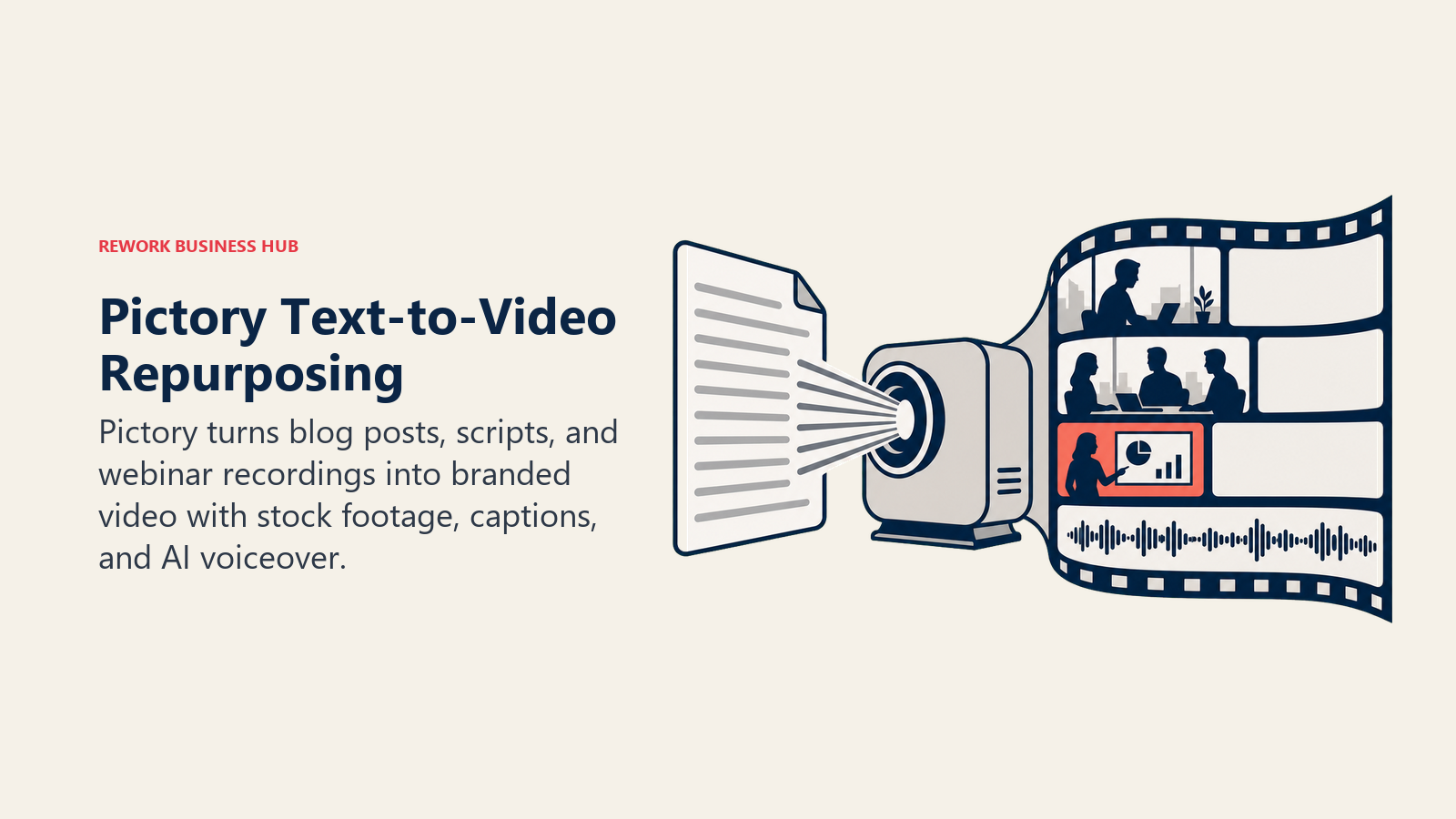
For content marketing teams sitting on a backlog of blog posts or recorded webinars and looking for a fast way to turn that backlog into short branded video, Pictory closes a real gap that pure clipping tools (Opus Clip, Vizard) don't cover, since those need existing video, not text, as the input.
There's no permanent free plan, only a 3-project trial, which is worth knowing going in. And the advertised low pricing only applies on annual billing; month-to-month rates run meaningfully higher across every tier.
| What you get | What you don't |
|---|---|
| Turns blog posts and scripts into video, not just clips existing video | No permanent free tier, only a 3-project trial |
| Auto-captioning and AI voiceover bundled in | Monthly billing costs notably more than annual |
| Good fit for repurposing webinar recordings into shorts | Less precise than Opus Clip for finding highlight moments |
| Large stock footage and music library included | Storage caps scale by tier (5GB to 100GB) |
Pricing: No free tier (3-project trial only); Starter $14/mo (annual) or $19/mo (monthly), 200 video minutes; Professional $29/mo (annual) or $39/mo (monthly), 600 minutes; Teams $79/mo/user (annual) or $99/mo (monthly). Source: pictory.ai/pricing
Best for: Content marketing teams turning blog posts, scripts, and recorded webinars into short branded video at scale
13. Runway: AI-Native Editing of Existing Footage
Runway is best known for text-to-video generation, but its Aleph model does something different that earns it a place on an editing list: it edits footage you already have using text prompts, adding or removing objects, changing a scene's lighting or weather, or restyling a shot, without re-shooting or manually rotoscoping.
For creative teams and filmmakers who want AI-assisted editing that goes beyond cuts and captions into actually modifying pixels within existing footage, Runway is the most capable tool in this category for that specific job. It sits closer to a VFX assistant than a traditional cuts-and-captions editor.
The tradeoff is that Runway isn't built around a traditional timeline the way Premiere Pro or Resolve are. It's a better fit for shot-level creative experimentation than for assembling a full multi-scene edit, and credits burn quickly at higher resolutions.
| What you get | What you don't |
|---|---|
| Edit existing footage with text prompts (add, remove, restyle) | Not a traditional multi-scene timeline editor |
| Deepest creative control of any tool in this list | Credits burn fast at high resolution |
| Strong fit for VFX-adjacent creative work | Steeper learning curve than CapCut or Veed |
| Free tier available to test before committing | Overlaps with generation tools, less useful for straightforward cuts |
Pricing: Free; paid from $12/mo (annual). Source: runwayml.com/pricing
Best for: Creative teams and filmmakers who need AI-assisted, prompt-driven editing of existing footage, not just cuts and captions
Sizing and Persona Table
| Tool | Ideal User | Primary Use Case |
|---|---|---|
| Descript | Podcaster, course creator, webinar host | Text-based spoken-word editing |
| Adobe Premiere Pro | Professional editor, agency, in-house video team | Full timeline editing with built-in AI |
| DaVinci Resolve | Colorist, independent filmmaker | Free-to-start pro color and edit |
| CapCut | Solo creator, social media manager | Mobile-first short-form editing |
| Filmora | Small business, YouTuber, prosumer | Budget desktop editing with AI extras |
| Veed | Marketing team, localization team | Browser editing with subtitles and translation |
| Kapwing | Marketing team, content shop | Real-time collaborative browser editing |
| Opus Clip | Podcaster, YouTuber, marketing team | Long-form to short-clip repurposing |
| Vizard | Content team wanting bundled distribution | Repurposing plus scheduled multi-platform posting |
| Gling | YouTuber, course creator | Auto-cutting silence and filler words |
| Wisecut | Solo creator, small business | Budget auto-editing with music sync |
| Pictory | Content marketing team | Script and blog-to-video repurposing |
| Runway | Creative team, filmmaker | AI-native prompt-driven editing of existing footage |
Decision Framework
Use this table as your final filter. Match your situation to the right tool.
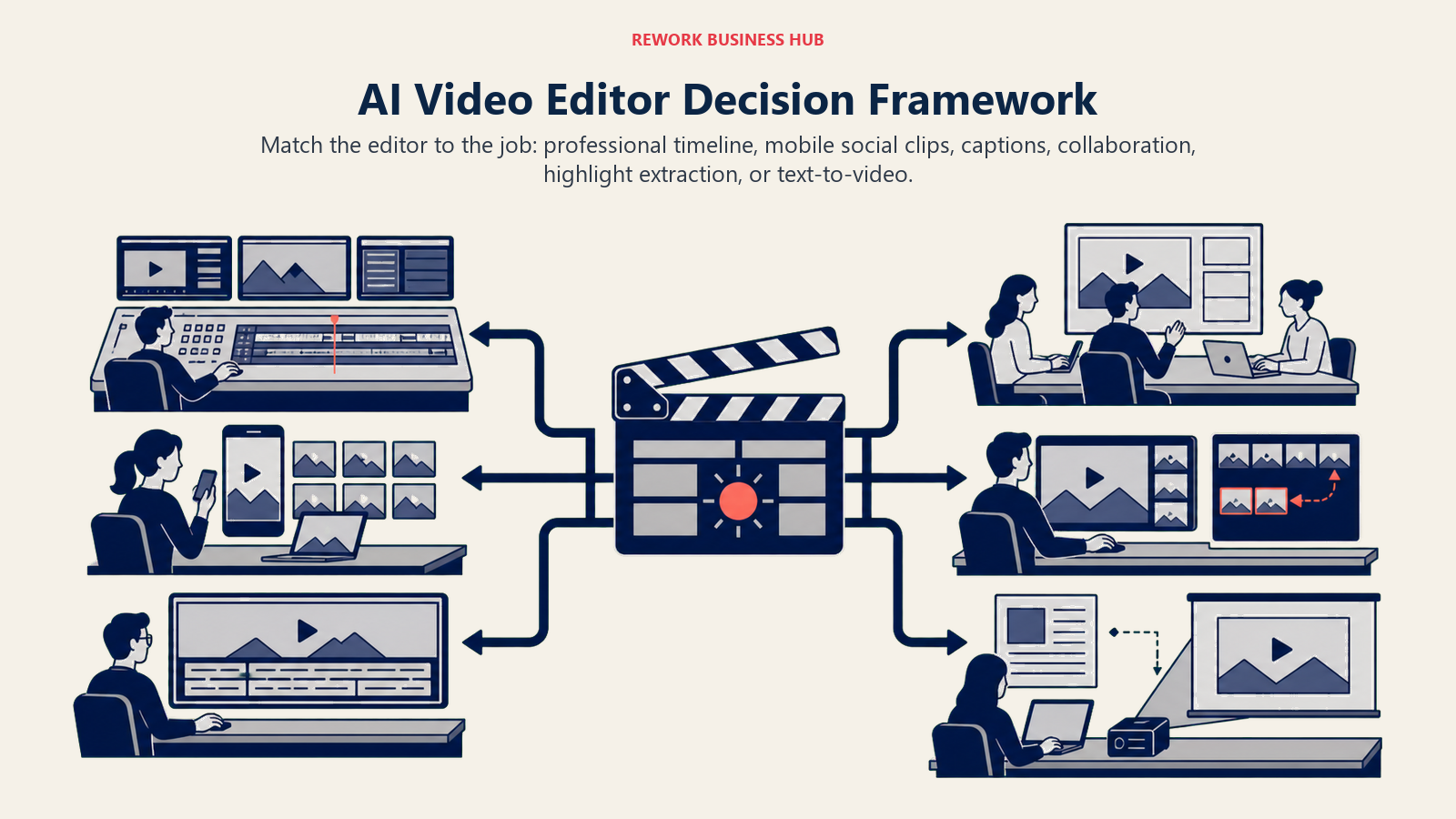
| If you need... | Pick... | Why |
|---|---|---|
| To edit a podcast or webinar by editing the transcript | Descript | Overdub, filler-word removal, no timeline scrubbing required |
| Frame-accurate professional editing and color | Adobe Premiere Pro | Industry-standard timeline plus built-in Generative Extend |
| Pro-grade color grading without a subscription | DaVinci Resolve | Hollywood-standard tools; one-time $295 Studio license |
| The fastest phone-to-finished-clip workflow | CapCut | Mobile-first, huge template library, capable free tier |
| A budget desktop editor with AI extras | Filmora | Approachable NLE between mobile apps and Premiere Pro |
| Strong auto-subtitles and multi-language dubbing | Veed | 50+ language translation; browser-based, no install |
| Real-time collaborative editing with a team | Kapwing | Multiple editors on the same project simultaneously |
| To turn one long recording into many short clips | Opus Clip | AI virality scoring finds the best moments automatically |
| Repurposing bundled with scheduled posting | Vizard | Multi-account auto-posting on top of clip detection |
| To auto-remove silence and filler words from raw footage | Gling | Fast rough-cut automation for unscripted long-form video |
| The lowest-cost auto-editor with music sync | Wisecut | Cheapest entry point in the auto-editing category |
| To turn blog posts or scripts into branded video | Pictory | Text-to-video repurposing, not just clip extraction |
| Prompt-driven editing of existing footage (add, remove, restyle) | Runway | Aleph model edits pixels within real footage |
What to Do Next
Pick your primary use case first, not your favorite brand. If you're editing spoken-word content, start a free Descript project with your next recording. If your bottleneck is turning long recordings into short clips, run one episode through Opus Clip's free tier before paying for anything. And if you need professional color and VFX depth, DaVinci Resolve's free tier costs nothing to test against your actual footage before you decide whether the $295 Studio upgrade is worth it.
Most teams end up running two tools, not one: an editor for the primary cut (Descript, Premiere Pro, or CapCut) and a repurposing tool (Opus Clip or Vizard) for turning that finished video into short-form distribution. Budget for both instead of expecting one subscription to cover the whole pipeline. If the person running that pipeline is your content marketing manager or social media manager, the content marketing manager and social media manager job description templates are useful references for how that role's toolkit is shifting alongside these tools.

Principal Product Marketing Strategist
On this page
- Updated July 2026: What Changed
- Key Facts
- Quick Comparison Table
- How to Choose an AI Video Editing Tool in 2026
- Use-Case Fit Matrix
- 1. Descript: Text-Based Editing for Podcasts and Webinars
- 2. Adobe Premiere Pro: Industry-Standard Timeline Plus Built-In AI
- 3. DaVinci Resolve: Free-to-Start Pro Color and Edit
- 4. CapCut: Fastest Path from Phone Footage to a Finished Social Clip
- 5. Filmora: Budget Desktop Editing with an AI Toolkit
- 6. Veed: Browser-Based Editing With Strong Auto-Subtitles
- 7. Kapwing: Collaborative Browser Editing Built for Teams
- 8. Opus Clip: Long-Form to Short-Clip Repurposing With Virality Scoring
- 9. Vizard: Alternative Long-to-Short Repurposing With Multi-Account Posting
- 10. Gling: Auto-Cutting Silence and Filler Words for YouTubers
- 11. Wisecut: Budget Auto-Editing With Music Sync
- 12. Pictory: Script and Blog-to-Video Repurposing
- 13. Runway: AI-Native Editing of Existing Footage
- Sizing and Persona Table
- Decision Framework
- What to Do Next