More in
Data Migration Guide
Exporting Cleanly from Salesforce: The Migration-Ready Export Guide
Apr 18, 2026
Exporting Cleanly from HubSpot: What the Native Export Misses
Apr 18, 2026
Exporting Cleanly from Pipedrive: Deals, Contacts, and Activity History
Apr 18, 2026
Escaping Spreadsheets: The 5-Step Migration to a Real CRM
Apr 18, 2026
Handling Historical Activities, Notes, and Emails During CRM Migration
Apr 18, 2026
Post-Migration Data Audit: What to Verify and When
Apr 18, 2026
User Access During CRM Migration: The Least-Privilege Approach
Apr 18, 2026
Communicating the CRM Migration to Your Sales Team
Apr 18, 2026
Rollback Planning for CRM Migrations: Hope You Don't Need It
Apr 18, 2026
Long-Term Archiving of Legacy CRM Data: What to Keep and How
Apr 18, 2026
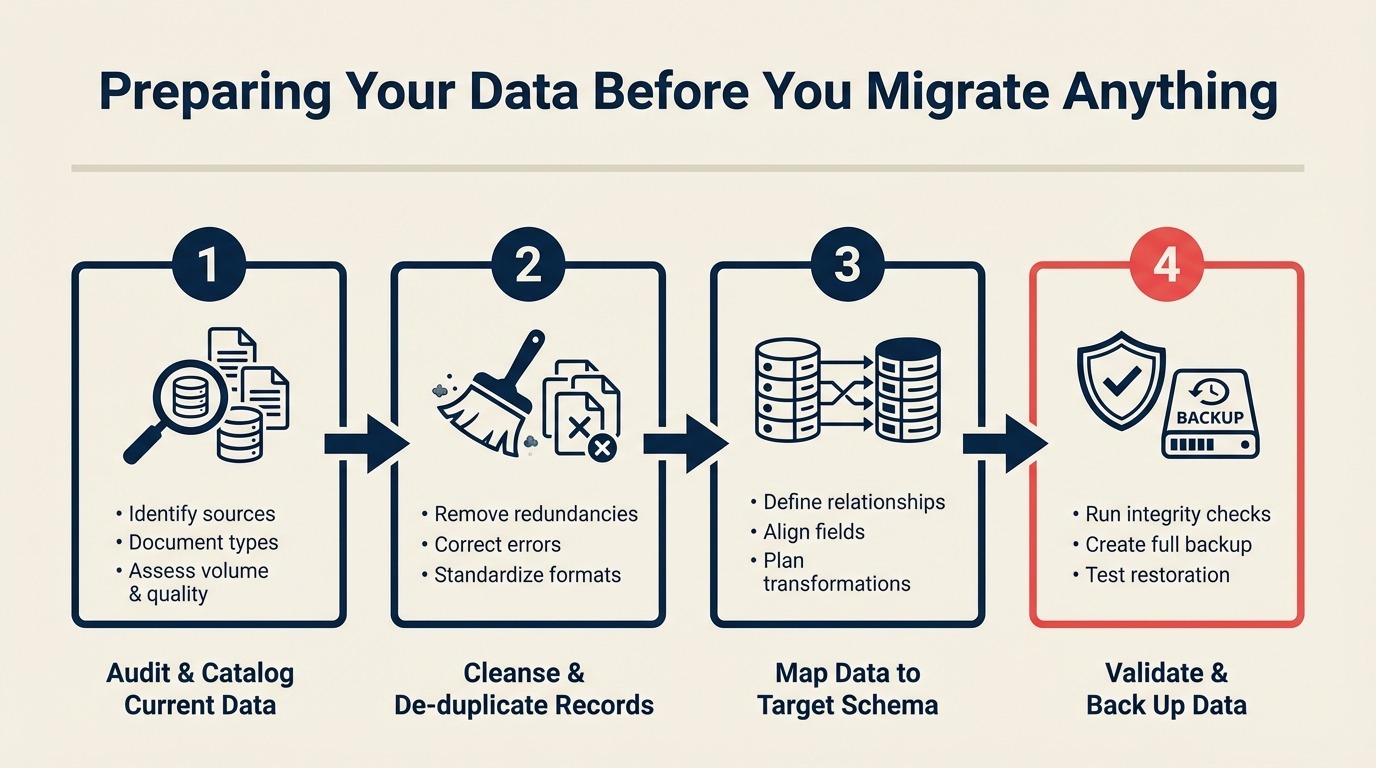
Preparing Your Data Before You Migrate Anything
Turn this article into takeaways for your work.


Each assistant summarizes the article only for you and suggests best practices for your work.
Here's what nobody tells you before a CRM migration: the import itself takes a few hours. McKinsey research on digital transformation execution consistently shows that data readiness, not technology selection, is the most common bottleneck in system migrations. The preparation takes days, sometimes weeks. And the teams that skip preparation are the ones calling you at 11pm on cutover day asking why 40% of their contacts disappeared.
A RevOps team at a mid-market SaaS company spent three weeks migrating 6,000 contacts from Salesforce to a new CRM. The first run failed because of 1,200 duplicates. The second run failed because four different date formats couldn't be reconciled. The third run finally worked, after another week of cleanup. The entire mess could have been avoided with a single day of pre-migration audit work.
This guide walks through the seven preparation steps that turn a chaotic migration into a boring one. You won't touch the destination system until step seven. That's intentional. Once you've finished preparation, the next steps are data cleaning and deduplication, field mapping, shadow import testing, and finally the cutover day checklist.
Step 1: Run a Data Quality Audit on Your Source System
Before you export a single row, you need to understand what you actually have. Most teams discover their data quality problems during migration. Smart teams discover them before. If you're in the early stages of evaluating which system you're migrating to, the CRM buyer's checklist covers the data model questions you should ask before you commit.
Open your source CRM and pull these numbers:
Row counts by object:
- Total contacts
- Total companies/accounts
- Total deals/opportunities (open and closed)
- Total activities (calls, emails, notes, tasks)
Field completion rates on your most-used objects. For contacts, check: email, phone, company name, job title, lifecycle stage, lead source, country. Any field below 70% completion is a problem worth knowing about now.
Duplicate estimate. In Salesforce, run a report on contacts grouped by email domain and look for obvious clusters. In HubSpot, use the Duplicate Management tool (Contacts > Actions > Manage Duplicates). In Pipedrive, export to CSV and run a COUNTIF on the email column. A rough estimate is fine. You're not merging yet, just counting.
Date format inconsistency. Export 50 random records and look at your date fields. If you see a mix of MM/DD/YYYY, DD/MM/YYYY, YYYY-MM-DD, and text strings like "Q3 2024", you have a normalization problem that will break field mapping later.
Data Audit Checklist
| Check | What to measure | Acceptable threshold |
|---|---|---|
| Total record count per object | Row count | Baseline for post-migration QA |
| Email field completion | % of contacts with valid email | >80% |
| Phone field completion | % of contacts with any phone | >60% |
| Company name completion | % of contacts linked to a company | >75% |
| Lifecycle stage completion | % with a defined stage | >85% |
| Duplicate estimate | % of contacts with duplicate email | <5% before cleaning |
| Date format consistency | Count of distinct date formats | 1 (after normalization) |
| Country field format | Mix of full names vs ISO codes | Standardize to one |
Write down your numbers. This audit baseline is also your post-migration QA target: after import, you'll verify that these counts match. The cutover day checklist uses these baseline numbers as the comparison point for go/no-go QA.
Step 2: Define What Data Is Worth Migrating
Not everything needs to come over. This decision is one of the highest-impact choices in the entire migration process, and most teams never make it explicitly.
Ask these questions for each object and record type:
Contacts/Leads: Do you need records that haven't had any activity in 3+ years? If your sales cycle is 90 days, a contact with no engagement since 2021 is not a prospect: it's storage overhead. Decide on a cutoff date. For guidance on enriching the contacts you do keep, lead enrichment automation covers what's worth adding before migration versus after. For contacts with duplicate issues from multi-channel capture, deduping multi-channel leads is relevant before you start the CRM-level dedup work.
Historical activities: Call logs, email threads, meeting notes from three years ago. Do your reps actually look these up? For most teams, the answer is no for anything older than 18 months. Archive the source system instead of migrating every note from 2019.
Deals/Opportunities: Closed-lost deals older than your average sales cycle × 3 are rarely reopened. You might migrate the company record but skip the 4-year-old deal record.
Custom objects: If you built a custom object in Salesforce for a process that no longer exists, don't migrate it.
Archive vs. migrate, a simple framework:
| Record age + activity | Decision |
|---|---|
| Active or engaged in past 12 months | Migrate |
| No activity in 12–24 months, high value (enterprise account) | Migrate with flag |
| No activity in 12–24 months, low value | Archive in source |
| No activity in 24+ months | Archive or delete |
| Historical activities > 18 months old | Archive source system, do not migrate |
Document this decision. You'll get questions from sales reps asking where their old data went. Having a written policy prevents that conversation from becoming a crisis.
Step 3: Deduplication Before Export
This is the step most teams skip, and it's the reason most migrations fail. If you export duplicates, you import duplicates, and deduplication in an unfamiliar new system is harder than in the system you know.
In Salesforce: Use Duplicate Rules (Setup > Duplicate Management) to run a report. For bulk merging, the native tool handles it in batches, or use a third-party tool like Dedupely for datasets over 5,000 contacts. Set your match rule to email exact match for auto-merge, then queue the fuzzy matches (first name + last name + company) for manual review.
In HubSpot: Contacts > Actions > Manage Duplicates. HubSpot's tool does the matching for you and presents pairs for review. For large databases, this can take time. Budget a full afternoon for 10,000+ contacts. HubSpot's import guide is also the reference to check for how records are matched on re-import after any export-and-clean cycle.
In Pipedrive: Pipedrive's native dedup is limited. Export to CSV, run dedup in Google Sheets or Excel (Data > Remove Duplicates on the email column), then reimport. For more sophisticated matching, run the export through Dedupe.io before migration.
Merge strategy:
- Start with exact email matches: these are safe to auto-merge
- Review name + company fuzzy matches manually (30 minutes per 1,000 records is a reasonable estimate)
- Do not auto-merge records where the company name differs significantly: that's often two different contacts at the same company
Always back up before merging. Export a full CSV of your current state before you touch the Duplicate Management tool. You can't reliably undo a mass merge.
Step 4: Normalize Key Fields
Field normalization is tedious. It's also the difference between a clean import and 40 support tickets from sales reps on day one.
Phone numbers: Pick E.164 format (+15551234567) as your target standard. The ITU-T E.164 specification defines the standard formally, but for practical purposes the key rule is: plus sign, country code, subscriber number, no separators. Strip extensions out of the main phone field. Create a separate extension field if you need it. Remove all formatting characters (parentheses, dashes, spaces) so they don't break field type validation in the destination.
Country fields: Pick ISO 3166-1 alpha-2 codes (US, GB, DE) or full names, not a mix. If you have both "United States" and "USA" and "US" in your country field, they'll import as three different values.
Lifecycle stages: This one hurts. Source systems often have 7 stage names that need to map to 4 in the destination. The mapping can't be automated: you have to decide where "Marketing Qualified Lead" and "Product Qualified Lead" both go in the new system. If you don't have a clear definition of what each stage means in practice, lead lifecycle stages gives you a framework to work from before you start the mapping conversation.
Lead source values: Same problem. Export all distinct values from your lead source field and map them to the destination's picklist. Values with no equivalent in the destination will import blank or error out.
Normalization Reference Table
| Field | Common problems | Normalization target |
|---|---|---|
| Phone | Mixed formats, extensions in main field, leading zeros stripped | E.164 (+CC NNNNNNNNNN) |
| Country | Full name / abbreviation / ISO mix | ISO 3166-1 alpha-2 |
| Lifecycle stage | More source values than destination | Build explicit value map |
| Lead source | Free-text entries vs. picklist values | Map to destination picklist |
| Date fields | Mixed formats, text strings, nulls | ISO 8601 (YYYY-MM-DD) |
| Currency | Mixed locale formats ($1,000 vs 1000.00) | Numeric, no formatting |
| Job title | Inconsistent capitalization, abbreviations | Consistent title case |
Build this table before you open a single import template. Every field that isn't normalized before export will become a problem in the destination.
Step 5: Document Your Field Mapping Before You Touch the Destination
Field mapping gets treated as a day-of decision all the time. That's wrong. Decisions made under pressure, during an import run, produce errors you won't catch until sales reps find them two weeks later.
Build the field mapping document now, before you've touched the destination CRM.
Field Mapping Template
| Source field | Source type | Source object | Destination field | Destination type | Destination object | Transformation rule |
|---|---|---|---|---|---|---|
| First Name | Text | Contact | First Name | Text | Contact | None |
| Last Name | Text | Contact | Last Name | Text | Contact | None |
| Contact | Contact | Lowercase all values | ||||
| Phone | Phone | Contact | Phone | Phone | Contact | Convert to E.164 |
| Lifecycle Stage | Picklist | Contact | Lifecycle Stage | Picklist | Contact | See value map below |
| Annual Revenue | Currency | Account | Annual Revenue | Number | Company | Strip currency symbol |
| Close Date | Date | Opportunity | Close Date | Date | Deal | Convert to YYYY-MM-DD |
| Lead Source | Picklist | Contact | Original Source | Picklist | Contact | See value map below |
| Account ID | Lookup | Contact | Company | Association | Contact | Resolve via company name match |
The "Transformation rule" column is the most important. If you leave it blank, you're planning to make that decision during the import run. Don't.
For picklist fields, create a separate value mapping section:
Lifecycle Stage value map: | Source value | Destination value | |---|---| | Lead | Lead | | Marketing Qualified Lead | MQL | | Sales Qualified Lead | SQL | | Opportunity | SQL | | Customer | Customer | | Churned Customer | Customer (inactive) | | Evangelist | Customer |
Step 6: Decide What to Do With Historical Activities
Activities (call logs, email threads, notes, tasks) are the trickiest migration decision. They're also the most voluminous part of any CRM database.
The tradeoffs:
Migrating activities gives reps full history in one place. But it also increases import time, storage costs in the new system, and the risk of relationship mapping errors (activities need to stay linked to the right contact and deal records).
Archiving activities preserves history without migrating it. Reps can open the old system as a read-only archive for 90 days post-cutover if they need historical context. For teams adopting the new CRM after cutover, CRM rollout and adoption covers how to structure the day-one and day-two onboarding so historical activity questions don't derail adoption.
Practical guidance:
- Migrate all activities from the past 12 months
- Archive (don't migrate) activities older than 12 months
- Always migrate notes attached to active deals: those are high-value context
- Email threads: migrate only the last 5 per contact unless the deal is active
- Tasks and reminders: only migrate open tasks. Completed tasks from 2022 add noise without value.
Check your destination CRM's storage costs per activity record before deciding. In some systems, 500,000 activity records means a significantly larger plan tier.
Step 7: Build a Test Sample of 100 Records
Before you run any import, even a test import, you need a test sample. This is 100–150 records that represent the full range of your data quality problems.
How to select the sample:
- 30 clean records with all fields populated and no formatting issues
- 20 records with missing phone numbers
- 20 records with unusual characters in name fields (accents, hyphens, apostrophes: O'Brien, Müller)
- 15 records at maximum field length (255-character company names, long job titles)
- 10 records with ambiguous lifecycle stage values
- 5 records that are known edge cases in your dataset (e.g., contacts with no company, deals with no close date)
Save this sample as a separate CSV. It becomes your QA set for the shadow import: you'll import this 100-record sample first, verify it, and only then proceed to the full dataset.
Common Pitfalls
Moving your deduplication problem to the new system. If you don't dedup before export, you're just moving the mess. The new system's merge tools will be unfamiliar and reps won't trust the new CRM from day one.
Treating field mapping as a day-of decision. Every "we'll figure it out during the import" moment adds 45 minutes of downtime and increases the chance of a silent error: one that imports without crashing but puts the wrong values in the wrong fields. The custom fields guide is worth reading alongside your field mapping work: it covers which fields to build in the destination before you start importing.
Not documenting transformation rules. You'll spend 3 hours working out the lifecycle stage mapping logic, document it nowhere, and spend another 2 hours re-deriving it three weeks later when someone asks why "Evangelist" contacts imported with no stage.
Migrating every historical activity without checking storage costs. One team migrated 800,000 historical call logs into a new CRM that charges by storage. Their monthly bill was 3x higher than expected for six months. If you're comparing options before committing to a destination, Rework vs. Salesforce breaks down the storage and pricing model differences that affect this decision.
Skipping the test sample. The first import will have errors. That's fine. But if your first import is 50,000 contacts instead of 100 test records, those errors cascade.
What to Do Next
Complete the data audit before you schedule the migration date. The Wikipedia article on data migration is a useful reference for understanding the full lifecycle, particularly the preparation and testing phases that most project plans underestimate. Scheduling the cutover before the audit is backwards: you don't know how long cleaning will take until you know how bad the data is. Teams that have been through this process before also note that RevOps maturity affects how painful the migration is: lower-maturity orgs tend to have worse data quality and need more time here.
This week:
- Run the data audit checklist and record your baseline numbers
- Make the migrate vs. archive decision for historical records
- Export all distinct picklist values from your lifecycle stage and lead source fields
- Start building the field mapping document
Once you have your audit numbers and field mapping document started, you're ready to move into active data cleaning. That's covered in the next guide.
Related Resources

On this page
- Step 1: Run a Data Quality Audit on Your Source System
- Data Audit Checklist
- Step 2: Define What Data Is Worth Migrating
- Step 3: Deduplication Before Export
- Step 4: Normalize Key Fields
- Normalization Reference Table
- Step 5: Document Your Field Mapping Before You Touch the Destination
- Field Mapping Template
- Step 6: Decide What to Do With Historical Activities
- Step 7: Build a Test Sample of 100 Records
- Common Pitfalls
- What to Do Next
- Related Resources