More in
CRM Implementation Guide
Setting Up CRM Roles and Permissions the Right Way
Apr 18, 2026
Email and Calendar Sync Without the Data Mess
Apr 18, 2026
Integrating Your CRM with Marketing Tools: A Sales Ops Guide
Apr 18, 2026
Training Sales Reps to Actually Use the CRM
Apr 18, 2026
Measuring CRM Adoption with Leading Indicators
Apr 18, 2026
Handling the "The Old System Was Better" Transition
Apr 18, 2026
CRM Hygiene: Weekly, Monthly, and Quarterly Routines That Keep Data Clean
Apr 18, 2026
Common CRM Implementation Mistakes — and How to Recover from Each One
Apr 18, 2026
When to Bring In a CRM Consultant, and When Not To
Apr 18, 2026
How to Pick a CRM in 2026: The Buyer's Checklist
Apr 6, 2026
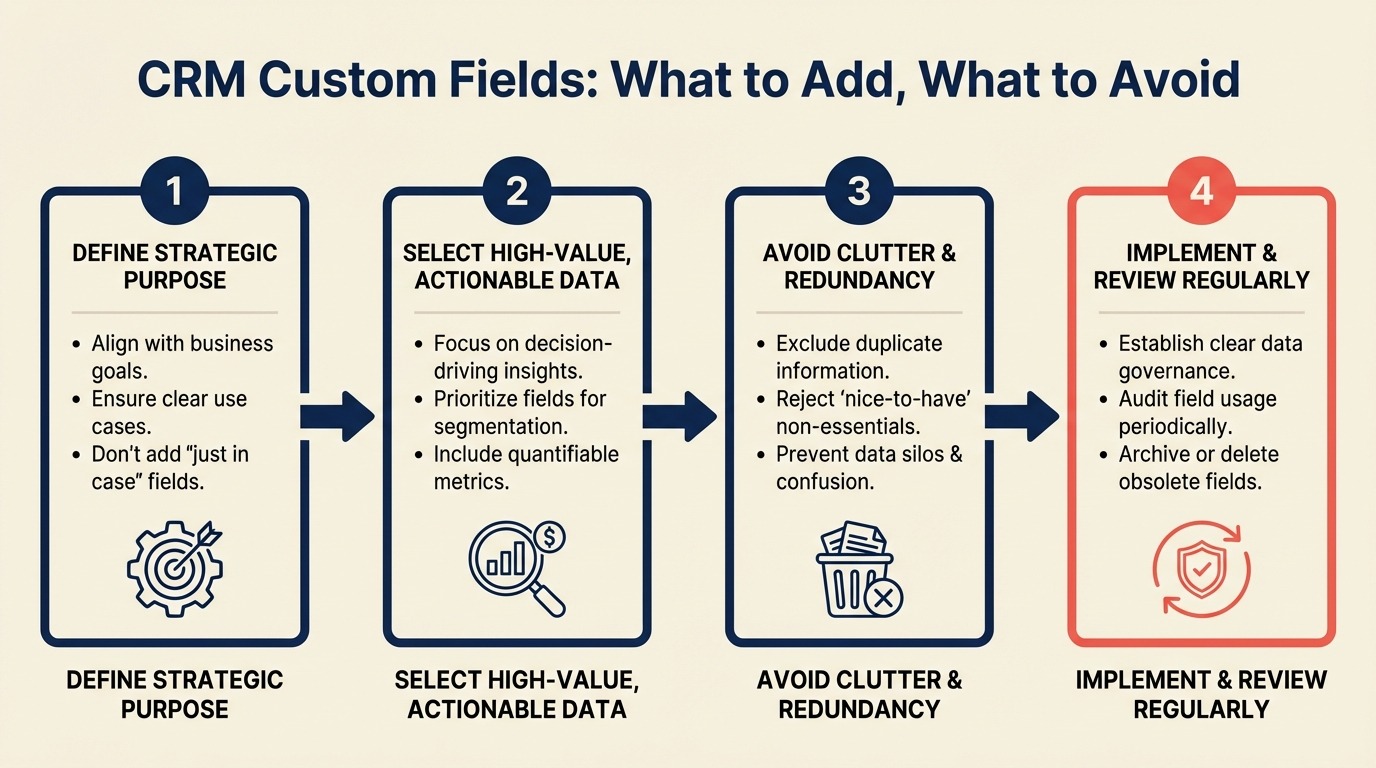
CRM Custom Fields: What to Add, What to Avoid
Turn this article into takeaways for your work.


Each assistant summarizes the article only for you and suggests best practices for your work.
A SaaS company launched their HubSpot CRM with 80 custom fields. Their RevOps lead had tried to satisfy every request from sales, marketing, and leadership before go-live. Six weeks later, adoption was at 40%. The most common rep complaint: "It takes 10 minutes to create a deal."
They cut it to 22 fields. Adoption hit 85% within a month. Gartner's research on CRM value realization identifies excessive required fields and bloated data entry as a primary driver of low CRM adoption in the first 90 days.
This isn't a rare story. Most CRMs get bloated within 90 days of launch. Not from bad intentions, but from a culture of "just add a field for it." Every field has a cost. It's either a field that reps must fill in (friction) or a field they can ignore (noise). Neither is neutral.
This guide gives you a decision framework for every field request: before, during, and after implementation.
Step 1: Apply the 3-Question Test Before Adding Any Field
Every field request gets three questions. If the answer to all three is no, the field doesn't go in the CRM. This discipline is especially important when you're migrating data from an old system: bloated field lists become a migration nightmare fast.
Question 1: Do we report on it? Will this data appear in a dashboard, a weekly report, or an executive view? If you can't name the specific report where this field matters, it probably doesn't belong in the CRM. "It would be interesting to know" is not a reporting requirement.
Question 2: Do we segment by it? Will this field be used to filter, sort, or group contacts, companies, or deals? Examples: filtering all deals by deal type for a forecast call, segmenting contacts by industry for a marketing campaign, querying companies by employee count for territory assignment.
Question 3: Does a workflow or automation depend on it? Will a CRM automation trigger based on this field's value? Examples: routing leads by territory (requires a territory field), sending a follow-up sequence when lead status changes (requires a lead status picklist), creating a task when a deal enters a stage (stage is the field).
If a field answers yes to at least one of these, it has a home in the CRM. If it answers no to all three, suggest a different home: a notes field, an external spreadsheet, or no storage at all.
One exception: fields required by an integration (e.g., your marketing tool pulls a specific field for email personalization) get a pass even if they don't serve an internal report. But they still need an owner.
Step 2: Choose the Right Field Type
Picking the wrong field type creates data quality problems that are painful to fix retroactively. Use this table to decide:
| Field Type | When to Use | When NOT to Use |
|---|---|---|
| Text (single line) | Unique identifiers, proper nouns, IDs | Anything you'll aggregate or group by |
| Text (multi-line) | Narrative context, meeting notes, discovery summaries | Anything with recurring patterns |
| Picklist | Any value you'll group, filter, or trigger on | Values that are truly unique per record |
| Number | Quantities, counts, measurements | Currency (use the currency type), percentages |
| Currency | Deal value, contract value, MRR | Ratios or percentages |
| Date | Close date, contract start, last activity | Time ranges (use two date fields) |
| Checkbox | Yes/No boolean flags | Anything with more than two states |
| Lookup / Association | Connecting one object to another | Storing names of related records as text |
| Formula | Calculated values derived from other fields | Anything that needs manual input |
The most common mistake: using text fields where a picklist belongs. When you use text for "Industry" and reps type freehand, you get "SaaS", "Software as a Service", "B2B SaaS", and "Tech" all meaning the same thing. Those four variations make your industry report meaningless.
Any field where there's a finite set of meaningful values (industry, deal type, lost reason, lead source, customer tier, region) should be a picklist, not text.
Step 3: Keep Required Fields Under 10
Required fields are the fastest way to kill adoption. Every required field is a gate that slows deal creation. Reps who can't create a deal in 60 seconds or less will work around the CRM. This friction problem shows up consistently in the real total cost of ownership analysis: high required-field counts drive support tickets and shadow spreadsheets that inflate the true cost of a platform. The CRM rollout and adoption guide has a direct correlation between required field count and 30-day adoption rates.
The temptation is to make everything required in order to enforce data quality. It doesn't work that way. Reps who are forced to fill a required field they don't have the answer to will pick a random value or type "unknown." Bad data is worse than missing data.
Keep your required fields to the absolute minimum that makes a record useful at creation:
For a Contact: Email (or phone, at least one), first name, last name, owner.
For a Deal: Deal name, pipeline stage, close date, deal value (even if approximate), primary contact.
For a Company: Company name, owner. Industry and size can come in through enrichment.
Make additional fields required conditionally, not globally. In HubSpot, you can require a field only when a deal reaches a specific stage. In Salesforce, you can use validation rules to require a field when another field is set to a specific value. Salesforce's validation rules documentation covers the formula syntax and error handling. Use these conditional requirements instead of blanket requirements.
For example: Lost Reason becomes required when Pipeline Stage is set to Closed Lost. It's not required on deal creation. That's the right approach.
Step 4: Picklist Hygiene From Day One
Picklists decay over time if nobody owns them. You start with 8 clean industry values and end up with 24 after a year of unchecked additions.
Set these governance rules before launch:
Naming conventions: Pick a convention and enforce it. Title Case or Sentence case. "Financial Services" not "financial services" not "FinancialServices." One admin is the source of truth.
Who can add values: In Salesforce, picklist values are controlled at the admin level. Reps can't add them. In HubSpot and Pipedrive, the default is more open. Lock this down. Require a request process with a defined owner.
Archiving vs. deleting: When a picklist value becomes obsolete, archive it. Don't delete it. Deleting removes it from existing records. Archiving keeps historical data intact and prevents the value from appearing in new records. In HubSpot this is "deactivating" a property value. In Salesforce you can make old values inactive.
Review cadence: Quarterly, review every picklist for unused or overlapping values. HubSpot's property usage reports show how often each field and value is used. Salesforce field-level reports can do the same. Any value with 0 or near-0 usage in the past 6 months is a candidate for archiving.
Step 5: Understand the Difference Between CRM Fields and Enrichment Fields
This one saves you a lot of field bloat. There are two kinds of data: things only your reps know, and things enrichment tools already know.
Things enrichment tools know (from Clearbit, Apollo, ZoomInfo, 6sense): according to Forrester's B2B data quality research, firms that use data enrichment to auto-populate firmographic fields reduce manual data entry time by 30-50% while improving data accuracy:
- Company employee count
- Company revenue range
- Company funding stage
- Contact LinkedIn URL
- Company HQ location
- Technology stack
- Industry (often)
You don't need custom fields for these if your CRM has a native enrichment integration. HubSpot has Clearbit built in at certain tiers. HubSpot's data enrichment documentation explains which fields auto-populate and how to control overwrite behavior. Salesforce connects to ZoomInfo and others. When enrichment auto-populates these fields, you get clean, consistent data without rep input.
Things only your reps know (worth building fields for):
- Relationship strength with a contact
- Internal champion vs. economic buyer distinction
- Customer-specific requirements or constraints
- Reason for timeline change
- Next step with the buying committee
These are the fields worth creating. They capture insight that can't be scraped from a database.
A good rule of thumb: before building a field, ask whether Apollo or Clearbit already knows the answer. If yes, use enrichment. If no, build the field.
Step 6: Audit Your Existing Fields on a Quarterly Schedule
Most teams never delete a field. They just add more. The average HubSpot portal that's been live for two years has between 60 and 120 custom properties on the Contact object, most of which nobody can explain. MIT Sloan Management Review's research on data governance notes that poor data field governance is one of the top three causes of failed analytics initiatives in sales organizations. If you're planning a migration to a new CRM, run this audit first. The preparing data before migration guide shows exactly how field bloat creates import problems downstream.
Run a quarterly audit with these steps:
Pull the field usage report. In HubSpot: Settings → Properties → select object → sort by "Number of records with data." In Salesforce: use the Field Trip app on AppExchange or a custom report on field usage. In Pipedrive: export a sample and check fill rate manually.
Flag fields where fewer than 10% of records have data and no automation depends on the field. These are candidates for removal.
For each flagged field, ask the person who requested it: do you still use this? Is there a report depending on it? If no, archive it.
Clean up the data in fields you're keeping but that have inconsistent values. Run a deduplication pass on text fields that should be picklists.
Document what you removed and why. If someone asks six months later, you have a record.
Field audits aren't glamorous but they keep your CRM from becoming a place where data goes to be inconsistent and ignored. Clean field structure also matters enormously if you ever move platforms. The field mapping guide for data migrations covers exactly how messy this gets when field hygiene was neglected.
Common Pitfalls
Building fields for "someday" reporting. "We might want to track this eventually" is not sufficient. You pay for unused fields in two ways: rep friction on data entry and cognitive overhead when anyone opens the record. Delay building fields until someone shows you the report or automation that depends on them.
Duplicating fields across objects. If "Lead Source" exists on both the Contact and the Deal and they sometimes disagree, which one is right? Define once, use a lookup. If you need Lead Source on the deal, consider pulling it from the Contact via a formula or workflow rather than maintaining two separate fields.
Free text where picklist belongs. Already covered above, but worth repeating: any field where you'll ever want to count, group, or filter should be a picklist. Text is for narrative, picklists are for categorization.
Adding required fields mid-implementation. If you make a field required after launch, every existing record missing that field creates a validation error. Reps start complaining. Plan your required fields before go-live. Use a staged rollout if you need to add requirements later.
Not reviewing your field list before adding new ones. It's common to create a duplicate field because nobody checked whether one already existed. Before creating "Contract Signed Date," search your field list. It might already exist as "Close Date" or "Contract Executed" from a previous admin.
What to Do Next
After launch, run a 30-day field freeze. No new custom fields for the first 30 days. Every request that comes in goes into a queue. After 30 days, review the queue together. You'll find that many requests solve themselves (the field wasn't needed after all), some can be satisfied by existing fields used differently, and only a handful genuinely need new fields.
This gives your CRM time to stabilize before you add complexity, and it teaches your team that field requests require justification. And if you're working through what a lean CRM platform should cost for a team at your stage, the Rework pricing breakdown is a useful reference point.
From there, build the workflow automations that depend on the fields you've created. Those picklists and triggers need to actually do something.
Learn More
- Designing your CRM data model before you touch the software
- Workflow automation: the 10 automations every CRM should have on day one
- Rolling out the CRM: pilot team, full team, adoption tracking
- Field mapping for CRM data migrations
- Shadow import testing before your cutover
- Rework vs HubSpot CRM: field and customization compared

On this page
- Step 1: Apply the 3-Question Test Before Adding Any Field
- Step 2: Choose the Right Field Type
- Step 3: Keep Required Fields Under 10
- Step 4: Picklist Hygiene From Day One
- Step 5: Understand the Difference Between CRM Fields and Enrichment Fields
- Step 6: Audit Your Existing Fields on a Quarterly Schedule
- Common Pitfalls
- What to Do Next
- Learn More