More in
Data Migration Guide
Exporting Cleanly from Salesforce: The Migration-Ready Export Guide
Apr 18, 2026
Exporting Cleanly from HubSpot: What the Native Export Misses
Apr 18, 2026
Exporting Cleanly from Pipedrive: Deals, Contacts, and Activity History
Apr 18, 2026
Escaping Spreadsheets: The 5-Step Migration to a Real CRM
Apr 18, 2026
Handling Historical Activities, Notes, and Emails During CRM Migration
Apr 18, 2026
Post-Migration Data Audit: What to Verify and When
Apr 18, 2026
User Access During CRM Migration: The Least-Privilege Approach
Apr 18, 2026
Communicating the CRM Migration to Your Sales Team
Apr 18, 2026
Rollback Planning for CRM Migrations: Hope You Don't Need It
Apr 18, 2026
Long-Term Archiving of Legacy CRM Data: What to Keep and How
Apr 18, 2026
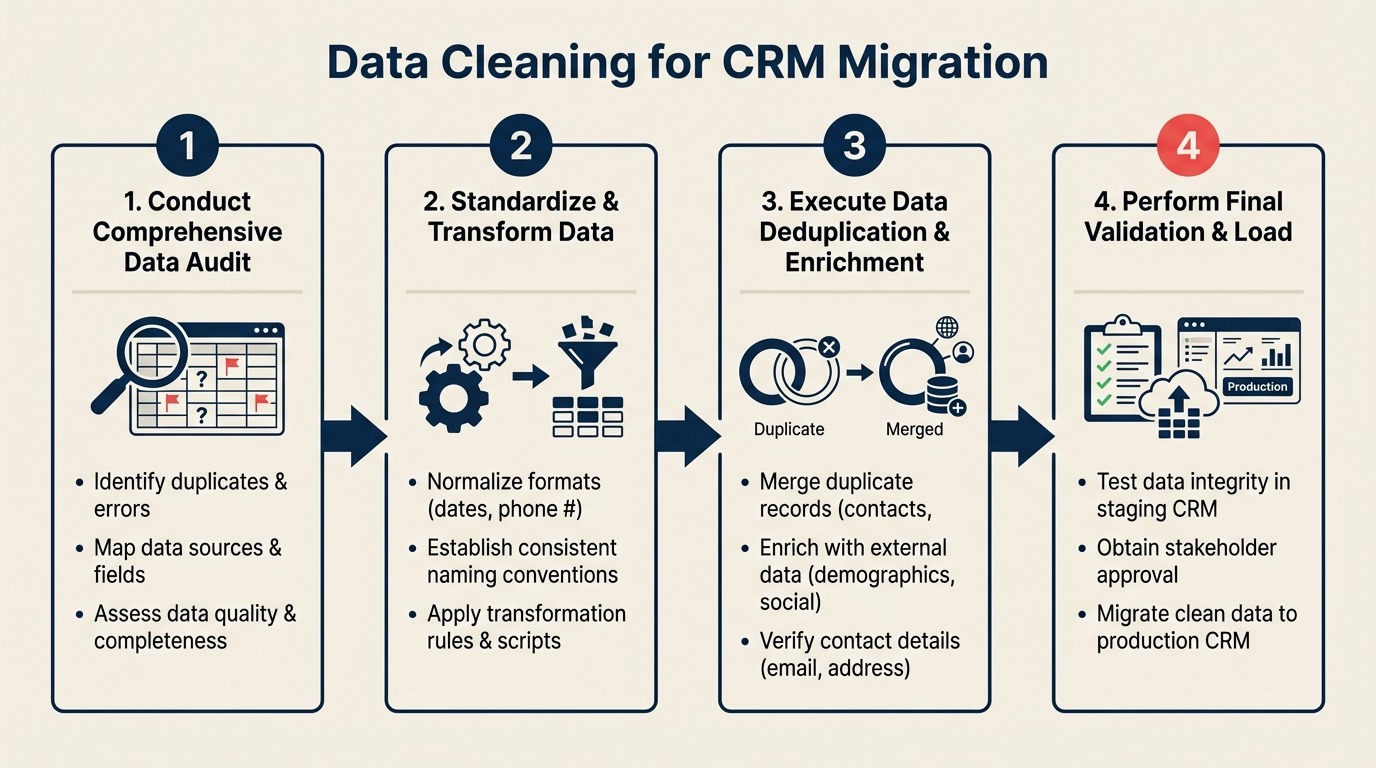
Data Cleaning for CRM Migration: Deduplication, Normalization, Enrichment
Turn this article into takeaways for your work.


Each assistant summarizes the article only for you and suggests best practices for your work.
A CRM migration is the best opportunity you'll have to fix your data quality. Most teams miss it because they treat cleaning as a post-migration task, something to handle after go-live when things slow down. Things don't slow down. The post-migration backlog never clears. And six months later, reps are working from a new system that has the same bad data as the old one, plus new errors introduced during import.
The RevOps lead at one company ran an 8,000-contact migration from HubSpot to a new CRM. She discovered 2,400 duplicate contacts after the import. A 3-hour deduplication session before export would have prevented it. Instead, the cleanup took three weeks and required a partial re-import. (If you're migrating from HubSpot specifically, switching from HubSpot to Rework walks through the data model differences that make this cleanup step even more important.)
This guide gives you the cleaning sequence that prevents that outcome. Work through these steps in order on your source system. Don't export a single record until you're done.
Step 1: Deduplication Strategy
Data deduplication is the process of identifying and eliminating redundant records from a dataset. Deduplication has two phases: identifying duplicates and deciding what to do with them. Don't merge anything until you have a clear decision rule for each match type.
Match rule hierarchy:
- Exact email match: Two records with the same email address are almost certainly the same person. Safe to auto-merge. The record with more field completions (more non-empty fields) wins.
- First name + last name + company fuzzy match: Two records where the name is similar (John Smith vs. Jonathan Smith) and the company name is the same or similar. Queue for manual review, don't auto-merge.
- Phone match: Same phone number on two different records. Lower confidence than email: company landlines appear on many contacts. Manual review only.
- Company domain match on the same contact: Two records for "Sarah Jones" and "S. Jones" at the same email domain. Medium confidence. Manual review.
Dedup Decision Logic Table
| Match type | Confidence | Action |
|---|---|---|
| Exact email match | High | Auto-merge: keep record with more data |
| Name + company fuzzy match (>85% similarity) | Medium | Queue for manual review |
| Phone exact match, same company | Medium | Queue for manual review |
| Name only (no company, no email) | Low | Flag, do not auto-merge |
| Email domain match only | Low | Skip: too many false positives |
Auto-merge threshold: Set auto-merge only for exact email matches. Anything below that requires human eyes. An aggressive auto-merge that incorrectly combines two different people at the same company corrupts deal history and relationship data in ways that are hard to untangle later.
Step 2: Tools for Deduplication
Your tool choice depends on your source system and dataset size.
HubSpot (native): Contacts > Actions > Manage Duplicates. HubSpot presents pairs for review with a side-by-side comparison. It handles the merge natively: you pick the winning record and it preserves all association history. Limit: it processes one pair at a time, which is workable for up to about 5,000 contacts but slow beyond that.
Salesforce (native): Setup > Duplicate Management. Define a Duplicate Rule (match field: Email, match type: Exact) and run it as a report. Use the Merge Contacts tool for individual merges. For bulk dedup in Salesforce, the native tools are limited: for datasets over 10,000 contacts, a third-party tool is faster. The Salesforce Data Loader guide is worth reading before any bulk operation so you understand how the tool handles conflict resolution. For teams comparing data model differences before migrating, Rework vs. Salesforce covers field and object differences that shape which dedup decisions carry forward.
Pipedrive (limited native support): Pipedrive flags potential duplicates in the contact view but doesn't have a bulk dedup tool. Export to CSV, run dedup in a spreadsheet or third-party tool, then re-import the cleaned file.
Third-party tools for large datasets:
- Dedupely (dedupely.com): Built specifically for HubSpot and Salesforce. Handles bulk merging with rule-based automation. Good for 10,000+ records.
- Dedupe.io: Works with CSV exports from any CRM. Upload your file, configure match rules, download the deduplicated file. $0.01–0.02 per record for large batches.
- Cloudingo (cloudingo.com): Salesforce-specific. Better UI than native tools for complex merge rules.
Before running any dedup tool: export a full backup. Download every object as CSV. Store it somewhere accessible. You cannot reliably undo a bulk merge, and you'll want the pre-merge state if something goes wrong.
Step 3: Phone Number Normalization
Phone fields are the messiest data in any CRM. You'll find: +1 (555) 234-5678, 555-234-5678, 5552345678, +15552345678, 555.234.5678 x102, and (555) 234-5678. Same number, seven different formats.
Target standard: E.164 format, the international standard defined by the ITU: + followed by country code followed by subscriber number, no spaces or formatting characters. US number in E.164: +15552345678.
Normalization steps:
- Strip all non-numeric characters: remove (, ), -, ., spaces
- If the number is 10 digits and you're US-based, prepend +1
- If the number starts with 1 and is 11 digits, prepend +
- Check for extensions in the main phone field: anything after "x", "ext", or "Ext" should be extracted to a separate extension field
Regex for basic phone cleanup (works in Google Sheets via REGEXREPLACE):
Strip non-numeric: =REGEXREPLACE(A2,"[^0-9+]","")
Check for US 10-digit number: =IF(LEN(REGEXREPLACE(A2,"[^0-9]",""))=10, "+1"®EXREPLACE(A2,"[^0-9]",""), A2)
For large datasets, a Python script using the phonenumbers library will handle international numbers more reliably than regex. But for most Sales Ops teams working in a spreadsheet, the regex approach handles 90% of cases.
Role email addresses on the phone field: Some records have things like "see info@company.com" in the phone field. Flag these for manual review: they can't be normalized programmatically.
Step 4: Email Validation
Before migration, bulk email validation removes contacts that will hard-bounce on the first outreach campaign in the new system. Invalid email records aren't worth migrating.
Bulk validation tools:
- ZeroBounce: Upload a CSV, get back a status per email (valid, invalid, catch-all, spamtrap, abuse). Around $0.008 per email for large batches. Has a free tier for testing.
- NeverBounce: Similar pricing and capability. Good API if you want to integrate this into a script.
- Hunter.io Email Verifier: Slower but useful for spot-checking specific domains.
Experian's Global Data Quality research consistently finds that poor data quality costs organizations an average of 15–25% of revenue, which puts the business case for pre-migration validation in concrete terms.
What to do with each validation result:
| Status | Action |
|---|---|
| Valid | Migrate |
| Invalid (hard bounce history) | Remove from migration, archive |
| Catch-all (domain accepts everything) | Migrate with a "unverified" tag |
| Spamtrap | Delete, do not migrate |
| Abuse (frequent complaint history) | Remove from migration |
| Role addresses (info@, sales@, admin@) | Flag: migrate only if there's no individual contact email |
Don't delete invalid contacts without checking if they have associated deals. A contact with an invalid email might have an open opportunity attached. Migrate the record (minus the bad email), clean the email manually, and move on.
Step 5: Lifecycle Stage Normalization
This field causes more post-migration confusion than almost anything else. Source systems accumulate lifecycle stages over time as process definitions change. By the time you're migrating, you might have 9 distinct stage values that need to map to 4 in the destination.
Start by exporting all distinct lifecycle stage values from your source. In Salesforce: SELECT Status, COUNT(Id) FROM Lead GROUP BY Status. In HubSpot: export contacts and pivot the lifecycle stage column in Excel. In Pipedrive: export contacts/leads and use a COUNTIF. Before you finalize the value mapping, review your destination's lead lifecycle stage definitions: the mapping decisions you make here will drive routing, automation, and reporting in the new system. If you're unsure which stages to collapse, the pipeline stages and buyer journey guide covers how stage definitions map to actual buying behavior.
Then build your mapping:
Lifecycle Stage Mapping Template
| Source system value | Count | Destination system value | Notes |
|---|---|---|---|
| New Lead | 1,240 | Lead | Direct map |
| Open Lead | 890 | Lead | Combine with above |
| Marketing Qualified Lead | 430 | MQL | Direct map |
| Product Qualified Lead | 180 | MQL | Map to MQL unless dest has PQL |
| Sales Accepted Lead | 220 | SQL | Direct map |
| Sales Qualified Lead | 310 | SQL | Combine with above |
| Demo Scheduled | 145 | SQL | Keep as SQL, add activity note |
| Negotiation | 88 | SQL | Treat as late-stage SQL |
| Customer | 2,100 | Customer | Direct map |
| Churned | 340 | Customer (inactive) | Tag as inactive |
| Evangelist | 45 | Customer | Map to customer, add tag |
| Disqualified | 670 | Disqualified | Direct map |
Document this mapping and get sign-off from sales leadership before import. The lifecycle stage definition affects routing, reporting, and quotas. It's not a unilateral ops decision.
Step 6: Date Field Normalization
Date fields fail silently. They import without an error, but the values are wrong, which means your date-based reports and automation rules break in ways you won't catch until a rep notices their follow-up tasks have the wrong dates.
Target standard: ISO 8601, formatted as YYYY-MM-DD (e.g., 2025-06-15). This format is unambiguous across locales and accepted by every CRM import tool.
Common problems:
- MM/DD/YYYY vs DD/MM/YYYY: A close date of "06/07/2024" is June 7 in US format and July 6 in UK/EU format. If your team has international reps who entered dates, you'll have both in the same column.
- Text strings: Entries like "Q3 2024", "End of year", "TBD" in date fields. These can't be normalized programmatically. Manual review or blank import.
- Timezone offsets: Some systems export dates as ISO 8601 with timezone (2025-06-15T00:00:00-05:00). Strip the timezone offset and convert to UTC before import unless the destination system handles timezone conversion automatically.
- Unix timestamps: Some export tools output timestamps as milliseconds since epoch. Convert with a formula:
=TEXT(A2/86400000+"1/1/1970","YYYY-MM-DD")in Excel.
For "unknown" dates: If a close date is empty, leave it empty. Don't fill in a default date. Blank is honest; a wrong date is misleading.
Step 7: Enrichment Decisions
Migration is the one moment where enrichment makes the most sense. You're already touching every record, the data is in a clean state (post-dedup, post-normalize), and the destination CRM is starting fresh.
When to enrich before migration:
- Your company name completion rate is below 70% (see lead data management for completeness benchmarks by field type)
- You have contacts with no job title and no company association
- You're migrating to a CRM with company-level data objects (like Salesforce Accounts or HubSpot Companies) that need accurate firmographics to set up associations
Free enrichment options:
- Clearbit Reveal (now Breeze Intelligence in HubSpot): Auto-enriches company data from email domain. Limited free tier but useful for bulk enrichment of the most common domains.
- Apollo.io: Has a free tier with 50 enrichments per month. Good for spot-checking specific records.
- LinkedIn manual lookup: Slow, but reliable for key accounts where the data really matters.
When to skip enrichment before migration:
- Your field mapping document doesn't include the fields you'd be enriching (enriching job titles that you're not migrating anyway is wasted effort)
- Your timeline is tight: enrichment adds 2–5 days
- The destination CRM has a native enrichment integration that will run automatically after import
One important check: confirm that enriched fields will survive the migration's field mapping. There's no point enriching "Number of Employees" if that field doesn't have a mapped destination in the new system.
Step 8: QA the Cleaned Dataset
After deduplication, normalization, validation, and (optionally) enrichment, you need to verify that the cleaning process itself didn't introduce errors.
Post-Cleaning QA Checklist
| Check | Before cleaning | After cleaning | Status |
|---|---|---|---|
| Total contact count | [baseline] | Should be lower (dedup) | |
| Duplicate estimate (email) | [baseline %] | <1% | |
| Email field: valid addresses | [baseline %] | >90% | |
| Phone field: E.164 format | [baseline %] | >85% | |
| Lifecycle stage: null values | [baseline count] | <2% | |
| Date fields: ISO 8601 format | [baseline %] | >95% | |
| Country field: standardized | [baseline %] | >95% | |
| Company name completion | [baseline %] | [target %] |
Run through this checklist on a 500-row sample first. Export 500 random records, clean them using your process, and verify the output against the checklist. If the sample passes, apply the same process to the full dataset. This limits the blast radius if a cleaning script has a bug.
Record count sanity check: Your post-cleaning contact count should be lower than your pre-cleaning count (deduplication removed records) but shouldn't be dramatically lower. If you started with 10,000 contacts and ended with 4,000, either you had an extreme duplication problem or the cleaning script deleted records it shouldn't have. Investigate before proceeding.
Common Pitfalls
Running dedup without backing up first. A bulk merge is irreversible in most systems. The 10 minutes it takes to export a CSV backup is worth it every single time.
Aggressive auto-merge thresholds destroying legitimate separate contacts. Two people named "Michael Chen" at the same company are not the same person. Auto-merging on name + company without checking email or phone first creates a corrupted record that's painful to unravel.
Enriching data that won't survive the field mapping. If your field mapping document doesn't include "LinkedIn URL" as a destination field, enriching LinkedIn URLs is wasted effort. Confirm which fields are migrating before deciding what to enrich. The custom fields guide is useful here: it covers how to decide which custom fields deserve a destination equivalent and which should stay behind.
Normalizing phone numbers without checking for extensions. A normalization script that strips all non-numeric characters will turn "+1 (555) 234-5678 x102" into "+15552345678102," a 13-digit number that looks valid but isn't. Handle extensions before normalization.
Cleaning the full dataset without testing on a sample first. Every cleaning script has edge cases. Test on 500 records, QA the output, and only then run it on 50,000.
What to Do Next
Don't try to clean everything at once. This week, export a 500-row sample, apply the cleaning steps in this guide, and run through the QA checklist. Verify the output looks right. Only then should you run the same process on your full dataset. If you're migrating to Rework and want to understand how the data model on the receiving end is structured, switching from Salesforce to Rework covers the object and field differences that affect what cleaning decisions matter most.
The order matters:
- Deduplication first (so you're not normalizing records you're about to merge)
- Email validation second (remove invalid records before enrichment)
- Normalization third (phone, country, dates, lifecycle stage)
- Enrichment last (optional, add to clean records only)
- QA the full cleaned dataset against the checklist before export
Once your cleaned dataset passes QA, you're ready to build the field mapping document. That process is covered in the next guide. After field mapping, the shadow import testing guide explains how to verify everything works end-to-end before committing to cutover. And if you're evaluating destination CRMs, Rework vs. Pipedrive covers data model differences that affect how your cleaned data lands.
Related Resources

On this page
- Step 1: Deduplication Strategy
- Dedup Decision Logic Table
- Step 2: Tools for Deduplication
- Step 3: Phone Number Normalization
- Step 4: Email Validation
- Step 5: Lifecycle Stage Normalization
- Lifecycle Stage Mapping Template
- Step 6: Date Field Normalization
- Step 7: Enrichment Decisions
- Step 8: QA the Cleaned Dataset
- Post-Cleaning QA Checklist
- Common Pitfalls
- What to Do Next
- Related Resources