More in
Data Migration Guide
Exporting Cleanly from Salesforce: The Migration-Ready Export Guide
Apr 18, 2026
Exporting Cleanly from HubSpot: What the Native Export Misses
Apr 18, 2026
Exporting Cleanly from Pipedrive: Deals, Contacts, and Activity History
Apr 18, 2026
Escaping Spreadsheets: The 5-Step Migration to a Real CRM
Apr 18, 2026
Handling Historical Activities, Notes, and Emails During CRM Migration
Apr 18, 2026
Post-Migration Data Audit: What to Verify and When
Apr 18, 2026
User Access During CRM Migration: The Least-Privilege Approach
Apr 18, 2026
Communicating the CRM Migration to Your Sales Team
Apr 18, 2026
Rollback Planning for CRM Migrations: Hope You Don't Need It
Apr 18, 2026
Long-Term Archiving of Legacy CRM Data: What to Keep and How
Apr 18, 2026
Cutover Day: The Checklist That Prevents Disasters

Turn this article into takeaways for your work.


Each assistant summarizes the article only for you and suggests best practices for your work.
Cutover day is not the time to improvise. Every CRM migration that went badly had the same root cause: no written plan. The teams that execute clean cutovers run from a checklist, have a rollback trigger defined before the first record imports, and communicate to the sales team at every stage.
According to Gartner research on data quality, poor data quality costs organizations an average of $12.9 million per year, a figure that makes the case for investing in preparation rather than emergency cleanup after a failed cutover. Here's what a bad cutover looks like: a 200-person company migrated from Salesforce to a new CRM on a Friday afternoon. The import ran fine. By hour 6, the sales team was locked out of both systems because the data freeze hadn't been communicated properly. Three missing checklist items caused it: no data freeze procedure, no rep communication sent in advance, no named DRI for the cutover window. The team rolled back over the weekend and rescheduled for three weeks later. If that source system was Salesforce, the Rework vs. Salesforce comparison covers the specific configuration differences that need to be set up in the destination before reps log in for the first time.
This guide is the plan you run from. Print it. Read it the night before. Assign every item an owner.
T-Minus 48 Hours: Pre-Cutover Checklist
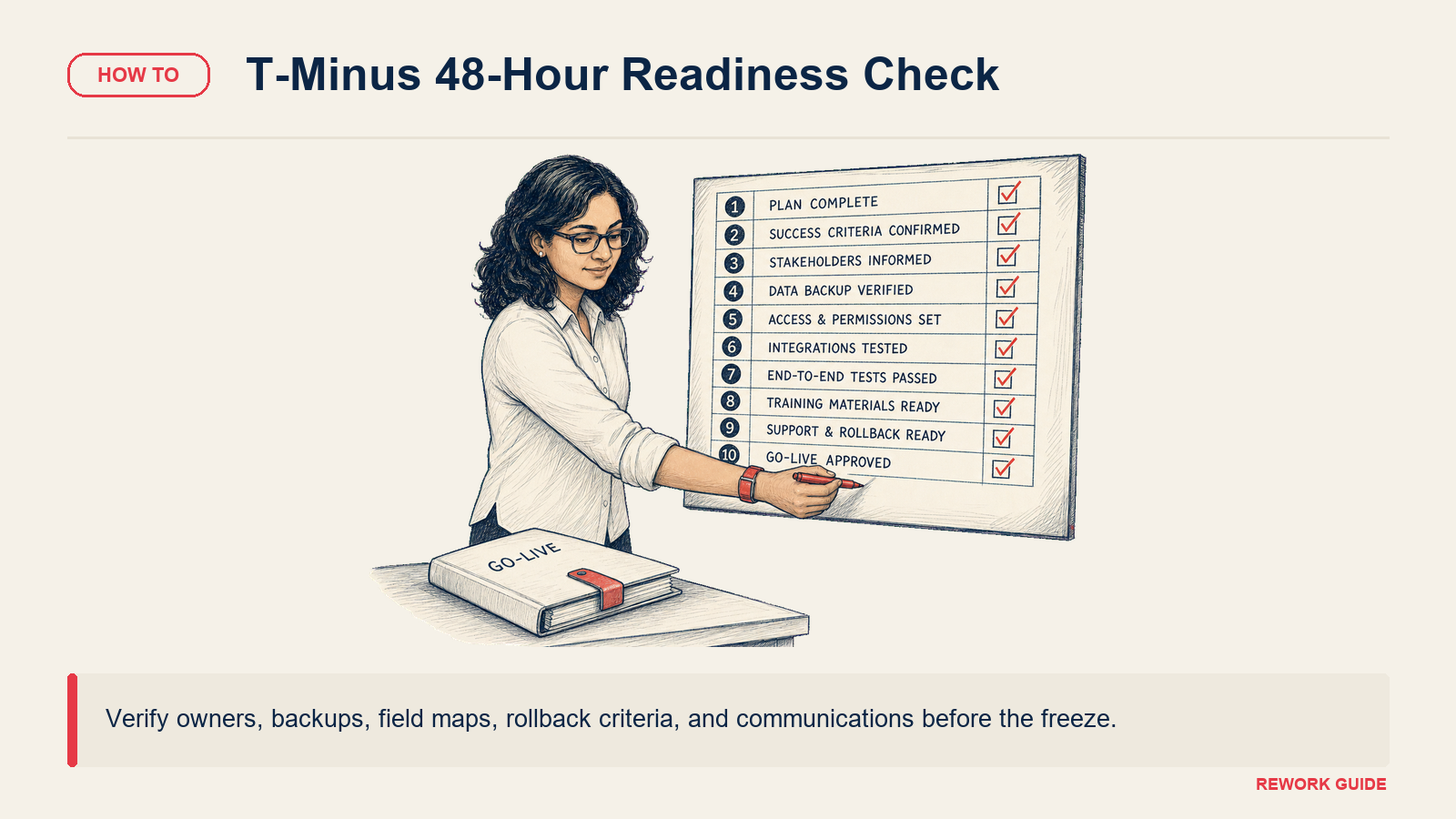
Pre-Cutover Checklist (10 items)
- Final shadow import pass completed. The shadow import sign-off checklist is fully checked: no open errors, no unresolved field mapping issues. If the sign-off checklist isn't done, do not proceed.
- Sandbox QA signed off by stakeholders. Sales leadership has confirmed that reports look correct and at least one rep has verified their records in the sandbox.
- Rep communications sent. The all-hands email or Slack message has gone to the sales team explaining the cutover timeline, the data freeze window, and what to expect on go-live day. (Template at the end of this guide.)
- Rollback plan documented in writing. The rollback trigger criteria are defined, the rollback procedure is written down, and the DRI for the rollback decision is named. (See Hour 4: the go/no-go decision.)
- Data freeze window communicated and scheduled. Reps know exactly when to stop entering data in the source system. The freeze time is in the calendar.
- Import sequence document finalized. The order of operations is written: Companies → Contacts → Deals → Activities → Custom Objects. The import tool configuration is saved and tested.
- Field mapping document finalized. No open items, all transformation rules and picklist value maps completed.
- Destination CRM configured. All custom fields, pipeline stages, lifecycle stage definitions, user accounts, and permissions are set up in production (not just sandbox).
- Day-of team assembled. You have named people for: import runner, QA verifier, rep-facing support, and rollback decision maker. These are not the same person.
- Backup of source system completed. Full CSV export of every object, timestamped and stored somewhere accessible (not just on the laptop of the person running the import).
If any of these 10 items is incomplete at T-minus 48 hours, push the cutover. A one-week delay is better than a failed go-live.
T-Minus 2 Hours: Data Freeze
The data freeze is one of the most mishandled parts of a migration. Most teams announce it too late, don't enforce it, and end up with source and destination diverging during the import window.
Why it matters: If a rep creates a new contact in the source CRM at 9:15am and your import runs from 9:00am to 12:00pm, that contact won't be in the destination. The rep thinks their data was lost. That distrust in the new system starts on day one and is hard to undo.
How to enforce it:
- Send a Slack/Teams message 2 hours before the freeze window with the exact time: "Data entry in [source CRM] will be locked from 10:00am to 2:00pm today."
- Change the source CRM's user permissions to read-only for all non-admin users during the import window. This is the only reliable enforcement method.
- For Salesforce: Profile settings, remove Create/Edit permissions for all objects except for admin users. The Salesforce Data Loader guide has the import sequence steps to run once the freeze is in effect.
- For HubSpot: There's no single "read-only mode." The closest is removing all non-admin users from the account temporarily. For most teams, communication is the enforcement method. HubSpot's import documentation covers the post-freeze import process and what the import log surfaces for QA.
- For Pipedrive: Settings > Manage Users, you can restrict permissions per user. The Pipedrive import guide documents what happens when duplicate contacts arrive during an import window, relevant if any records slip through the freeze.
What to do with deals that come in during the freeze window: This will happen. A rep gets an inbound lead at 10:30am during the freeze. The answer: take a note, don't enter it in the source system, and enter it directly in the destination after go-live. Brief the team on this before the freeze starts.
The freeze window should be at least 1 hour before import starts. Don't start importing the moment the freeze takes effect. Give it an hour buffer for any last-minute data entry to complete and sync.
Hours 1–3: The Import Run
You're running from the import sequence document. No improvisation.
Import Sequence
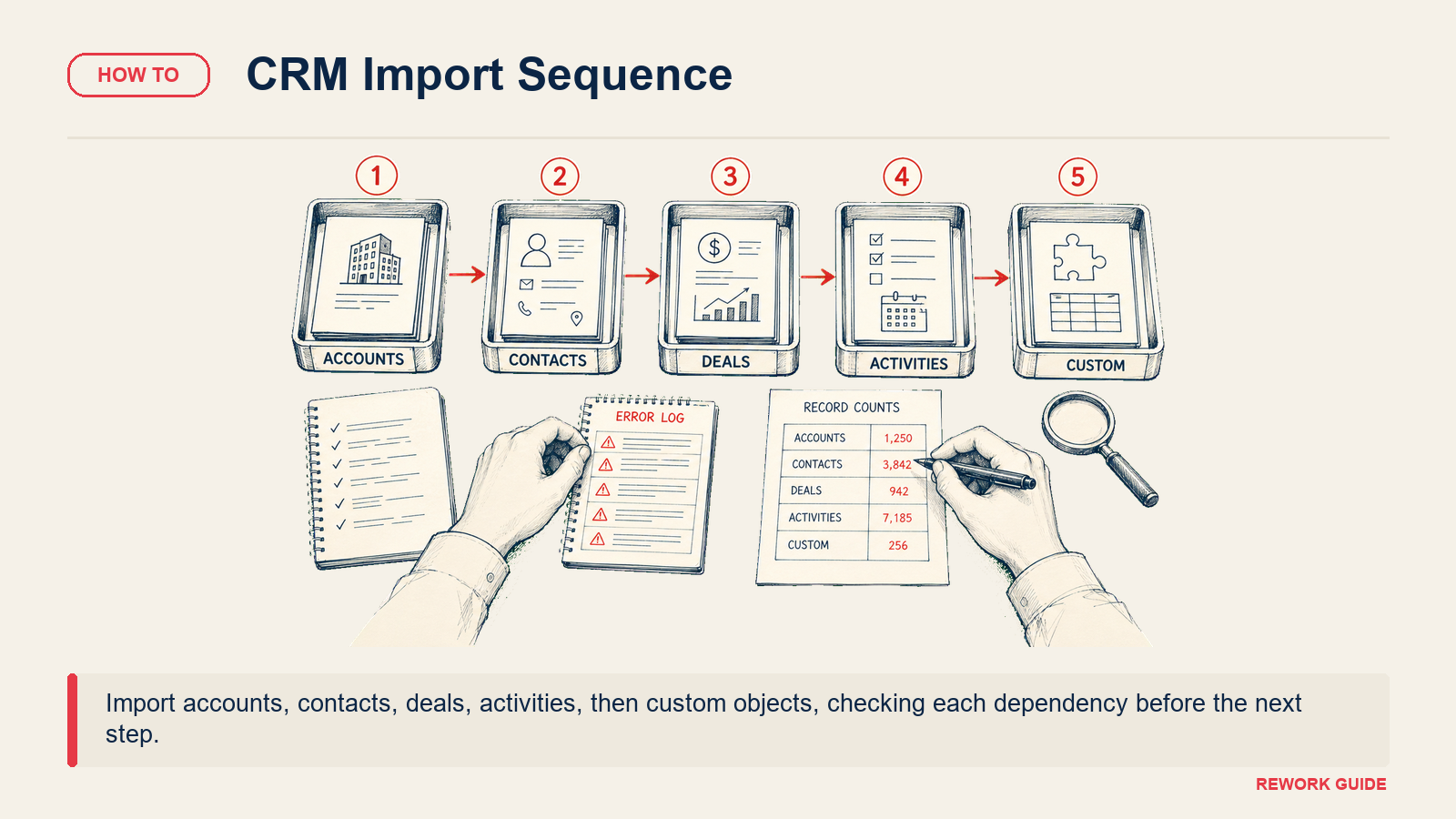
Run imports in this exact order. Each step depends on the previous one for relationship resolution:
- Companies / Accounts: No dependencies. Run first.
- Contacts: Depends on Companies (for company association). Verify company record count matches before proceeding.
- Deals / Opportunities: Depends on Contacts (for contact association). Verify contact record count matches before proceeding.
- Activities (calls, emails, notes, tasks): Depends on Contacts and Deals. Run last.
- Custom Objects: If applicable. Run after all standard objects.
Between each step:
- Check the import log for errors before proceeding to the next object
- Note the record count and compare to expected
- Spot-check 3 records manually to verify the most recent import ran correctly
What to watch for in the import log:
- Type conversion errors (text value in a number field)
- Required field failures (records skipped because a required field was null)
- Relationship resolution failures (contact imported but company association failed)
- Duplicate detection (if destination has dedup rules, some records may be blocked)
- Rate limiting or timeout errors (large imports can hit API limits; pause and resume if needed)
For large datasets (50,000+ records): Run the import in batches of 10,000–15,000 records per batch. This gives you a recovery point if the import fails mid-run and makes QA easier: you can verify each batch before running the next. Before the import run, confirm your data has been cleaned and deduplicated: importing dirty data at scale compounds problems exponentially. For large-scale migrations where RevOps is managing the transition, RevOps maturity model is useful context, it helps set realistic expectations for how much post-cutover cleanup teams at different maturity levels typically need.
Do not start QA until the import is fully complete. It's tempting to start checking records during the import run. Wait. Partial data is misleading and you'll waste time on issues that resolve when the rest of the data imports.
Hours 3–4: Go-Live QA
This is your final verification before you flip the switch. Work through the 15-check list systematically. Each check has a pass/fail verdict.
Go-Live QA Checklist (15 checks)
Record count checks:
- Total contacts in destination = expected count (±0.5%)
- Total companies in destination = expected count (±0.5%)
- Total deals in destination = expected count (±0.5%)
- Total open deals in destination = source open deal count
Field accuracy spot checks (open 10 records each): 5. [ ] Contact lifecycle stages display valid values (no nulls, no unmapped values) 6. [ ] Deal stages map correctly to destination pipeline stages 7. [ ] Deal amounts display as numbers (not text) 8. [ ] Date fields (close date, created date) display in correct format
Relationship integrity: 9. [ ] Random sample of 10 contacts: all have correct company association 10. [ ] Random sample of 10 deals: all have at least one contact association 11. [ ] Random sample of 5 deals: deal owner is assigned correctly
Report verification: 12. [ ] Pipeline by stage report: total open deal value matches source within 1% 13. [ ] Contacts by lifecycle stage: count per stage matches source within 2% 14. [ ] Deals created this period: count matches source (accounting for freeze window)
System function: 15. [ ] Test creating a new contact in the destination: basic workflows trigger correctly, no errors
Scoring the QA:
- 15/15 checks pass: Proceed to go-live decision
- 13–14/15 checks pass: Evaluate the failures. Are they blocking? Minor display issues are different from broken relationship fields
- <13/15: Do not go live. Diagnose failures, determine scope of impact, and make the rollback call
Hour 4: The Go/No-Go Decision
This is the decision that separates planned cutovers from chaotic ones. The criteria for going live and the criteria for rolling back must be defined before you start, not debated during the QA window.
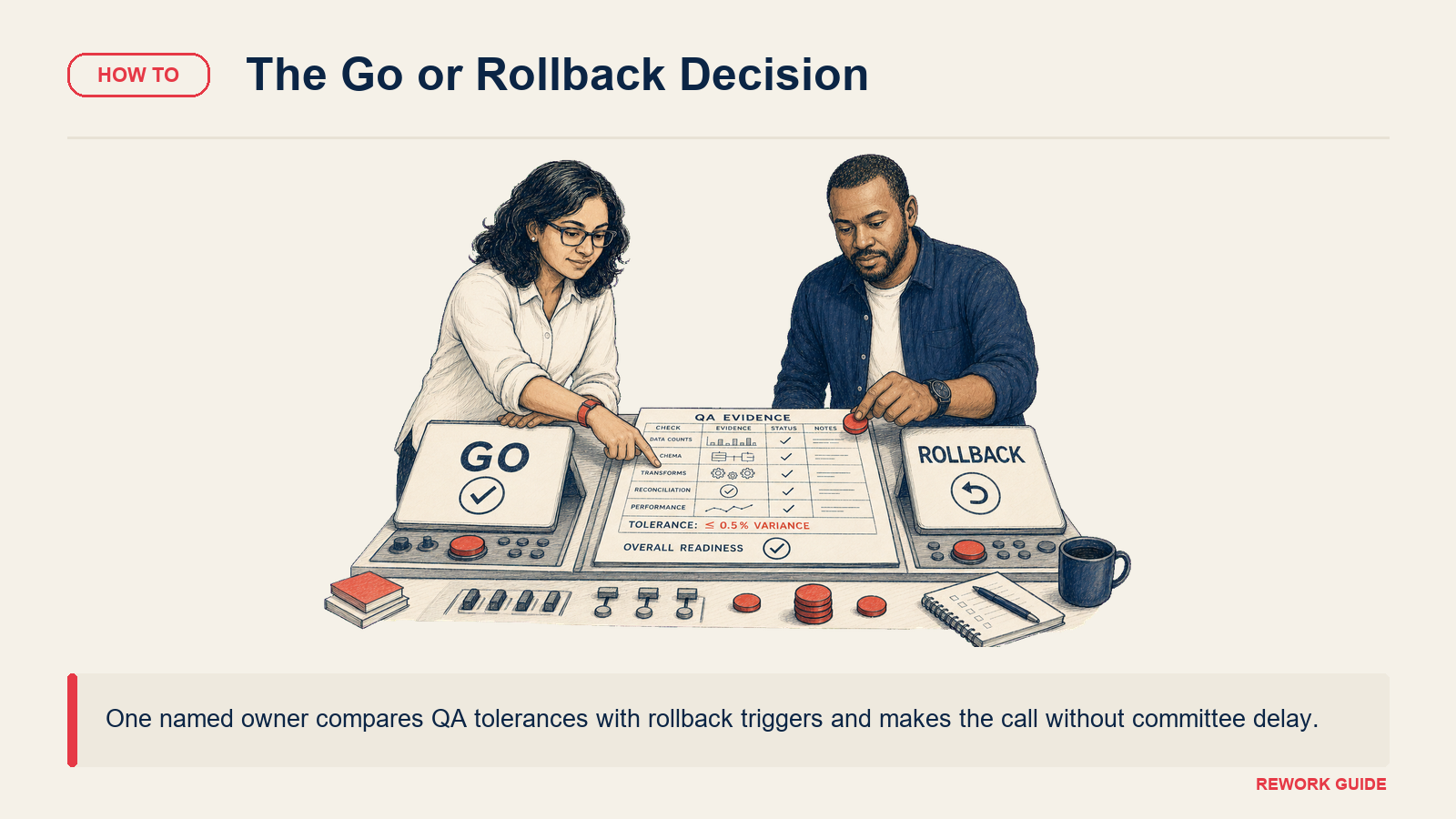
Go criteria (all must be true):
- QA checklist score: 14/15 or better
- No blocking issues (all open deals have correct stage, all contacts have valid lifecycle stage)
- Report totals within tolerance (pipeline value within 1%, stage counts within 2%)
Rollback triggers (any one is sufficient):
- Record count is off by more than 2% with no explanation (records were lost in import)
- Relationship fields are broken at scale (more than 5% of deals have no contact association)
- Field type corruption detected (currency fields importing as text, breaking revenue reports)
- The destination CRM itself is experiencing performance issues that prevent normal use
Who makes the call: Name one person in advance. Not a committee decision. The named DRI (Directly Responsible Individual) makes the call based on the criteria above, without needing consensus. When everyone is deciding, no one decides quickly, and delay compounds the problem.
How to communicate the decision:
- Go: Send the go-live message (template below) immediately
- No-go/rollback: Send the rollback message immediately, then follow the rollback procedure
Don't delay communication while you "look into" an issue. Send the status message first, then investigate.
Hours 4–5: Rollback Procedure
If you trigger a rollback, you're not failing. You're executing the plan. A rollback is better than going live with corrupted data.
Rollback procedure:
Send the rollback communication to the sales team immediately: "We've identified an issue during QA and are returning to [source CRM] for now. You can resume work in [source CRM]: no data has been lost. We'll communicate the rescheduled go-live date within 24 hours."
Re-enable full access to the source CRM (reverse the data freeze permissions).
Wipe the destination CRM import. Most CRMs allow a bulk delete or a "reset to blank" for data imported during a specific window. Do this before the team starts making any edits in the destination. You need a clean slate for the re-import.
Preserve the work done. Export the import logs, error logs, and QA notes. These become the input for fixing the root cause.
Schedule a debrief for the next business day. What failed? What does the mapping document need to change? How long will the fix take? Set a realistic re-run timeline.
Rollback timeline: Aim to complete the rollback and restore source CRM access within 90 minutes of the decision. The longer reps are in limbo, the more distrust builds.
Rescheduling: Add at least 5 business days to the new cutover date. This gives you time to fix the root cause, run another shadow import to verify the fix, and get stakeholder sign-off before trying again. Rushing the re-run is how you fail twice.
Hour 5: Go-Live Communication
If QA passes and you've decided to go live, communicate immediately.
Go-Live Communication Template
Slack / Teams (send first):
[Name], team: [CRM Name] is live. You can start using the new system now.
Quick notes:
- Your data is in [CRM Name] as of today
- If you're looking for something and can't find it, post in #crm-support, we'll help
- [Source CRM] is in read-only mode and will remain accessible for 30 days if you need historical reference
DRI for day-one questions: [Name], ping them directly or in #crm-support
Email (send within 30 minutes of go-live):
Subject: [CRM Name] is live: what you need to know
The migration is complete. Starting now, [CRM Name] is the system of record for all sales activity.
What you need to do today:
- Log in to [CRM Name] at [URL] using your [email/SSO] credentials
- Verify your open deals are showing the correct stage and amount
- If something looks wrong, contact [Name] at [contact info]. Don't fix it yourself yet
Read-only access to [source CRM]: [Source CRM] is still accessible as a read-only archive through [date 30 days from now]. Use it as a reference for historical activities. Do not enter new data into [source CRM].
Day-one support: [Name] is available today and tomorrow for questions. Slack: #crm-support. Email: [address].
Thank you for your patience during the migration.
Send both messages within 5 minutes of the go-live decision. Don't wait until you've done a final review. Speed of communication is what prevents the "is the system live or not?" confusion.
Days 1–3: Post-Cutover Monitoring
Go-live isn't the end. It's the start of the stabilization period. Common day-one errors appear when reps start using the system in ways the QA didn't cover.
Daily Monitoring Checklist (Days 1–3)
Day 1 (within 2 hours of go-live):
- Spot-check 20 records from a live rep's open pipeline: are stages, contacts, and amounts correct?
- Check the #crm-support channel for reported issues: triage and respond within 15 minutes
- Verify new records created post-go-live are saving correctly (basic CRM function check)
Day 1 (end of day):
- Count of issues reported: categorize as data quality, field mapping, or user error
- Any issues that require a fix (not user training)? Identify root cause and log for resolution
- Status update to sales leadership: X issues reported, Y resolved, Z in progress
Days 2–3:
- Daily review of issues log: are the same issues repeating? Repeating issues suggest a systemic mapping error, not a one-off
- Verify that deal-stage-based automation is triggering correctly (new deals moving through stages should trigger the right sequences)
- Check report accuracy: is the pipeline report matching what reps report in their pipelines?
Common day-one errors and fixes:
| Error | Likely cause | Fix |
|---|---|---|
| Contact showing wrong lifecycle stage | Picklist mapping missed a value | Update the record manually, fix the mapping doc for any similar records |
| Deal amount showing as $0 or text | Currency field type conversion failed | Find affected records via a report filter, bulk update amounts |
| Activity history missing for a contact | Activity import failed or relationship didn't resolve | Check import log for that contact ID; re-import activities for affected records |
| Rep can't see their assigned records | User assignment field didn't resolve correctly | Bulk reassign in the destination admin panel |
| Automation sequence not triggering | Pipeline stage names didn't match automation trigger conditions | Update automation trigger to match new stage names |
The 48-hour rule: Most day-one issues surface within 48 hours. If you haven't heard about a problem by day 3, you probably won't. Maintain active monitoring for 3 days, then move to a weekly check-in rhythm.
Common Pitfalls
No defined rollback criteria. Without pre-defined criteria, the rollback decision becomes a committee debate during a crisis. The team spends 45 minutes arguing about whether 3% orphaned deals is "bad enough" to roll back while reps wait. Define the criteria before you start.
No data freeze. This is how source and destination diverge. A rep creates a deal at 10:45am during the import run. It's in the source but not the destination. The rep thinks the migration lost their work. That's a morale and trust problem that's completely preventable.
Insufficient go-live QA. Finishing the import and going live within 30 minutes feels efficient. It skips the QA that catches broken currency fields and orphaned deal records. The 90-minute QA window is worth it.
No named DRI for day-one support. Telling reps to "ask someone" is not a support plan. Harvard Business Review's research on change management and organizational accountability shows that named accountability is one of the strongest predictors of successful technology transitions. One named person, visible in the communication, who can be pinged directly. That person resolves questions on the spot or escalates. They don't defer. The CRM rollout and adoption guide has a structured rep onboarding plan for day one and day two, worth reading before you write the go-live communication.
Friday afternoon cutovers. This one comes up constantly. The Wikipedia entry on data migration notes that timing and rollback planning are among the most cited failure factors in enterprise migrations, and Friday scheduling is a recurring theme. There's pressure to cut over on Friday so reps have the weekend to "adjust." What actually happens: issues surface Friday afternoon, the migration team has left for the weekend, and reps spend Monday dealing with unresolved data problems. Schedule cutovers for Tuesday or Wednesday morning. The team is fresh, support is available, and issues get resolved within the same business day. From a pipeline continuity standpoint, reading pipeline hygiene culture before cutover week helps: it explains what reps need to see on day one to maintain trust in the new system's data.
What to Do Next
Schedule the cutover for a Tuesday or Wednesday morning, not a Friday. Send the T-minus 48 hours pre-cutover checklist to your migration owner today and confirm all 10 items have completion dates assigned.
If your shadow import isn't signed off yet, don't schedule the cutover at all. The shadow import sign-off is the prerequisite for everything in this guide. And once the dust settles, use the lead data management article as a baseline for the ongoing data quality practices that prevent the same cleanup work from being needed at the next migration.
Related Resources

On this page
- T-Minus 48 Hours: Pre-Cutover Checklist
- Pre-Cutover Checklist (10 items)
- T-Minus 2 Hours: Data Freeze
- Hours 1–3: The Import Run
- Import Sequence
- Hours 3–4: Go-Live QA
- Go-Live QA Checklist (15 checks)
- Hour 4: The Go/No-Go Decision
- Hours 4–5: Rollback Procedure
- Hour 5: Go-Live Communication
- Go-Live Communication Template
- Days 1–3: Post-Cutover Monitoring
- Daily Monitoring Checklist (Days 1–3)
- Common Pitfalls
- What to Do Next
- Related Resources