More in
Lead Capture Automation
Chat-to-CRM Automation: Connecting Respond.io with HubSpot (2026 Guide)
Apr 18, 2026
LinkedIn Lead Gen Forms to CRM: Automated Routing That Actually Works
Apr 18, 2026
Lead Scoring for Chat-Captured Leads: A Different Model Than Form Leads
Apr 18, 2026
Webhook-Based Lead Capture: A Practical Guide for Custom Integrations
Apr 18, 2026
Routing Leads to Reps Based on Chat Conversation Context
Apr 18, 2026
Automating the Post-Capture Nurture Sequence: From First Touch to Sales-Ready
Apr 18, 2026
GDPR-Compliant Lead Capture for EU Markets: A Practical Operations Guide
Apr 18, 2026
Building a No-Form Lead Capture Stack: How to Capture Leads Without a Single Form
Apr 18, 2026
Tracking Source Attribution Across Chat, Ad, and Form Leads: The Ops Guide
Apr 18, 2026
Connecting Your CMS Form to Salesforce Without Paying for Premium Connectors
Apr 18, 2026
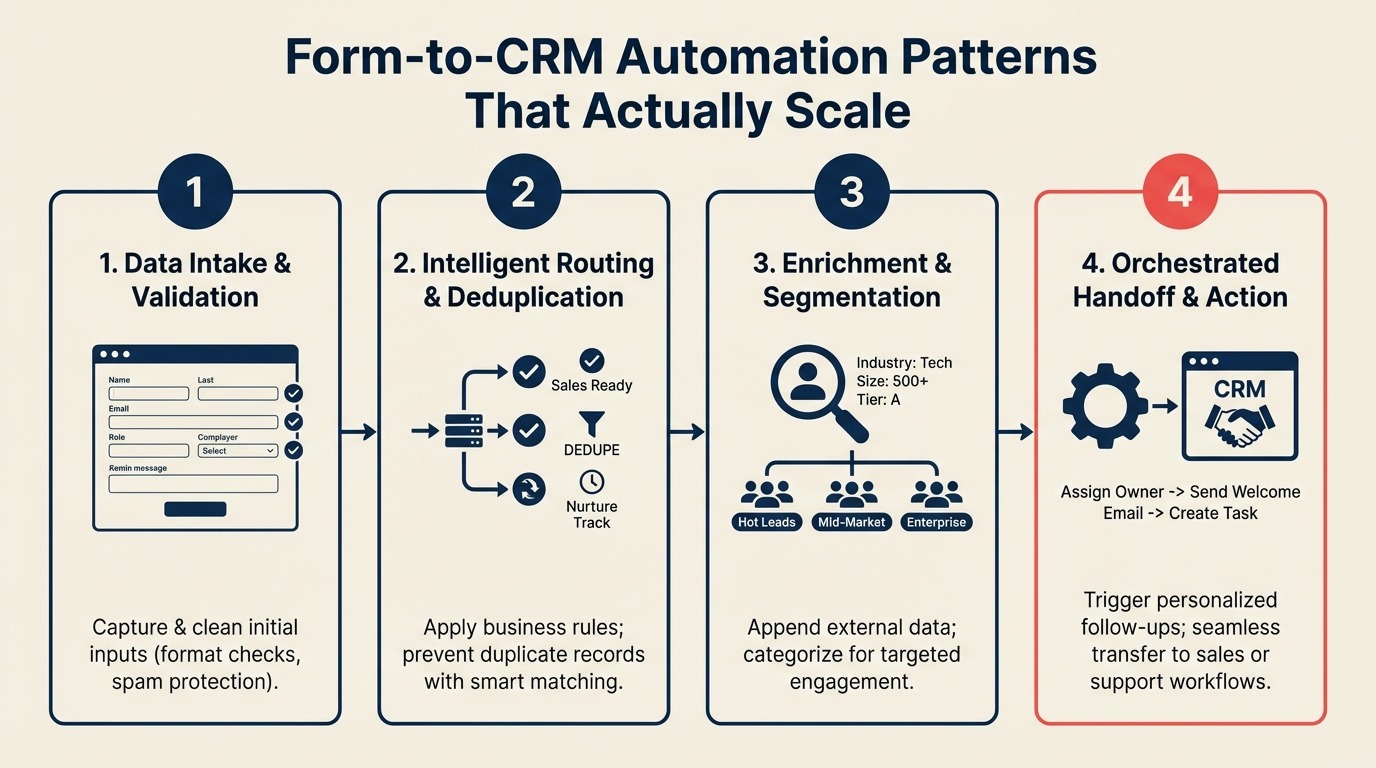
Form-to-CRM Automation Patterns That Actually Scale
Turn this article into takeaways for your work.


Each assistant summarizes the article only for you and suggests best practices for your work.
The average B2B marketing team has 6 forms across their website, 3 different form tools, and 2 CRMs receiving leads from some combination of them. The result is duplicates, missed leads, and a "why isn't this in HubSpot?" conversation every Monday. This guide gives you the architecture that scales.
Marketing automation platforms are designed to handle exactly this problem, but only if the data pipeline feeding them is reliable. Form-to-CRM reliability is the foundation everything else sits on.
Before you optimize campaigns, check your pipeline. A team running 400 leads per month recently discovered that 18% were duplicates, 7% never reached the CRM at all, and the average first-contact delay was 4 hours. Their form-to-CRM stack wasn't broken in one place. It was fragile everywhere.
Here's the step-by-step architecture to fix it.
Step 1: Audit Your Current Form-to-CRM Connections
You can't fix what you haven't inventoried. Start with a spreadsheet that maps every active form:
| Form Name | Form Tool | CRM Target | Integration Method | Last 30-Day Volume | Known Failures |
|---|---|---|---|---|---|
| Contact page | HubSpot Forms | HubSpot | Native | 140 | None tracked |
| Webinar signup | Typeform | HubSpot | Zapier Zap | 85 | 3 missed (Zap off) |
| Content download | Webflow | Salesforce | Webhook | 60 | No error monitoring |
| Event registration | Google Forms | Both | Make scenario | 55 | Duplicate CRM records |
Once you have this table, look for patterns. If a form has "no error monitoring" in the last column, that's your first priority. You're not actually processing 7% failure. You just can't see it.
Run this audit every quarter. Forms get added without ops review all the time.
Step 2: Native Integration vs. Webhook vs. Middleware
The right integration method depends on your form tool, your CRM, and your volume. Here's the decision matrix:
Use native integration when:
- Your form tool is HubSpot Forms and your CRM is HubSpot (zero setup, zero cost)
- Your CRM vendor offers a direct connector for your form tool (e.g., Salesforce Web-to-Lead for standard HTML forms)
- Volume is under 1,000 submissions per month and you have no conditional logic requirements
Use Zapier, Make, or n8n middleware when:
- Your form tool and CRM don't have a direct integration
- You need conditional logic (e.g., route enterprise leads differently from SMB leads)
- You need to enrich data before it hits the CRM
- Volume is moderate and the middleware cost is justified by the flexibility
Build a direct webhook when:
- You have a developer on the team and want full control
- You need real-time processing with custom logic
- You're dealing with high volume and middleware per-task pricing would be expensive
- Your form tool already sends a POST request on submission (most modern tools do)
For most marketing ops teams running under 5,000 leads per month, Make or n8n hit the right balance of flexibility and cost. See the Zapier vs n8n vs Make comparison for a detailed breakdown. If you're also evaluating which CRM to wire everything into, the Rework vs HubSpot CRM comparison covers key integration and automation differences. Teams running Meta Lead Ads alongside web forms should also read the Meta Lead Ads to CRM integration playbook before choosing their middleware stack.
Step 3: Deduplication Strategy for Form Leads
Email is your primary matching key for form leads. When a new form submission arrives, before creating a CRM record, your automation should:
- Query the CRM for an existing contact with the same email address
- If found: update the existing record, don't create a new one
- If not found: create a new contact record
This single check drops your duplicate rate from 18% to under 3% in most setups.
But email alone isn't enough in a multi-channel stack. If the same person submits a form with john.smith@acme.com and later chats via WhatsApp with a phone number, email matching won't link them. For multi-channel deduplication, see deduping leads from multi-channel capture. The data cleaning and dedup guide also covers bulk cleanup for existing duplicate records.
What to do when email is missing: Some forms allow partial submissions. If a submission comes through without an email, you have two options:
- Create the record with a placeholder and flag it for manual review
- Drop the submission and send an automated follow-up to collect the email
The right answer depends on your sales process. If your team is equipped to follow up immediately, create the record. If not, the placeholder record usually sits ignored and pollutes your database.
Merge vs. update logic: When you find an existing record, decide upfront what to overwrite. Don't blindly overwrite the company field if a sales rep already corrected it. A safe default: only update empty fields, never overwrite populated ones.
Step 4: Required Field Validation Before CRM Creation
According to Statista's B2B marketing data, form completion rates and lead quality vary significantly by form length and field count, validating the minimum-field approach. Every CRM record created from a form submission needs at least 4 fields to be useful:
- First name: required for personalized follow-up
- Email address: your primary identifier and contact method
- Lead source: which form, which channel (used for routing and attribution)
- Submission timestamp: required for speed-to-lead reporting
If any of these are missing, your automation should either reject the submission (and notify the form owner) or queue it for manual review. Creating a record without a lead source means you'll never know which campaign it came from.
For partial submissions (name and email only, no company or phone), create the record and flag it for enrichment. See lead enrichment automation for how to fill those gaps automatically. The field design decisions you make here also shape your CRM workflow automation later, and they depend on a clean CRM data model being in place first.
Step 5: Lead Source Tracking: UTM Parameters on Every Form
Lost UTM data is the most common reason attribution reports are wrong. Here's the field mapping that keeps it intact:
For HubSpot Forms: HubSpot automatically captures UTM parameters from the page URL if you've enabled "Capture UTM parameters" in the form settings. Verify this is on. The HubSpot UTM tracking guide explains exactly which contact properties each parameter maps to. Also confirm the hidden fields in the form (utm_source, utm_medium, utm_campaign, utm_content, utm_term) are mapped to contact properties in HubSpot.
For Typeform:
Use a Hidden Fields block in Typeform. Pass UTMs via URL parameters when linking to the form (e.g., typeform.com/form?utm_source=google). In your Zapier/Make scenario, map those hidden fields to the correct CRM properties.
For Webflow Forms: Webflow doesn't natively capture UTMs. The standard fix: add a small JavaScript snippet to your Webflow site that reads UTM parameters from the page URL and writes them into hidden form fields on page load.
// Add to Webflow site's custom code (before </body>)
document.addEventListener('DOMContentLoaded', function() {
  const params = new URLSearchParams(window.location.search);
  ['utm_source','utm_medium','utm_campaign','utm_content','utm_term'].forEach(function(key) {
    const input = document.querySelector('input[name="' + key + '"]');
    if (input && params.get(key)) input.value = params.get(key);
  });
});
Add hidden fields with matching names to your Webflow form, and the webhook payload will include UTM data automatically.
UTM-to-CRM field mapping reference:
| UTM Parameter | HubSpot Property | Salesforce Field | Notes |
|---|---|---|---|
| utm_source | hs_analytics_source | Lead_Source__c | google, linkedin, facebook |
| utm_medium | hs_analytics_source_data_1 | UTM_Medium__c | cpc, email, organic |
| utm_campaign | hs_analytics_last_referrer | UTM_Campaign__c | campaign name |
| utm_content | (custom property) | UTM_Content__c | ad or content variant |
| utm_term | (custom property) | UTM_Term__c | paid keyword |
Step 6: Webhook-Based Form Integration for Custom Setups
If you're building a direct webhook receiver, here's the minimal pattern that works:
1. Form tool sends POST request to your webhook endpoint
2. Endpoint receives payload (JSON)
3. Validate required fields (email, source, timestamp)
4. Check for duplicate in CRM via API lookup
5. If duplicate: update existing record
6. If new: create contact via CRM API
7. Log result (success/failure) to your monitoring system
8. Return 200 OK to the form tool
For testing before you wire up the real CRM: use webhook.site to inspect the exact payload your form tool sends. This saves significant debugging time.
What to log for debugging:
- Timestamp of receipt
- Form identifier (which form sent this)
- Email hash (not the plain email, for privacy in logs)
- CRM action taken (created / updated / skipped)
- Any API error messages
Keep 30 days of logs. Most silent failures are caught within a week, but CRM API rate limit issues can emerge gradually and show up weeks later.
Step 7: Routing From Form to Rep
The automation sequence after a valid form submission should fire in this order:
- CRM record created or updated
- Lead score calculated (based on firmographics + form type)
- Routing rule applied (based on company size, industry, territory)
- Assigned rep notified within 5 minutes
The rep notification is the step most teams skip. If a rep doesn't see the lead until they manually check the CRM, your speed-to-lead metric is meaningless.
Use Slack or email notifications triggered by the CRM (HubSpot Workflows, Salesforce Process Builder / Flow) rather than a separate Zapier step. CRM-native notifications are more reliable because they run inside the same transaction as the record creation.
The 5-minute window matters. Research from Harvard Business Review shows that lead qualification rates drop sharply after the first 5 minutes. If your current average is 4 hours, fixing this routing step is worth more than any campaign optimization. For the scoring and routing model that this step feeds into, see lead routing automation. Teams using chat alongside forms should also look at lead routing for chat channels to keep rep assignments consistent across both surfaces.
Step 8: Error Handling and Monitoring
Silent failures are the norm without explicit monitoring. Here's the alerting setup that catches them:
In Make or n8n:
- Enable error handling on every module, not just the final one: Make's error handling documentation covers the full set of directives available
- Create a dedicated "Error" path that logs failures to a Google Sheet or Slack channel
- Set up an email alert if a scenario fails more than 3 times in an hour
In Zapier:
- Enable "Replay failed Zaps" in settings (this catches intermittent failures)
- Set Zap history alerts for any task that fails
In your CRM:
- HubSpot: Use the "Data Quality" dashboard to flag records created with empty required fields
- Salesforce: Create a Validation Rule that requires Lead Source on new records. This surfaces any records that snuck through without it.
The weekly check: Every Monday, review your middleware tool's error logs for the prior week. Look for:
- Failed submissions by form (identifies broken integrations)
- Retry success rate (high retries mean an upstream service is flaky)
- Records created without lead source (indicates UTM mapping is broken)
Common Pitfalls
No deduplication logic. An 18% duplicate rate is the norm without it. Every form submission that hits an existing email in the CRM should update, not create a new record.
UTM data lost because the form doesn't pass hidden fields. This is the most common attribution problem. Fix the form before fixing the campaign.
No error monitoring. If your Zap goes off or your webhook endpoint returns 500, you'll never know unless you've built alerting. Silent failures accumulate.
Routing fires before the CRM record is fully created. If your routing automation triggers on a webhook before the CRM API confirms the record is created, you'll get routing errors or missed assignments. Add a brief delay or confirmation step.
Overwriting manually-entered CRM data with form data. If a rep corrected a company name and the next form submission overwrites it, you've erased that work. Always use "update only if empty" logic for enrichment fields.
What to Do Next
Run a 30-day audit of form submission failures using your middleware tool's error logs. For each failure, note:
- Which form it came from
- What the error was (CRM API error, missing field, duplicate)
- Whether the lead was recovered or lost
Most teams find that 3-4 recurring failure patterns account for 80% of their lost leads. Fix those first before adding new form integrations.
Learn More

Co-Founder, Rework.com
On this page
- Step 1: Audit Your Current Form-to-CRM Connections
- Step 2: Native Integration vs. Webhook vs. Middleware
- Step 3: Deduplication Strategy for Form Leads
- Step 4: Required Field Validation Before CRM Creation
- Step 5: Lead Source Tracking: UTM Parameters on Every Form
- Step 6: Webhook-Based Form Integration for Custom Setups
- Step 7: Routing From Form to Rep
- Step 8: Error Handling and Monitoring
- Common Pitfalls
- What to Do Next
- Learn More