More in
CRM Implementation Guide
Setting Up CRM Roles and Permissions the Right Way
Apr 18, 2026
Email and Calendar Sync Without the Data Mess
Apr 18, 2026
Integrating Your CRM with Marketing Tools: A Sales Ops Guide
Apr 18, 2026
Training Sales Reps to Actually Use the CRM
Apr 18, 2026
Measuring CRM Adoption with Leading Indicators
Apr 18, 2026
Handling the "The Old System Was Better" Transition
Apr 18, 2026
CRM Hygiene: Weekly, Monthly, and Quarterly Routines That Keep Data Clean
Apr 18, 2026
Common CRM Implementation Mistakes — and How to Recover from Each One
Apr 18, 2026
When to Bring In a CRM Consultant, and When Not To
Apr 18, 2026
How to Pick a CRM in 2026: The Buyer's Checklist
Apr 6, 2026
Designing Your CRM Data Model Before You Touch the Software
Turn this article into takeaways for your work.


Each assistant summarizes the article only for you and suggests best practices for your work.
A 40-person SaaS sales team rebuilt their CRM data model twice in 12 months. The first build took three weeks to configure. The second rebuild happened because they discovered, mid-Q2, that their contact model couldn't support multiple contacts per deal with different roles. The third attempt, done on paper before touching the CRM, has been running without structural changes for 18 months.
That third attempt started with a whiteboard, not a laptop.
The core lesson: every CRM implementation that falls apart does so because someone started clicking before thinking. Harvard Business Review research on CRM failure puts the failure rate of CRM initiatives as high as 90% in some studies, with poor data planning and unclear ownership as the leading causes. Contacts vs. Leads vs. Accounts vs. Deals: the relationships between these objects determine what you can report on, what you can automate, and how your pipeline works. Get it wrong and you spend Q3 migrating data you entered in Q1.
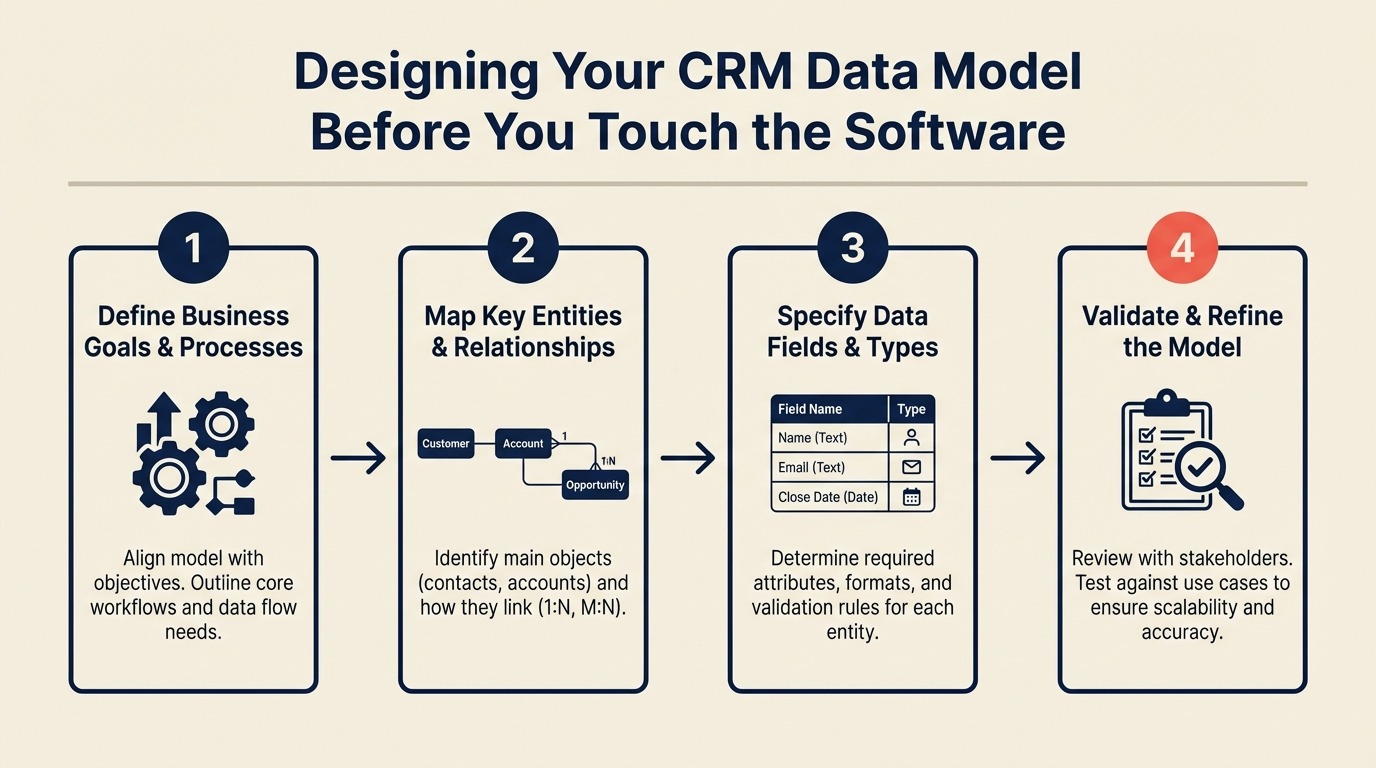
This guide walks you through designing a CRM data model on paper before you configure a single field.
Step 1: List Your Core Business Objects
Start with the four default objects every CRM ships with:
- Contacts: Individual people your team interacts with
- Companies (Accounts): The organizations contacts belong to
- Deals (Opportunities): Active sales motions with a close date and value
- Activities: Calls, emails, meetings, tasks (the interaction record)
Before you add anything else, validate that these four cover 90% of your sales motion. They usually do. The temptation to add custom objects is strong. Resist it until you've proven the standard objects can't handle the use case.
Custom objects are worth the complexity only when:
- You're tracking something that isn't a person, company, or deal (e.g., physical assets, project deliverables, product installations)
- The relationship structure is fundamentally different from contact-company-deal
- You have 3+ fields that apply exclusively to this entity
In Salesforce, custom objects are powerful but add licensing and maintenance overhead. Salesforce's guide to custom objects covers the setup and permission considerations. In HubSpot, custom objects are available on Enterprise plans and are increasingly capable. In Pipedrive, custom objects don't exist in the same way. You use custom fields on the existing objects instead.
If you're not on Salesforce Enterprise or HubSpot Enterprise, don't design your model around custom objects. Design for what the CRM can support.
Step 2: Map the Relationships
Draw this out before you open the CRM. You need to understand the cardinality: how many of one object can relate to how many of another.
Standard relationships to define:
| Relationship | Type | Notes |
|---|---|---|
| Contact → Company | Many-to-One | One contact belongs to one company (default) |
| Contact → Company | Many-to-Many | One contact works with multiple companies (Salesforce Accounts feature, HubSpot Associations) |
| Contact → Deal | Many-to-Many | Multiple contacts can be on one deal (committee buying) |
| Deal → Company | Many-to-One | One deal belongs to one company |
| Activity → Contact | Many-to-One | Activities log against a single contact |
| Activity → Deal | Many-to-One | Activities log against a single deal |
The non-obvious question: can a contact belong to multiple companies? In most B2B sales, you run into this when someone is a board member at two companies, or when you're selling to a holding company with multiple subsidiaries.
Salesforce handles this with Account Relationships and Contact Roles. HubSpot added multi-association support in 2022. HubSpot's documentation on associations explains how to label relationship types across objects. Pipedrive handles it less elegantly. You can associate a person with multiple deals, but the primary company is singular.
If your sales motion regularly involves contacts who span multiple accounts, design your model around that before you configure. If it's rare, handle it as an edge case in your notes rather than building complexity into the data model for it. Understanding how each CRM handles associations differently can save you a painful rebuild later.
Step 3: Define What Lives on Each Object
For each object, list the fields. Don't skip this step in favor of "we'll figure it out during configuration." You won't. You'll add fields reactively and end up with 80 fields by month three.
For each field, define:
- Name: What it's called. Be consistent with naming conventions and decide on Title Case vs. sentence case now.
- Type: Text, picklist, number, date, checkbox, formula, lookup
- Required?: Yes or No. Keep this list short.
- Purpose: Report on it, segment by it, trigger automation with it, or display to reps
A sample Contact object definition might look like this:
| Field | Type | Required | Purpose |
|---|---|---|---|
| First Name | Text | Yes | Display |
| Last Name | Text | Yes | Display |
| Text | Yes | Email sync, automation | |
| Phone | Text | No | Display |
| Job Title | Text | No | Display |
| Lead Source | Picklist | Yes | Reporting, automation |
| Lead Status | Picklist | Yes | Routing, reporting |
| ICP Fit | Picklist | No | Segmentation |
| Last Activity Date | Date (system) | No | System-generated |
| Contact Owner | Lookup → User | Yes | Routing |
And a Deal object:
| Field | Type | Required | Purpose |
|---|---|---|---|
| Deal Name | Text | Yes | Display |
| Pipeline Stage | Picklist | Yes | Pipeline, forecasting |
| Close Date | Date | Yes | Forecasting |
| Deal Value | Currency | Yes | Reporting |
| Deal Type | Picklist | Yes | Segmentation |
| Lost Reason | Picklist | No (required on close-lost) | Reporting |
| Account | Lookup → Company | Yes | Relationship |
| Primary Contact | Lookup → Contact | Yes | Relationship |
| Forecast Category | Picklist | No | Forecasting |
This is exactly the work that prevents the custom fields conversation from going sideways. See the custom fields guide for the decision framework for every field request.
Step 4: Build Your Picklist Values as a Team
This is where bad data starts: one rep types "Financial Services" in the industry field, another types "Fintech," another types "Banking & Finance." Now your industry report is useless. Before you lock these values in, it helps to understand how field mapping decisions affect a future data migration. Picklist mismatches are the most common source of import errors.
Picklists force consistency. But they only work if the values are designed for reporting, not just data entry.
Core picklists to define before go-live:
Lead Source: Where contacts enter the CRM. Sample values: Inbound Web, Outbound SDR, Referral, Partner, Event, Content Download, Paid Ad, Trial Signup. Keep these at the source level, not "Facebook Ad - Campaign Name - March 2026." Source-level values stay clean. Campaign-level belongs in your marketing attribution tool.
Industry: Use a consistent taxonomy. Start with 10-12 values and resist requests to add more in the first 90 days. SaaS, Financial Services, Healthcare, Manufacturing, Professional Services, Retail, Media, Education, Non-Profit, Other.
Lost Reason: These are critical for learning but almost always a mess. Good lost reasons are honest and actionable: No Budget, Chose Competitor (named), No Decision, Timing, Wrong Fit, Ghosted. Avoid vague options like "Other" as a catchall.
Pipeline Stage: Define these carefully. See the pipeline stages guide for how to build stages around buyer milestones rather than rep activities.
Deal Type: New Business, Expansion, Renewal, Reactivation. If you only sell one type, skip this. If you have multiple motions, this field separates your pipeline into distinct funnels.
For each picklist, define: who owns the values, how new values get added (approval process vs. open), and what happens to old values when they're no longer accurate (archive, not delete).
Step 5: Design for Reporting, Not Just Data Entry
Here's the test for every field: if you can't query it or group by it in a report, don't store it as free text. This principle also connects directly to how pipeline stages should be built around buyer milestones: if your stages don't map to observable buyer states, the reports built on top of them won't tell you anything useful.
"Customer notes" as a text field is useful for a rep reading context before a call. It's useless for any aggregate analysis. "Pain Point" as a free-text field means you'll never know that 60% of your deals mention "manual processes" as the core problem. Nobody can parse 2,000 text entries.
When someone asks for a free-text field, ask them: will you ever want to count how many deals fall into different categories of this field? If yes, it should be a picklist. If it's truly contextual narrative, text is fine. But it only belongs in the notes section or activity record.
Formula fields are useful but require maintenance. If a field value can be calculated from other fields (e.g., Days in Stage = Today - Stage Entry Date), use a formula. But formula fields in Salesforce have limits, and in HubSpot they require Operations Hub Professional. HubSpot's formula property documentation shows what's supported at each tier. Know your CRM's formula field capabilities before designing a model that depends on them.
Step 6: Document the Model in a Schema Sheet
Before you configure anything, document your design in a simple spreadsheet. One tab per object, columns for: field name, field type, required, values (for picklists), and purpose.
A basic schema sheet has:
- Object Definitions tab: List of all objects, their purpose, and whether they're standard or custom
- Relationships tab: Every object-to-object relationship with cardinality noted
- Field Definitions tabs: One per object with the table format above
- Picklist Values tab: Every picklist and every value, with a note on who owns it
This document becomes your implementation spec. Your CRM admin configures from it. Your team reviews it before go-live. Your manager can read it without opening the CRM.
Keep the schema sheet in a shared drive, not just in your head. CRM admins change. Your future self will thank you.
How This Differs by CRM
Before locking in your schema, it's also worth reviewing how Rework's data model compares to Salesforce's default object structure, especially if you're considering a lighter-weight option.
Salesforce: Salesforce's data model is the most powerful and the most complex. Standard objects are Leads, Contacts, Accounts, and Opportunities. The Lead-to-Contact conversion process requires deliberate design. When does a Lead become a Contact with an associated Account and Opportunity? This transition is a common source of confusion. Custom objects and custom relationships are available at most license tiers but require Admin or Developer expertise to configure cleanly.
HubSpot: HubSpot's default model is Contacts, Companies, Deals, and Tickets. The Associations feature (available at all paid tiers) allows multi-object relationships but has limits on association types at lower tiers. HubSpot doesn't have a Lead object by default. Contacts fill that role, which simplifies the model but requires clear Lead Status and Lifecycle Stage fields to track progression. Custom objects are Enterprise-only.
Pipedrive: Pipedrive keeps the model simple: People, Organizations, Deals, Activities. It doesn't support custom objects. Relationships are straightforward and there's less flexibility but also less to get wrong. If your sales motion is relatively standard, Pipedrive's simplicity is a feature. If you need complex account hierarchy or contact roles on deals, you'll hit its limits.
Close: Close uses Leads as the top-level object, with Contacts beneath them. This differs from most CRMs and requires adjustment if you're migrating from Salesforce or HubSpot. The model is well-suited for inside sales but less flexible for complex enterprise account structures.
Common Pitfalls
Too many custom fields on day one. According to Gartner's CRM best practices research, the average CRM has 80% of fields going unused within 6 months. Start lean, 15-20 fields per object, and add only when there's a demonstrated reporting or automation need. You can always add fields. Cleaning up 60 unused fields and the bad data in them is a project.
Picklist sprawl. When multiple people can add picklist values without a governance process, you get 12 versions of "Financial Services" in your industry field. Define picklist ownership before you go live. One person approves new values.
Building for the edge case. One rep has a deal with four contacts, each with a different role. That's real, but it's not the common case. Don't design your entire data model around the exception. Handle the common case cleanly, and document how to handle the edge case manually.
Not involving the right people in the schema review. McKinsey reports that cross-functional alignment in CRM design, involving sales, finance, and operations together, is a consistent differentiator between high-performing and average revenue organizations. The schema sheet should be reviewed by at least one rep (does this match how I work?), one manager (can I build the reports I need?), and one finance person (does the deal data support our forecasting?). RevOps building the model in isolation is how you get a model that satisfies the tool but not the business. The RevOps maturity model is useful context here: it maps which data design decisions require centralized ownership versus team input.
What to Do Next
Take the schema sheet you've built and run it by three people: one rep, one manager, and one finance or ops person. Give each of them one question to answer: "Based on this model, can you do the thing you do most often in your CRM workflow?" If anyone says no, fix the model before you open the software.
After that, read the custom fields guide to get a decision framework for every field request that comes in during implementation. And there will be a lot of them.
Learn More

On this page
- Step 1: List Your Core Business Objects
- Step 2: Map the Relationships
- Step 3: Define What Lives on Each Object
- Step 4: Build Your Picklist Values as a Team
- Step 5: Design for Reporting, Not Just Data Entry
- Step 6: Document the Model in a Schema Sheet
- How This Differs by CRM
- Common Pitfalls
- What to Do Next
- Learn More