More in
Lead Capture Automation
Chat-to-CRM Automation: Connecting Respond.io with HubSpot (2026 Guide)
Apr 18, 2026
LinkedIn Lead Gen Forms to CRM: Automated Routing That Actually Works
Apr 18, 2026
Lead Scoring for Chat-Captured Leads: A Different Model Than Form Leads
Apr 18, 2026
Webhook-Based Lead Capture: A Practical Guide for Custom Integrations
Apr 18, 2026
Routing Leads to Reps Based on Chat Conversation Context
Apr 18, 2026
Automating the Post-Capture Nurture Sequence: From First Touch to Sales-Ready
Apr 18, 2026
GDPR-Compliant Lead Capture for EU Markets: A Practical Operations Guide
Apr 18, 2026
Building a No-Form Lead Capture Stack: How to Capture Leads Without a Single Form
Apr 18, 2026
Tracking Source Attribution Across Chat, Ad, and Form Leads: The Ops Guide
Apr 18, 2026
Connecting Your CMS Form to Salesforce Without Paying for Premium Connectors
Apr 18, 2026
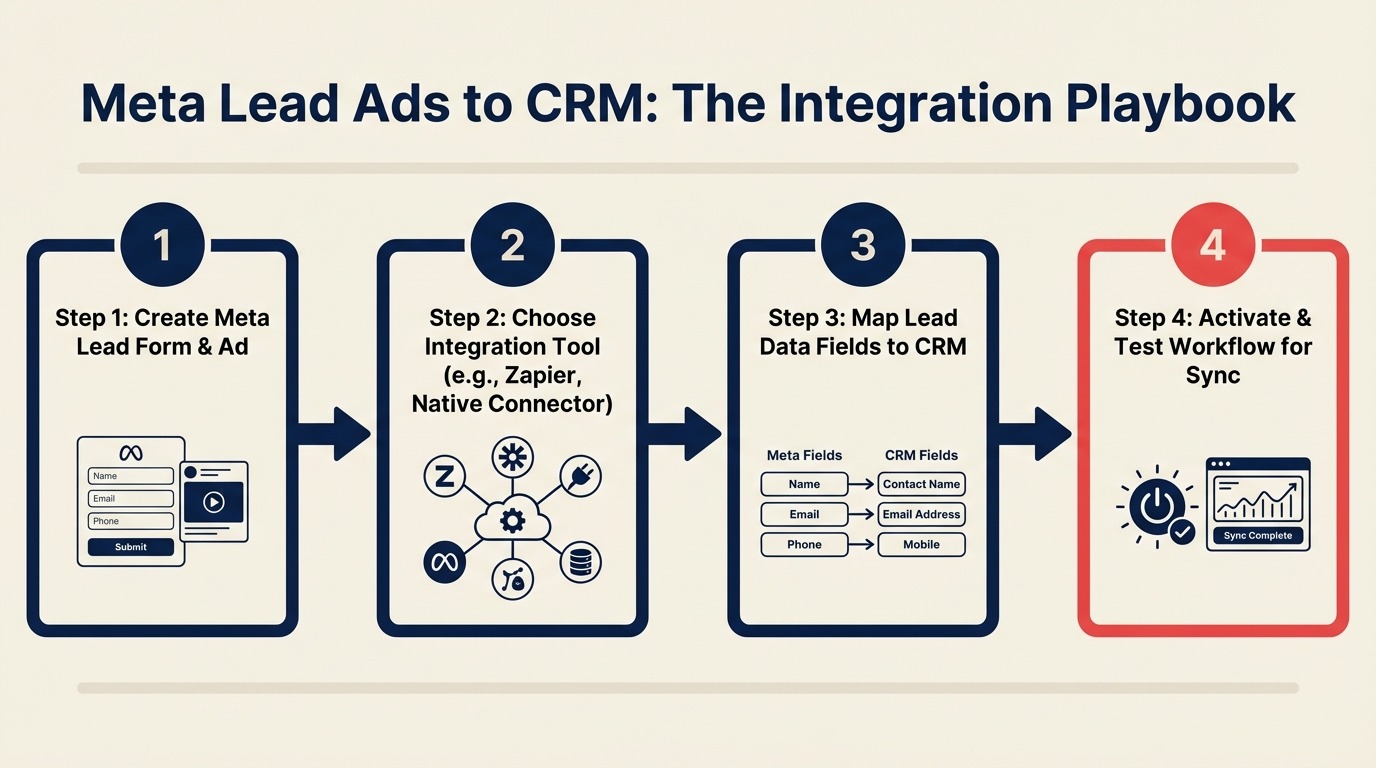
Meta Lead Ads to CRM: The Integration Playbook
Turn this article into takeaways for your work.


Each assistant summarizes the article only for you and suggests best practices for your work.
Meta Lead Ads can fill your CRM with hundreds of submissions per week. Without the right integration and quality controls, they fill it with leads who don't remember filling out the form. The setup is about more than connecting the pipes. It's about filtering for intent at the point of entry.
Lead generation via social advertising has changed significantly as platforms like Meta have moved from click-through landing pages to native in-platform forms, reducing friction for users while creating new integration and quality challenges for marketing ops teams.
A B2B team ran Meta Lead Ads for 60 days and accumulated 800 CRM contacts. MQL rate: 3%. They blamed the audience targeting. But when they audited the integration, they found four problems: no quality filter, a 6-hour delivery delay, wrong field mapping on the job title question, and no ad attribution data in the CRM. After fixing those four things, MQL rate reached 18% on the same audience.
Here's how to build the integration that makes Meta Lead Ads actually work.
Step 1: Native Meta-to-CRM Integrations
Before you reach for Zapier, check what's available natively:
| CRM | Native Integration | Setup Path | Limitations |
|---|---|---|---|
| HubSpot | Yes (Meta Ads integration) | HubSpot Settings > Marketing > Ad Integrations | No quality filtering; all submissions go to CRM |
| Salesforce | Yes (Facebook Lead Ads Connector) | Salesforce AppExchange | Requires Sales Cloud; limited field mapping flexibility |
| Pipedrive | Via Zapier template | Zapier Meta Lead Ads + Pipedrive template | Not truly native; Zapier task limits apply |
| Other CRMs | Via Make or n8n | Meta Leads API webhook | Most flexible; requires setup |
Use native integration when: You need fast setup, your volume is under 2,000 leads per month, and you're comfortable without granular quality filtering at the integration layer.
Use middleware (Make, n8n) when: You need to filter submissions before they hit the CRM, add enrichment, or handle conditional routing based on form answers. The Meta Leads API delivers submissions via webhook, and your middleware receives that webhook and applies your logic before creating the CRM record. Teams pairing Meta Lead Ads with a WhatsApp follow-up sequence should also review building a Meta Ads to WhatsApp funnel before choosing their middleware stack. For the middleware comparison itself, see Zapier vs n8n vs Make for lead capture.
For teams running more than $5,000/month in Meta Lead Ads spend, the quality control that middleware enables is worth the setup time.
Step 2: Meta Lead Ads Form Design for Quality
Most quality problems start at the form, not the integration. Meta's pre-filled forms are fast to complete and high volume, but the same frictionlessness that drives submissions also drives low intent.
Pre-filled vs. context card design:
Meta pre-fills name, email, and phone from the user's Facebook profile. The user taps "Submit" in two taps. Volume is high. Intent is often low.
The fix: add a context card before the form (available in Meta's Lead Ads form builder under "Intro") that clearly explains what they're signing up for. This single addition typically reduces volume by 20-30% and increases MQL rate by 40-60%.
The 2-question design that filters intent:
Instead of relying entirely on pre-filled fields, add one or two custom questions that require the user to think:
- "What's your company size?" (dropdown: 1-10 / 11-50 / 51-200 / 201-500 / 500+)
- "What's your role?" (dropdown: Marketing / Sales / Operations / Executive / Other)
Users with no real interest don't bother selecting an answer. Users who answer are self-filtering.
Map these answers to CRM fields that feed your lead scoring and routing rules. A 500+ employee company in a Marketing Ops role is worth routing to an enterprise rep immediately. A 1-10 employee "Other" role might go into a nurture sequence. For the scoring model that consumes these fields, lead qualification frameworks covers how to weight form-answer signals against firmographic data. The pipeline stages and buyer journey guide also helps map Meta lead intent levels to the right stage in your CRM.
Required vs. pre-filled field balance:
Keep required custom questions to two or fewer. Every additional required field reduces completion rate. Pre-fill the rest (name, email, phone) and accept that some pre-filled data will be slightly stale or generic.
Step 3: Field Mapping From Meta Form to CRM
Meta form field names often don't match CRM property names. Getting this wrong means CRM records with company data in the phone field or job titles that never populated.
Standard field translation:
| Meta Field Name | HubSpot Property | Salesforce Field | Notes |
|---|---|---|---|
| full_name | firstname + lastname (split) | FirstName + LastName | Requires split logic in middleware |
| Direct mapping | |||
| phone_number | phone | Phone | Strip country code if needed |
| company_name | company | Company | Direct mapping |
| job_title | jobtitle | Title | Direct mapping |
| work_email | work_email (custom) | Work_Email__c | If using both personal and work email |
Custom question mapping:
Custom questions in Meta forms are returned with the question text as the key. In Make or n8n, you'll see something like "What is your company size?": "51-200". Map this to your CRM property explicitly. Don't assume automatic mapping will handle it.
Handling the "Other" free text option:
If you include an "Other" option on a dropdown question, Meta returns the free-text the user typed. This goes into a dedicated CRM field (e.g., meta_other_response) for manual review. Don't try to parse it automatically.
When Meta field names conflict with CRM field types:
Meta returns phone numbers as strings with country codes. If your CRM phone field has a format validation (e.g., US numbers only), the integration will fail on international numbers. Either strip the country code in your middleware or use a plain text field in the CRM and reformat later.
Step 4: Real-Time Delivery Setup
Meta Lead Ads submissions don't automatically push to your CRM. You have to set up the delivery mechanism.
Webhook via Meta Leads API (real-time): Meta can send a webhook notification to your endpoint within seconds of a form submission. This is the right setup for any lead capture use case where speed-to-lead matters. The Meta Lead Ads webhook setup guide walks through exactly how to configure the endpoint subscription. Your middleware (Make, n8n) receives the webhook, applies your quality checks, and creates the CRM record.
Polling-based integration (batch delivery): Some native integrations and older Zapier setups poll Meta's API every 5-15 minutes to check for new submissions. This means delivery delays of up to 15 minutes, which is often long enough to miss the window where a lead is still thinking about your product.
Why real-time matters: If your team's first-contact goal is within 5 minutes, polling is already too slow. Set up webhook delivery, confirm your middleware is receiving events in real time, and test with a real form submission before scaling spend.
Latency expectations: With webhook delivery and a well-configured middleware scenario:
- Meta to middleware: under 30 seconds
- Middleware processing (quality check + CRM API call): 5-15 seconds
- CRM record available + routing triggered: under 1 minute from submission
Step 5: Quality Filtering at the Integration Layer
This is where most teams leave money on the table. Before creating any CRM record, run these checks in your middleware:
Block placeholder emails: Filter out submissions where email matches patterns like:
test@test.comnoreply@info@(B2C list hygiene issue)- Any email ending in common temp domains (mailinator.com, guerrillamail.com)
In Make, this is a simple filter module with a regex check on the email field. Rejected submissions go to an error log, not the CRM.
Phone number validation:
If phone is required in your form, validate that it's a real number format before creating the record. A submission with 1234567890 or 0000000000 in the phone field is almost certainly a low-intent submission.
Duplicate checking before CRM record creation: Query your CRM for the email address before creating a new contact. If found, update the existing record (add the Meta Lead Ad as a lead source touchpoint, update any empty fields). If not found, create new.
For how to build this dedup logic across multiple channels, see deduping leads from multi-channel capture. After records pass dedup and land in the CRM, lead enrichment automation can fill in company size and role data that Meta forms miss.
Intent signal from form answers: If your form includes a company size question, filter out below your minimum threshold at the integration layer. There's no value in routing a 2-person company lead to an enterprise rep. Send it to a self-serve nurture sequence automatically.
Step 6: Lead Source and Ad Attribution
Meta Lead Ads should populate your CRM with campaign-level attribution, not just "Facebook" as the source.
What to pass from Meta to CRM:
When Meta sends the webhook, the payload includes:
ad_id: the specific adadset_id: the ad setcampaign_id: the campaignform_id: which lead form
Use your middleware to look up the campaign and ad set names via the Meta Marketing API (or maintain a reference table in your middleware), then write those names to CRM fields.
CRM fields to create:
| Meta Data | CRM Field | Purpose |
|---|---|---|
| Campaign name | meta_campaign_name | Attribution reporting |
| Ad set name | meta_adset_name | Audience targeting insight |
| Ad creative name | meta_ad_name | Creative performance |
| Form name | lead_form_name | Form performance comparison |
Multi-touch attribution for leads who also filled a website form:
When a lead submits a Meta Lead Ad and later fills a website form, you'll have two lead source records on the same contact. In HubSpot, the "Original Source" field holds the first touch; a custom "Most Recent Lead Source" field holds the latest. Don't overwrite original source. Append the new source as a timeline activity instead.
Step 7: Routing Meta Leads Differently
Meta leads behave differently from inbound website form leads. They didn't search for you. They saw an ad and tapped. That intent gap means a different treatment is appropriate.
Lifecycle stage difference: A McKinsey analysis of B2B digital marketing notes that intent signals at the point of capture are among the strongest predictors of conversion rate: that makes lifecycle stage assignment at the integration layer, not after-the-fact, essential for accurate pipeline forecasting. Most Meta Lead Ad submissions should enter as MQL, not SQL. Set this at the integration layer so routing rules don't accidentally trigger enterprise rep assignment for low-intent leads.
Nurture sequence difference: Website form leads who requested a demo get a direct rep call. Meta leads who filled a "learn more" form get a 3-email nurture sequence first, with a direct call only if they engage with the emails or re-engage with the website.
In HubSpot, you can set this up using a combination of Lead Source and Lifecycle Stage in Workflow enrollment criteria. In Salesforce, use Lead Status and Campaign Source as routing rule inputs.
When to escalate Meta leads immediately:
- Company size answer is 500+ employees
- Job title answer is C-level or VP
- They book a meeting via an inline Calendly link in your thank-you message
For these signals, fire an immediate rep notification regardless of lead source.
Common Pitfalls
Native integration with no quality filter. All submissions, including test leads from the ad preview tool, go straight to your CRM. Run the Meta ad preview? That creates a real submission in the native integration. Block your own email domains.
No real-time delivery. Polling-based integrations mean a 5-15 minute delay. Reps are calling leads who submitted 6 hours ago and have no idea who you are.
Meta field mapping to wrong CRM field type. Name fields that land in phone fields, job titles that never map because the question text changed. Test every form field on a real submission before going live.
No attribution on the ad creative. "Facebook" as a source tells you nothing. If you can't trace a CRM contact back to a specific campaign and creative, you can't optimize spend.
Treating Meta leads the same as inbound leads. They need a different nurture sequence, different speed-to-lead expectations, and different qualifying criteria. The routing logic should reflect this. The broader context here is that ad-to-chat funnels are changing how paid channels connect to pipeline. The death of the contact form piece explains why Meta's lead ads represent a structural shift, not just a tactic. The ad-to-chat funnels CRO framework goes deeper on converting this traffic once it's in your CRM.
What to Do Next
Run a quality audit on your last 30 days of Meta Lead Ad submissions. Pull the list from your CRM and calculate:
- What percentage have a valid business email (not Gmail/Yahoo)
- What percentage have a populated company name
- What percentage have a company size above your minimum ICP threshold
- What your current MQL conversion rate is from Meta
This baseline tells you which quality filter will have the most immediate impact. Most teams find the email domain filter alone removes 15-20% of low-intent records.
Learn More

Co-Founder, Rework.com
On this page
- Step 1: Native Meta-to-CRM Integrations
- Step 2: Meta Lead Ads Form Design for Quality
- Step 3: Field Mapping From Meta Form to CRM
- Step 4: Real-Time Delivery Setup
- Step 5: Quality Filtering at the Integration Layer
- Step 6: Lead Source and Ad Attribution
- Step 7: Routing Meta Leads Differently
- Common Pitfalls
- What to Do Next
- Learn More