More in
Chat Funnel Setup
WhatsApp Business API Integration With Your CRM (Working Setup)
Apr 18, 2026
Click-to-WhatsApp Ad Campaigns: From Setup to First Conversion
Apr 18, 2026
Conversational Qualification: Questions That Don't Annoy Buyers
Apr 18, 2026
Designing a Chat Funnel for High-Ticket B2B (Not E-Commerce)
Apr 18, 2026
Configuring Fallback Flows When AI Agents Fail
Apr 18, 2026
Building a 24/7 Chat Funnel Without Burning Out Your Team
Apr 18, 2026
Chat Funnel A/B Testing: What to Test and How
Apr 18, 2026
GDPR-Compliant Chat Funnels for EU Buyers
Apr 18, 2026
Measuring Chat Funnel Performance: The Metrics That Matter
Apr 9, 2026
Lead Routing Automation for Chat-Captured Leads
Apr 7, 2026 · Currently reading
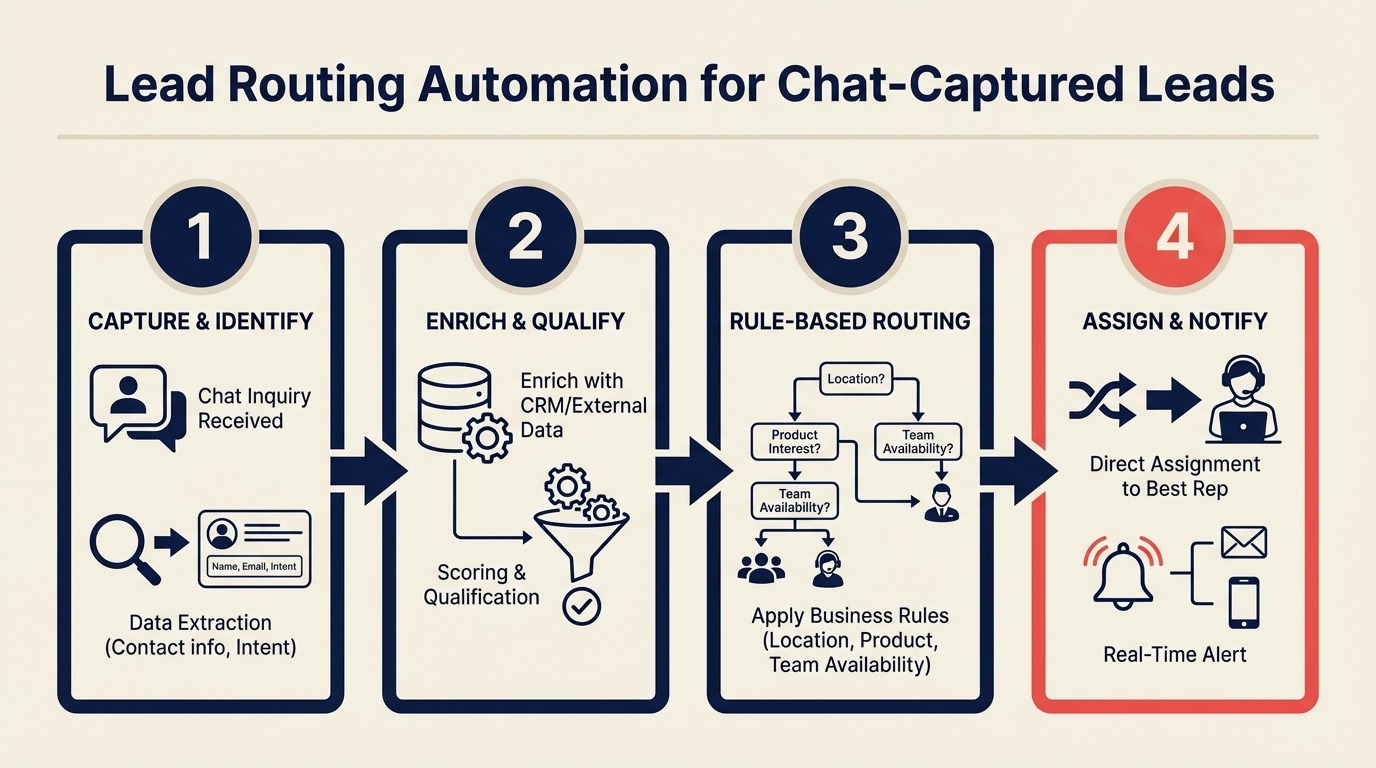
Lead Routing Automation for Chat-Captured Leads
Turn this article into takeaways for your work.


Each assistant summarizes the article only for you and suggests best practices for your work.
A 15-rep sales team was routing all WhatsApp leads to a single "chat team": two junior reps who triaged incoming conversations, matched them to account owners based on a territory spreadsheet, and forwarded them. Average time from first message to the right rep seeing the conversation: 3.5 hours. Manual triage at that scale is what lead routing automation is specifically designed to eliminate. According to Forrester's research on sales automation, manual lead triage is one of the top time-wasters for B2B sales teams, consuming hours that should go toward actually closing deals.
After building automated routing in Respond.io with 4 rule types, that number dropped to 8 minutes. The triage reps were reassigned. Response time improved. Close rate on chat leads went up 22% in 90 days, mostly because the leads were no longer cooling off between first contact and first real conversation.
This guide gives you the routing logic and the setup steps to get from manual triage to automated assignment in one week.
Step 1: Define your routing dimensions
Routing logic that works is routing logic based on observable attributes. Before you build rules in any platform, define the 4 dimensions that should drive assignment.
| Dimension | What It Routes On | Where the Data Comes From |
|---|---|---|
| Geography / Territory | Phone country code, contact country, or explicit country answer | WhatsApp number (automatic), qualification question |
| Company Size | Headcount or team size answer from qualification flow | ManyChat/Respond.io custom field |
| Product Interest | Product or use case selected during qualification | Button response in qualification flow |
| Lead Score | Composite score based on all qualification answers | Respond.io score field or custom formula |
The most common mistake is routing on only one dimension. Territory-only routing assigns all US leads to the US team regardless of company size, which means your enterprise rep gets SMB leads and your SMB rep gets enterprise leads. Multi-dimension routing solves this. Respond.io's Workflows documentation explains how to chain condition nodes for multi-attribute routing logic in the visual builder. The broader patterns for lead distribution strategy apply here. The channel is chat, but the routing logic problems are the same.
Define your routing dimensions in a table before opening Respond.io:
| Territory | Company Size | Product Interest | Route To |
|---|---|---|---|
| US | 50+ | Enterprise product | Enterprise US Team |
| US | Under 50 | SMB product | SMB US Team |
| UK / EMEA | Any | Any | EMEA Team |
| APAC | Any | Any | APAC Team |
| LATAM | Any | Any | LATAM Team |
| Any | Any | Specific feature | Product Specialist |
This becomes the input to your routing rule configuration.
Step 2: Map qualification answers to routing attributes
Chatbot responses are strings (button click answers like "50+ employees" or "Enterprise plan"). Routing rules work on structured attributes. You need to translate between the two.
Build this mapping table before you configure routing:
| Qualification Question | Answer | Routing Attribute | Routing Signal |
|---|---|---|---|
| "How many people on your sales team?" | Under 10 | Company Size = Small | SMB route |
| "How many people on your sales team?" | 10-50 | Company Size = Mid-Market | Mid-market route |
| "How many people on your sales team?" | 50+ | Company Size = Enterprise | Enterprise route |
| "Which best describes your focus?" | Account-based selling | Product Interest = ABM | ABM specialist |
| "Which best describes your focus?" | High-volume SDR | Product Interest = SDR | SDR specialist |
| "Are you evaluating now or researching?" | Evaluating now | Lead Priority = Hot | Fast-track assignment |
| "Are you evaluating now or researching?" | Researching | Lead Priority = Warm | Standard queue |
In ManyChat, use the Set Custom Field action after each button response to store the routing attribute value in a structured field. For example, after the company size question: If answer = "50+ employees" → Set Custom Field "company_size_tier" = "Enterprise".
This creates clean routing attributes that Respond.io can act on when the conversation syncs over.
Step 3: Build routing rules in Respond.io
In Respond.io, go to Workflows → New Workflow. Name it "Chat Lead Routing [Date]" so you can track version history.
Trigger: Contact Attribute Changed → Lead Priority = Hot OR Workflow Trigger = Conversation Created (for immediately routing new conversations)
Condition structure:
Build conditions in this priority order. Respond.io evaluates conditions from top to bottom and stops at the first match:
Rule 1: Enterprise + Hot
IF company_size_tier = Enterprise AND lead_priority = Hot
THEN Assign to: Enterprise Sales Team (Round Robin)

Rule 2: Enterprise + Warm
IF company_size_tier = Enterprise AND lead_priority = Warm
THEN Assign to: Enterprise Sales Team (Queue)

Rule 3: EMEA Territory
IF contact.country IN [UK, Germany, France, Netherlands, Nordics]
THEN Assign to: EMEA Team

Rule 4: APAC Territory
IF contact.country IN [Singapore, Australia, Japan, Korea]
THEN Assign to: APAC Team

Rule 5: SMB + Evaluating
IF company_size_tier = Small AND lead_priority = Hot
THEN Assign to: SMB Sales Team (Round Robin)

Rule 6: Default (no rule matched)
THEN Assign to: General Sales Queue + notify team lead
In Respond.io's Workflow builder, each rule is a Condition node followed by an Assignment action. The condition checks the custom field values you mapped in Step 2. The assignment sends the conversation to the right team or rep.
Screen flow: Respond.io → Workflows → New Workflow → Add Trigger: Contact Updated → Add Condition: [field] [operator] [value] → Add Action: Assign to Team/Agent → Publish.
Publish the workflow in test mode first. Respond.io's test mode lets you run simulated contacts through the workflow to verify each rule routes correctly before it goes live.
Step 4: Round-robin for uncovered routing
Some conversations won't match any specific rule. A lead from a country not in your territory list, a company size outside your defined tiers, or a product interest that doesn't fit a specialist category.
For these, set up a round-robin assignment to your general sales team. In Respond.io, go to Settings → Teams → [General Sales Team] → Assignment Mode → Round Robin.
Round-robin distributes incoming conversations evenly across available team members. "Available" means reps who are online and not at their conversation capacity limit.
Set a conversation capacity limit per rep: 10-15 active conversations simultaneously is a reasonable number for a chat-focused rep. Beyond that, response quality degrades. In Respond.io, go to Settings → Agents → [Agent Name] → Conversation Limit → [number]. Respond.io's round-robin assignment guide explains capacity limits, availability modes, and the overflow behavior when all agents are at their limit.
When every rep on the general team is at capacity, the default behavior is to queue the conversation. You want to know immediately when this happens. It means you're understaffed for current volume. Add a notification: If conversation queued for more than 10 minutes → Notify team lead via Slack.
Step 5: CRM owner sync
When Respond.io assigns a conversation to a rep, the corresponding HubSpot contact should update its Owner field to match. Otherwise your HubSpot reporting shows the wrong rep credited with the deal, and your rep is managing contacts that HubSpot thinks belong to someone else.
Respond.io to HubSpot owner sync:
In Respond.io, go to Settings → Integrations → HubSpot → Sync Assignment. Enable "Sync assignee as HubSpot contact owner." This updates the HubSpot Contact Owner field every time a conversation is assigned or reassigned in Respond.io. If you haven't yet configured the full Respond.io to HubSpot integration, do that before enabling the owner sync, otherwise you'll be syncing assignment data to a contact record that wasn't created correctly in the first place. Routing accuracy also depends on clean data arriving from the upstream qualification flow. If the ManyChat fields feeding your routing attributes are inconsistently structured, see building a ManyChat qualification flow for the field-mapping steps that prevent routing attribute mismatches.
HubSpot to Respond.io (bidirectional):
This is useful when your team creates HubSpot deals first and then wants the chat conversation to reflect the deal owner. Requires a HubSpot Workflow that calls the Respond.io Contacts API to update the conversation assignee when the HubSpot contact owner changes.
For most teams, the Respond.io → HubSpot direction is sufficient. Start there.
Step 6: Territory routing for global teams
WhatsApp conversations include the sender's country code in their phone number. A +44 prefix is UK. A +65 is Singapore. This is your most reliable territory signal, more reliable than asking the user "which country are you in?" which adds a question to an already lean qualification flow.
In Respond.io, country code detection is automatic. The contact's country is populated from the WhatsApp number when the conversation starts. Use the contact.country field in your routing rules.
For language detection, Respond.io identifies conversation language in the first few messages. Use conversation.language to route Spanish-speaking contacts to Spanish-speaking reps, French contacts to French reps, etc. Wikipedia's overview of automatic language identification explains how modern systems detect language from short text samples, relevant context for understanding how Respond.io's language detection works under the hood and its limits with short opening messages.
Timezone-aware routing is important if you have reps across multiple time zones. In Respond.io, you can set working hours per team. A LATAM lead arriving at 2am EST should route to the LATAM team's daytime hours, not to the US team's overnight queue.
Configure per-team working hours: In Settings → Teams → [LATAM Team] → Working Hours → [set local timezone and hours]. When a lead arrives outside a team's working hours, the routing workflow should either hold the conversation for the next business day or escalate to an after-hours bot with a follow-up booking link.
Step 7: Overflow routing
Overflow happens when the assigned rep or team is unavailable: vacation, sick day, over capacity. Without overflow routing, leads pile up in a queue and never get a response.
Level 1 overflow: Rep unavailable. If the assigned rep has set themselves as unavailable in Respond.io, the conversation should auto-reassign to the next available rep on their team. In Settings → Teams → Assignment Rules, enable "Skip unavailable agents" in round-robin mode.
Level 2 overflow: Team at capacity. When all reps on the assigned team are at their conversation limit, conversations should overflow to a secondary team. In your routing workflow, add a fallback condition: If primary team capacity = full → Assign to secondary team.
Level 3 overflow: After-hours or all teams at capacity. The conversation receives an automated holding message and is flagged for priority follow-up the next morning. The holding message should include a calendar booking link. Set a workflow reminder: If conversation status = waiting AND age > 8 hours → Notify team lead + flag for morning priority queue.
Step 8: Measuring routing accuracy
After 30 days of live routing, run a misrouting audit. Pull 50 recent routed conversations and check whether the routing decision was correct. McKinsey's research on B2B sales performance found that fast, accurate lead routing is among the highest-leverage operational improvements for sales teams, with some companies seeing 15-20% revenue gains from routing optimization alone. To see how routing quality ultimately affects pipeline output, track the downstream metrics in the chat funnel metrics framework, which breaks down handoff-to-meeting rates by routing category.
"Correct" means: the rep who received the conversation was the right rep for that lead based on your routing logic. A US enterprise lead going to the SMB team is a misroute. An EMEA lead going to the US team is a misroute.
Target misrouting rate: under 5%. If you're above 5%, identify the most common misroute type and add or adjust the routing rule that's failing.
Common causes of high misrouting rates:
- Contact country field is blank (WhatsApp number from a VoIP service, not tied to a real country)
- Company size field was never populated because the qualification flow dropped off early
- Routing rules overlap (a contact matches two rules and routes to the wrong one first)
Each cause has a different fix. Blank country fields require a fallback rule. Incomplete qualification requires a partial-completion path in your chatbot. Overlapping rules require a priority reorder in the routing workflow.
Common pitfalls
Routing on a single dimension. A territory-only routing rule assigns every US lead to the US team, regardless of company size, product fit, or priority. Add at least 2 dimensions.
No fallback for unmatched rules. If a lead doesn't match any rule, they go nowhere. Add a catch-all fallback rule that assigns unmatched leads to the general sales team with a team-lead notification.
Routing to a team instead of an individual. "Assign to Sales Team" means nobody owns the conversation until someone manually picks it up. Use round-robin within the team to immediately assign to a specific rep.
No rep notification on assignment. Routing a conversation to a rep doesn't automatically alert them. Make sure your routing workflow includes a notification step (Slack message, email, or Respond.io push notification) immediately after assignment.
What to do next
Run 30 simulated conversations through your routing workflow in Respond.io's test mode before connecting to live traffic. Use a variety of inputs (enterprise/US, SMB/EMEA, incomplete qualification, after-hours arrival) and verify each routes to the correct destination.
Then run the workflow in live mode for 1 week with 5 reps, not all reps. Check the routing accuracy daily for the first week. Fix issues at low volume before scaling to your full team.
Learn More

Co-Founder, Rework.com
On this page
- Step 1: Define your routing dimensions
- Step 2: Map qualification answers to routing attributes
- Step 3: Build routing rules in Respond.io
- Step 4: Round-robin for uncovered routing
- Step 5: CRM owner sync
- Step 6: Territory routing for global teams
- Step 7: Overflow routing
- Step 8: Measuring routing accuracy
- Common pitfalls
- What to do next
- Learn More