More in
CRM Implementation Guide
Setting Up CRM Roles and Permissions the Right Way
Apr 18, 2026
Email and Calendar Sync Without the Data Mess
Apr 18, 2026
Integrating Your CRM with Marketing Tools: A Sales Ops Guide
Apr 18, 2026
Training Sales Reps to Actually Use the CRM
Apr 18, 2026
Measuring CRM Adoption with Leading Indicators
Apr 18, 2026
Handling the "The Old System Was Better" Transition
Apr 18, 2026
CRM Hygiene: Weekly, Monthly, and Quarterly Routines That Keep Data Clean
Apr 18, 2026
Common CRM Implementation Mistakes — and How to Recover from Each One
Apr 18, 2026
When to Bring In a CRM Consultant, and When Not To
Apr 18, 2026
How to Pick a CRM in 2026: The Buyer's Checklist
Apr 6, 2026
Workflow Automation: The 10 Automations Every CRM Should Have on Day One
Turn this article into takeaways for your work.


Each assistant summarizes the article only for you and suggests best practices for your work.
A 12-rep inside sales team added these 10 automations to their HubSpot CRM over two weeks. Before the automations, their reps averaged 45 minutes per day on admin: routing inbound leads manually, creating follow-up tasks after demos, updating deal owners after territory changes, logging close date slippages. After: 23 minutes per day. That's 22 hours per week across the team freed up for actual selling. McKinsey's research on sales automation found that roughly 30% of sales tasks can be automated with existing technology, with the highest impact in lead routing, follow-up scheduling, and pipeline hygiene. For context on what the same automation capabilities cost across platforms, read the real TCO of a CRM.
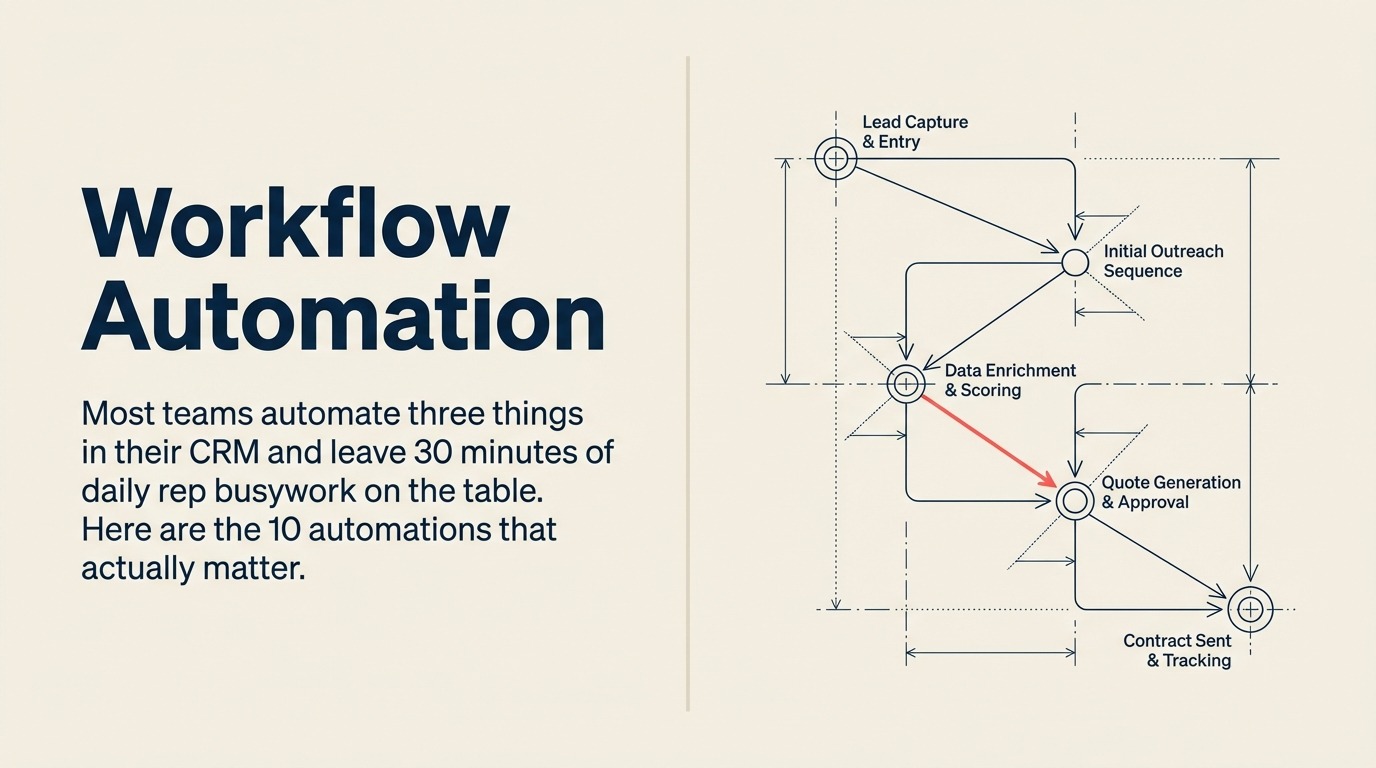
The math isn't complicated. The problem is that most teams automate three things (lead assignment, deal creation, and a welcome email) and then assume they've done automation. This guide covers the 10 automations that actually move the needle.
How to Think About CRM Automation
Every CRM automation has the same three parts:
Trigger: The event or condition that starts the automation. A new contact is created. A deal stage changes. A field value is updated. A date is reached.
Condition: Optional filters that narrow when the automation fires. "Only if lead source = Inbound Web." "Only if deal value > $5,000." "Only if company has more than 50 employees."
Action: What happens. Create a task. Send a notification. Update a field. Enroll in a sequence. Rotate to a rep.
Get the trigger and condition right before worrying about the action. Most broken automations aren't broken because the action is wrong. They're broken because the trigger fires too broadly (everything gets tagged) or the conditions are too loose (the wrong records get affected).
In HubSpot, these are built in Workflows (Automation → Workflows). In Salesforce, they're built in Flow Builder. Salesforce's Flow Builder documentation is the canonical reference for building record-triggered automations. In Pipedrive, they're under Automation. The logic is the same; the UI differs.
Automation 1: Lead Assignment by Territory or Round-Robin
Trigger: New contact is created with Lead Status = "New" Condition: Lead Source is not blank (exclude contacts created manually without source) Action: Assign Contact Owner based on territory (state/region field) or rotate through rep list
This automation eliminates the manual lead routing queue. Without it, someone (usually a manager or SDR lead) checks the lead queue and drags names to reps. That person is a bottleneck. They're also inconsistent. For teams building out a more complete lead process, the lead routing automation guide covers the full routing logic including territory, account-based, and round-robin models.
Setup in HubSpot: Use the workflow action "Rotate record to owner" for round-robin, or add branches by territory field value to assign specific reps to specific regions.
Setup in Salesforce: Use Assignment Rules (Lead Assignment Rules under Setup). Create rule entries by territory/industry/size criteria with a specific rep or queue as the assignee. Salesforce Trailhead's lead management module covers the full assignment rule configuration.
Setup in Pipedrive: Under Automation → create a workflow triggered by "Deal created" or "Lead added" with an action to assign to owner based on filter criteria.
One important condition: only fire this for leads where the source is populated. Contacts created by admins or imports often don't need routing.
Automation 2: Deal Creation from Qualified Contact
Trigger: Contact property "Lead Status" changes to "Qualified" (or your equivalent stage name) Condition: No open deal already associated with this contact Action: Create a Deal record, associate it with the contact and their company, set Deal Owner = Contact Owner, set Pipeline Stage = first active stage
This automation converts your lead workflow into your pipeline workflow without requiring the rep to manually create a deal. The condition that prevents duplicate deals ("no open deal already associated") is important. Without it, you'll create duplicate deals every time the lead status is updated.
In HubSpot, use the workflow action "Create record" → Deal, then use "Associate record" to link the contact and company. Set the deal name formula to pull from the contact company name or a combination of fields. HubSpot's workflow documentation walks through the full record-creation action setup.
In Salesforce, this is done via Flow or a process that creates an Opportunity when the Lead is converted.
Automation 3: Stage-Based Task Creation
Trigger: Deal pipeline stage changes to a specific stage Condition: None required (or deal type = "New Business" if you want to exclude renewals) Action: Create a task for the deal owner with specific instructions and a due date
When a deal enters "Discovery Complete," the next rep action should be obvious: send the agenda for the follow-up call, or schedule the technical review. Stage-based task creation means the rep doesn't have to remember what comes next. The CRM tells them. This automation only works well when your pipeline stages are built around buyer milestones rather than rep activities: if stages are ambiguous, tasks created at stage change become ambiguous too.
Build one task workflow per stage transition where there's a clear, consistent next action. Don't create a task for every stage. Only create one for stages where the next step is the same regardless of deal specifics.
Example tasks by stage:
- Discovery Complete → Task: "Send discovery summary and schedule solution demo" (due in 24 hours)
- Demo Done → Task: "Send follow-up email with use case documentation and pricing overview" (due in 48 hours)
- Proposal Accepted → Task: "Schedule contract review call and send MSA to legal" (due in 72 hours)
In HubSpot: workflow action "Create task" → assign to deal owner, set relative due date, add task description with instructions. In Salesforce: Flow action "Create Task" with ActivityDate set as a formula.
Automation 4: Overdue Deal Alert
Trigger: Deal "Last Activity Date" is more than X days ago AND pipeline stage is not Closed Won or Closed Lost Condition: Deal is in an active stage (exclude Closed Won/Lost explicitly) Action: Create a task for the deal owner flagged as high priority: "No activity in X days. Deal may be stalling."
Without this automation, stalled deals sit quietly in the pipeline and inflate your forecast. Managers discover them in deal reviews and have to manually nag reps. This automation surfaces the problem before it becomes a pipeline surprise.
The threshold X depends on your cycle length. For a 30-day SMB cycle, flag at 5 days without activity. For a 90-day enterprise cycle, flag at 14 days.
In HubSpot: use a "Deal-based" workflow triggered on a fixed schedule (daily), filtered by last activity date being more than X days in the past. This is a date-range filter, not an event trigger.
In Salesforce: build a scheduled Flow that runs daily and queries Opportunities meeting the criteria, then creates Tasks.
Automation 5: Follow-Up Reminder After Demo
Trigger: Deal pipeline stage changes to "Demo Done" (or your equivalent) Condition: None Action: Create a task for the deal owner due 24 hours after the stage change: "Follow up post-demo: summarize use case coverage, confirm next steps, send relevant case studies"
The 24-hour post-demo follow-up is one of the highest-leverage actions in B2B sales. Buyers are most engaged in the 24 hours after seeing a solution. Harvard Business Review's study on sales responsiveness found that reps who follow up within an hour of a buyer interaction are 7x more likely to qualify that lead than those who wait even a few hours. Reps who follow up within that window convert at higher rates. But manual follow-up reminders get forgotten.
This automation ensures no demo goes unfollowed without a task being created. It's simple, targeted, and the ROI is direct.
Automation 6: Lead Re-Engagement After 30 Days Cold
Trigger: Contact property "Lead Status" = "Open" AND "Last Activity Date" is more than 30 days ago Condition: Contact is not enrolled in any active sequence Action: Enroll contact in a "re-engagement" email sequence (3-4 emails over 2 weeks)
If your leads come in via multiple channels, it's worth reading the deduping multichannel leads guide before building this automation. Re-engagement sequences can fire twice on the same person if duplicate contacts exist across channels.
Leads that go quiet aren't necessarily dead. They often just lost priority. A light-touch re-engagement sequence (not a heavy sales pitch, more of a "still thinking about X?" approach) can reactivate a meaningful percentage of cold contacts.
In HubSpot: use an enrollment trigger in a contact-based workflow. Add a condition to check if the contact is currently in an active sequence before enrolling. You don't want to double-enroll.
In Salesforce: trigger a Cadence (Sales Engagement) enrollment via Flow, with a check on current cadence membership first.
In Pipedrive: use an automation to create a follow-up activity and flag the rep, then use a connected email tool for the sequence itself.
Automation 7: New Deal Notification to Slack or Teams
Trigger: New deal is created AND pipeline stage = first active stage Condition: Deal value above a threshold (optional: only notify on deals above $5k, for example) Action: Send a Slack or Teams message to a designated channel with deal details: deal name, company, value, owner
This is the automation that gets rep buy-in for the whole system. Reps love seeing their new deals announced in Slack. Managers love it because it shows the pipeline is alive. And it creates a small positive reinforcement loop: new deals = celebration in channel.
In HubSpot: use the Slack integration in Workflows. The action is "Send Slack message" with deal properties merged in.
In Salesforce: Salesforce → Slack integration or a Flow that calls a Slack webhook.
Keep the message simple: "New deal: [Company Name] - [Deal Value] - Owner: [Rep Name]." Avoid walls of text that people ignore.
Automation 8: Close Date Push Alert
Trigger: Deal "Close Date" property is updated Condition: Deal was previously set to close this month OR the close date has been moved more than twice (requires a "close date change count" field that increments) Action: Notify the deal owner's manager via Slack or email: "Close date pushed on [Deal Name]. New date: [Date]. Owner: [Rep]."
Close date slippage is the leading indicator of forecast problems. One push is normal. Two is a pattern. Three means the deal may not close this quarter at all. This ties directly into pipeline hygiene culture. The automation catches the symptom, but the culture determines whether managers actually act on it.
Building the "close date change count" field requires one additional automation: when close date changes, increment a counter field by 1. Then the alert automation checks whether that counter is above 2.
In HubSpot: two workflows. First: trigger on Close Date change, action "Increment number property" on a custom field "Close Date Changes." Second: trigger on that field exceeding 2, action "Notify rep manager."
This is one of the more valuable automations for sales managers. It surfaces deals that are systematically pushed without requiring a weekly interrogation of every rep.
Automation 9: Lost Deal Tagging and Lost Reason Required
Trigger: Deal pipeline stage changes to "Closed Lost" Condition: "Lost Reason" field is empty Action: Send rep a task: "Deal closed lost. Please document lost reason before closing this task." Block stage advancement until the field is populated (via required field on stage change in HubSpot, or a validation rule in Salesforce).
Lost reason data is among the most valuable inputs for improving your sales process. And it's consistently the least captured. Reps close a deal as lost and move on. Nobody documents why.
This automation doesn't fully solve the problem, but it creates friction at the right moment. The rep is in the deal record marking it lost. The task appears immediately asking for the lost reason. Most reps will fill it in.
The hard enforcement version: in HubSpot, configure the pipeline stage to require the Lost Reason field before allowing a deal to move to Closed Lost. In Salesforce, use a validation rule that prevents saving an Opportunity as Closed Lost without a populated Close Reason field.
Automation 10: Onboarding Handoff to Customer Success
Trigger: Deal pipeline stage changes to "Closed Won" Condition: Deal type = "New Business" (skip renewals or expansions) Action: Create a new Onboarding record (or a task in your CS platform), assign to the appropriate CS rep based on territory or account size, notify CS channel in Slack, and update the Deal with the CS owner
This automation is the bridge between sales and CS. Without it, closed deals sit in CRM limbo while a sales manager manually emails CS to say "we won this one." With it, the handoff is automatic, immediate, and documented.
For this to work well, you need: a CS territory or assignment rule (same logic as lead routing), a Slack channel or task-based system for CS to receive new accounts, and a defined handoff record structure (what information does CS need on day one?).
In HubSpot: create a workflow triggered on Closed Won that creates a Ticket or a custom object record for onboarding, assigns it to the CS owner lookup field, and sends a Slack notification to the CS team channel.
In Salesforce: a Flow that creates a Case or a custom Onboarding object, populates key account fields, and assigns to the CS queue.
Common Pitfalls
Automations that fire too broadly. If your lead assignment automation fires on every contact ever created (not just new inbound leads), you'll start reassigning existing contacts in the middle of active deals. Always add conditions that scope the automation to the right records.
Notification overload. Deloitte Insights research on digital workplace productivity shows that notification fatigue is one of the top causes of technology disengagement in sales teams. If you build 10 automations that all send Slack messages, reps stop reading Slack. Reserve notifications for actions that need human response within hours. Tasks are better for things that need response within a day. Email is better for things that need documentation.
Automations nobody turned off after the pilot. When you run a pilot team before full launch, you'll build test automations. Document every automation you create. Before full rollout, audit the automation list and deactivate anything that was a test. Orphaned automations fire at unexpected times and cause data quality problems.
Building complexity before validating the trigger. Test every automation with a single record before turning it on for the full database. HubSpot's enrollment history and Salesforce's debug log help you confirm the trigger fired correctly and the action ran as expected.
What to Do Next
After building these automations, audit the automation logs weekly for the first 30 days. HubSpot's Workflow enrollment history and Salesforce's debug logs show you which records triggered which automations and whether the actions ran. You're looking for unexpected enrollments, actions that fired on the wrong records, and notifications that nobody acknowledged.
After 30 days, you'll have enough data to tune conditions, adjust thresholds, and confirm which automations are generating the behavior change you wanted.
The next major step is the full team rollout. See the CRM rollout and adoption guide for how to move from a configured CRM to one your whole team actually uses.
Learn More
- Pipeline stages that match how your team actually sells
- Rolling out the CRM: pilot team, full team, adoption tracking
- CRM data model design: objects, fields, and relationships
- Zapier vs n8n vs Make: which automation middleware fits your stack
- Deduping multichannel leads before they enter the CRM
- Rework vs Salesforce: automation capabilities compared

On this page
- How to Think About CRM Automation
- Automation 1: Lead Assignment by Territory or Round-Robin
- Automation 2: Deal Creation from Qualified Contact
- Automation 3: Stage-Based Task Creation
- Automation 4: Overdue Deal Alert
- Automation 5: Follow-Up Reminder After Demo
- Automation 6: Lead Re-Engagement After 30 Days Cold
- Automation 7: New Deal Notification to Slack or Teams
- Automation 8: Close Date Push Alert
- Automation 9: Lost Deal Tagging and Lost Reason Required
- Automation 10: Onboarding Handoff to Customer Success
- Common Pitfalls
- What to Do Next
- Learn More