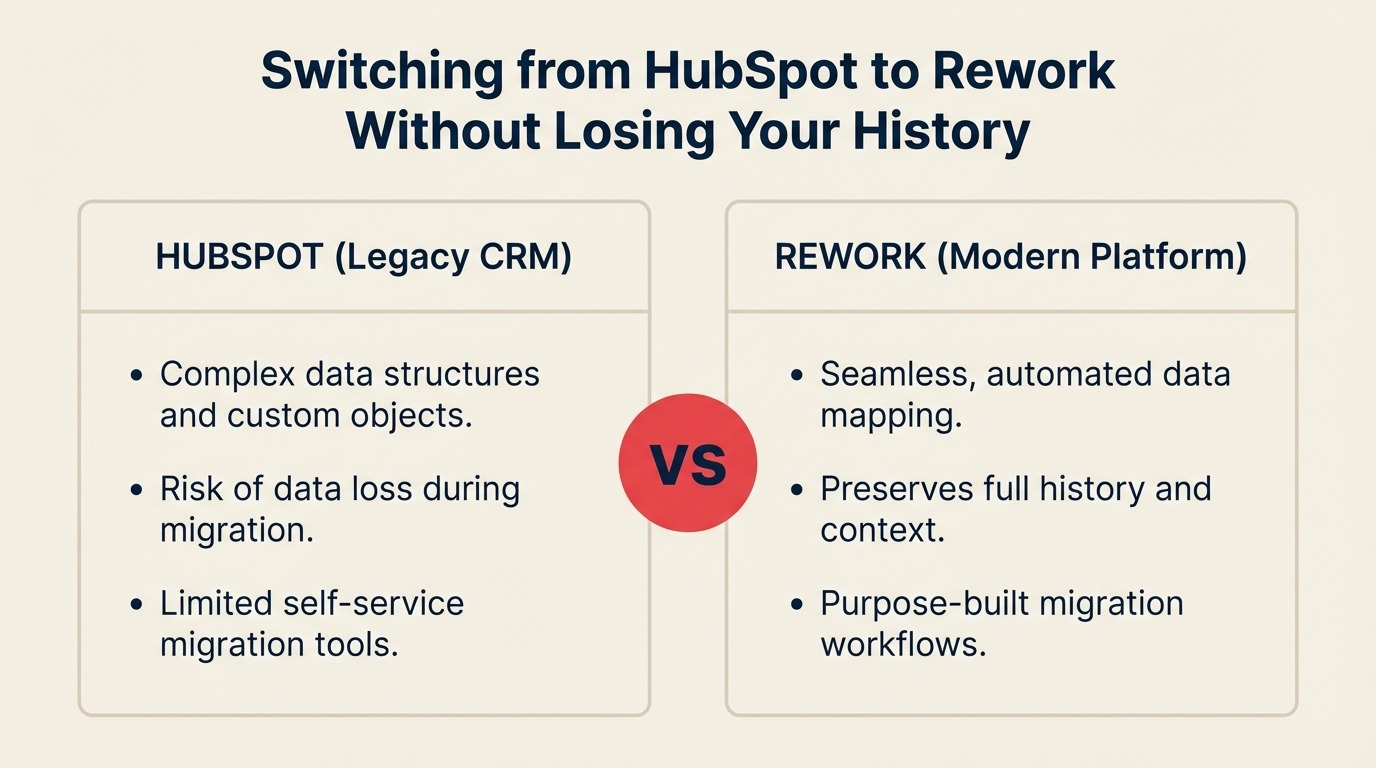
Switching from HubSpot to Rework Without Losing Your History
It usually starts with a renewal invoice.
The email arrives in February or September, 60 days before the contract auto-renews, and for the first time in months, someone actually looks at the number. The bill has crept up: contacts tier bumped last year, you added a Sales Hub Pro seat for the new AE, and now you're paying for Marketing Hub features that sales never touches. A team of 12 people is looking at a $4,200/month line item for a CRM.
That's the moment most HubSpot migration decisions are made. Not because Rework is better in every dimension (it isn't), but because the value equation stopped working. And once someone pulls the contract and sees the 30-day cancellation window, the question isn't "should we switch?" It's "how do we do this without blowing up the pipeline?"
That's what this guide covers.
Before You Start: What to Audit in HubSpot
Don't touch Rework until you've done this audit. The teams that skip it are the ones who end up re-doing the migration six weeks later.
Contact, company, and deal records. Pull a contacts export and look at the data quality. HubSpot data is often messier than it appears in the UI. HubSpot is lenient about duplicate records: it lets contacts exist without a company association, allows multiple contacts with the same email address if they came from different forms, and doesn't enforce the field completeness that Salesforce does. Run a deduplication check before you import anything. A rough benchmark: teams that have been on HubSpot for more than 18 months typically find 8 to 15% duplicate contact rate when they look seriously.
Active sequences and enrolled contacts. This is the dangerous one. If you have contacts currently enrolled in a HubSpot Sales Hub sequence (active email threads, scheduled follow-ups, pending tasks), those need to be handled individually before you cut over. You cannot bulk-migrate active sequences to Rework. The contacts can move, but the enrollment state and the scheduled next steps don't. More on this in a dedicated section below.
Workflow automations. Export your active HubSpot workflows. For each one, note: what triggers it, what it does, and how often it fires. Focus first on the high-frequency ones. Workflows that fire multiple times per day are the ones that will surface problems fastest if they're not rebuilt before cutover.
Email templates and snippets. These are easy to overlook and annoying to lose. HubSpot's templates export isn't clean, so you'll likely need to manually copy the ones your team uses most. Ask reps to identify their top five templates before you start. Don't migrate the full library; migrate the ones that get used.
Reports and dashboards in daily use. Ask every manager which three reports they check before their Monday team call. That list is what you need working in Rework on day one. Everything else can be rebuilt over time.
Connected integrations. Map every active HubSpot integration: Gmail or Outlook, Google Calendar, Slack, LinkedIn Sales Navigator, Intercom, Stripe, Aircall, Zoom, and any enrichment tools (ZoomInfo, Clearbit, Apollo). Each integration disconnects from HubSpot and needs to reconnect to Rework. That's a separate task for each tool.
What You'll Lose — Be Honest About This
This section matters for team trust. If your reps or marketing team discovers gaps after the cutover, they'll blame the migration and doubt every other decision that went with it.
Marketing Hub features. If your team uses HubSpot Marketing Hub (email campaigns, landing pages, forms, ad reporting), those features don't come with Rework. Rework is a CRM and productivity tool. If marketing currently sends newsletters or runs nurture campaigns through HubSpot, they need a replacement (Brevo, Mailchimp, ActiveCampaign) before sales cuts over. Don't let marketing and sales cut over at the same time.
Email marketing automation depth. HubSpot's marketing automation is genuinely good. Multi-branch workflows, behavioral triggers, list segmentation, and A/B testing on email sequences are all HubSpot strengths. Rework's automation covers sales process logic well (deal stage transitions, task creation, assignment rules), but it's not a marketing automation platform. If your sales team uses HubSpot sequences as a lightweight marketing automation replacement, that gap will be visible after migration.
Native landing pages and forms. HubSpot's native landing page and form builder is a real convenience. Many small sales teams use it for things like event registration, content downloads, or simple lead capture. Rework doesn't have an equivalent. You'll route those to a dedicated form tool (Typeform, Tally, or similar) and connect via webhook.
HubSpot's ad reporting. If your revenue team reviews LinkedIn or Google Ads attribution in HubSpot, that view won't exist in Rework. You'll need to pull ad performance from the native ad platforms directly.
App integrations that have no Rework equivalent. HubSpot's App Marketplace has more than 1,500 integrations. Rework doesn't match that depth. Before you commit to the migration, check the five or six integrations your team relies on and confirm Rework has a native connector or a workable alternative.
What Gets Better
Being honest about trade-offs makes this section worth reading.
Pricing predictability. HubSpot's pricing is contact-tier-based, which means your bill goes up as your database grows, even if your team size stays flat. Rework charges per seat, not per contact. For a team that actively does outbound prospecting and has a large contact database, that difference is significant. HubSpot's Sales Hub pricing shows the current tier structure. See Rework pricing explained for the full analysis.
Sales rep adoption. HubSpot is more intuitive than Salesforce, but it still has multiple hubs, and the Sales Hub interface has gotten more cluttered with each product cycle. Rework's CRM surface is smaller and more focused. Teams report that new rep onboarding drops from three to four weeks to one to two weeks, primarily because there are fewer menus, fewer required fields, and no legacy configuration to explain.
Combined CRM and productivity. If your reps are currently jumping between HubSpot for pipeline and another tool (Notion, Asana, Trello) for task management and project work, Rework combines both in one workspace. That reduces tab-switching and makes it easier to see deal context alongside the tasks that need to happen to advance it. For teams rebuilding their lead process at the same time as the CRM migration, the lead management library covers scoring, nurturing, and follow-up cadences that translate directly to Rework's workflow setup.
The Migration Steps
Step 1: Export Your Data From HubSpot
Go to Settings > Data Management > Import & Export > Export data. Select contacts, companies, deals, and activities. HubSpot will email you a ZIP file with CSVs. HubSpot's official export documentation walks through every export option and the properties included in each file.
One thing to know: HubSpot's activity export includes email opens, clicks, and form submissions as part of the contacts export if you select "include all properties." That's useful context but it also bloats the file. Decide whether you want to import the full engagement history or just the core CRM data.
Deal records export with all associated contact IDs, which lets you maintain contact-to-deal relationships in Rework if you import them in the right order (companies first, then contacts, then deals).
Step 2: Clean and Deduplicate Before Import
HubSpot's data is messier than it looks. Common issues:
- Contacts with no company association (they came through a form and were never linked)
- Duplicate contacts from the same person submitting different forms with slightly different email addresses
- Deals with no associated contact (someone created the deal manually)
- Custom properties with values that only made sense in a past sales process
Run a deduplication tool against the CSV before you import. Tools like Dedupe.io or a manual VLOOKUP approach on the email column are sufficient for most teams. The goal is a clean dataset, not a perfect one. The data migration guide has a full pre-import checklist covering deduplication thresholds, field validation, and what to do with contacts that have no associated company.
Step 3: Map HubSpot Properties to Rework Fields
Create a mapping spreadsheet: left column is the HubSpot property name, right column is the corresponding Rework field. For standard fields (first name, last name, email, phone, company, title, deal amount, deal stage), the mapping is direct.
For custom properties, you have two options: create the equivalent custom field in Rework, or let the property go. If a custom property hasn't been updated in 90 days and no one can explain what it's for, let it go.
Step 4: Set Up Rework Pipelines, Stages, and Automations
Configure your pipeline stages in Rework to match your current HubSpot deal stages. If you've been wanting to revise your pipeline, do it now before you have live data in the system. Don't try to revise and migrate at the same time.
Rebuild your top five workflows first. Check that each one fires correctly on a test record before you proceed to the full import.
Step 5: Migrate Active Sequences Last
Active sequences are the last thing to migrate, not the first. Here's why.
When a contact is enrolled in a HubSpot sequence, HubSpot owns the timing and delivery of each subsequent email. When you deactivate HubSpot, those sequences stop. There's no way to export the enrollment state and resume it in another tool. The contact just stops hearing from you.
The safe approach: before you cut over, pull a list of every contact currently enrolled in an active sequence. Export their name, email, the sequence they're in, the next scheduled step, and the date. Then, in Rework, manually re-enroll each contact in the equivalent sequence, set the next step date to match, and add a note to the contact record explaining the migration.
For a small team with a few dozen active enrollments, this takes a few hours. For a team with hundreds of active enrollments, this is a weekend project. Don't skip it. Missing a follow-up with a contact who was mid-sequence is the quickest way to lose deals during the transition.
Step 6: Parallel Period and Team Training
Run both systems in parallel for one week. HubSpot is read-only; Rework is where new data goes. This means new contacts, new deals, and new activity all get logged in Rework from day one of the parallel period. Reps can reference HubSpot for history, but they write to Rework.
Training should happen at the start of the parallel period, not at the end. Run one 90-minute session with reps and one with managers. Reps need to be able to log a call, update a deal stage, and find their pipeline view. Managers need to be able to pull a pipeline report and see team activity.
Step 7: Cut Over and Deactivate HubSpot
Choose a Monday for cutover. Announce the date 10 days in advance. On that day, mark HubSpot as read-only in your team communication and make Rework the single source of truth.
Check your HubSpot contract for the cancellation window before you cut over. HubSpot typically requires 30 days notice to cancel, and contracts auto-renew unless you give notice. HubSpot's cancellation policy is documented in their product catalog — confirm your terms before you set a cutover date. If you miss the window, you're paying for a dead system for another year.
The Active Sequences Problem
This deserves its own section because it's where most HubSpot migrations lose deals.
HubSpot sequences are tied to your HubSpot account. When the account is deactivated, sequences stop. Silently. The contact doesn't get a bounce or an error. The email just doesn't arrive. If your rep doesn't catch it, the prospect goes cold thinking they were ignored.
The most common failure mode: a team runs the migration, deactivates HubSpot, and two weeks later a rep notices that three prospects they were nurturing have gone dark. They check HubSpot, see that the sequences stopped on the migration date, and realize they missed four scheduled touchpoints per prospect.
To prevent this:
- Pull the active sequence enrollment report from HubSpot one week before migration
- For each enrolled contact, note the next scheduled step and date
- Re-enroll in Rework sequences manually before deactivating HubSpot
- Set a reminder to spot-check sequence delivery in Rework three days after cutover
It's manual. But it's a lot better than losing deals because a follow-up fell through the gap.
Email History Preservation
Contacts' email history from HubSpot carries over through the contacts export. HubSpot includes logged email activity in the contacts CSV if you select the full property export. That history imports into Rework as notes on the contact record.
What doesn't carry over: two-way email sync history that was logged via the HubSpot Gmail or Outlook extension. Those emails are in your inbox; they're just not linked to the contact record in Rework until your reps start logging from the Rework email integration. This creates a visible gap in the contact timeline for emails sent before the migration date.
The pragmatic approach: don't try to backfill it. Add a note on the contact record that says "Migrated from HubSpot [date] — prior email history in archived export." That's enough context for a rep to know where to look.
Handling Integrations
Easy reconnects (1 to 3 hours each): Gmail, Outlook, Google Calendar, Slack, DocuSign.
Moderate effort (half a day each): LinkedIn Sales Navigator, Stripe, Zoom, Aircall. These require re-authentication and field mapping verification but don't typically involve complex data sync.
More involved (1 day each): ZoomInfo, Clearbit, Intercom. These enrichment and support tools have Salesforce-first integration assumptions. Rework connectors exist for most of them, but you'll need to rebuild field mappings and test the sync logic.
No direct equivalent in Rework: HubSpot Marketing Hub integrations (landing pages sending to HubSpot lists, form submissions triggering HubSpot workflows). If you have marketing automation that feeds into HubSpot, you'll need to redirect those flows to a separate marketing automation platform and connect it to Rework via webhook or native integration. Make's HubSpot integration library is a practical starting point for mapping which automations can be replicated using a middleware layer.
Team Adoption
The two things that determine whether adoption succeeds: whether managers use Rework visibly, and whether there's a single internal champion reps can ask questions. The team onboarding guide has a structured rollout plan — including session agendas for rep training and a 30-day adoption checklist — that most ops leads use as a starting template.
If managers still review pipeline in HubSpot during the parallel period, their teams will do the same. Managers have to model the behavior: logging calls in Rework, pulling forecasts from Rework, running team reviews from Rework. This matters more than any training session.
The internal champion doesn't have to be a technical person. It's the team member who has been through the setup, understands the quirks, and is willing to be the first person a rep Slacks when something looks wrong. Name this person before the parallel period starts.
Common Mistakes That Stall HubSpot Migrations
Moving before the contract window. HubSpot auto-renews. Teams that don't check the renewal date start the migration and then realize they're paying for both systems because they missed the cancellation window. Check the contract first.
Importing HubSpot's full contact database. HubSpot databases accumulate contacts from every form submission, every trade show badge scan, every list import that someone ran in 2022. Import your engaged contacts (deals created, emails opened in the last 12 months, meeting booked), not the full archive. A clean 10,000-contact Rework import is more useful than a cluttered 80,000-contact one.
Underestimating the sequence migration. Teams that treat this as a 30-minute task instead of a multi-day project lose deals. Budget the time.
Not setting a hard Salesforce sunset date. If you say "we'll deactivate HubSpot when we're ready" instead of picking a specific date, the migration drags. A date creates accountability. Pick it, announce it, enforce it.
Is This the Right Time to Switch?
Go now if:
- Your HubSpot renewal is 30 to 60 days out
- Your team is primarily using Sales Hub (not Marketing Hub)
- You have fewer than four active integrations
- The price increase isn't justified by features your team actually uses
- You have a RevOps or Sales Ops resource who can own the migration for four weeks
Wait if:
- Your team actively uses HubSpot Marketing Hub for campaigns. That transition needs its own project
- You're mid-cycle with more than 15% of annual revenue in active deals
- You have more than 200 contacts enrolled in active sequences and no capacity to manually re-enroll them
- You're mid-quarter and the productivity dip would materially affect attainment
If you're also comparing the HubSpot migration to a Salesforce migration (because you're evaluating both paths), Switching from Salesforce to Rework covers the Salesforce-specific differences. The migration profiles are meaningfully different.
What to Do Next
Pull your HubSpot contract and find the renewal date. That's the first step, and it's the one that determines your timeline.
If the contract renews in less than 60 days, start the data audit this week. Export contacts, companies, deals, and a list of active sequence enrollments. That export tells you everything you need to know about the effort involved.
If the contract is further out, use the time to do a proper Rework vs HubSpot CRM comparison and confirm that the features you'd lose are ones you can live without.
The migration is about four weeks of real work if you do it carefully. Teams that have done it say the hardest part wasn't technical. It was getting everyone to actually stop using HubSpot once Rework was live. Pick your cutover date, enforce it, and you'll be fine.

Principal Product Marketing Strategist
On this page
- Before You Start: What to Audit in HubSpot
- What You'll Lose — Be Honest About This
- What Gets Better
- The Migration Steps
- Step 1: Export Your Data From HubSpot
- Step 2: Clean and Deduplicate Before Import
- Step 3: Map HubSpot Properties to Rework Fields
- Step 4: Set Up Rework Pipelines, Stages, and Automations
- Step 5: Migrate Active Sequences Last
- Step 6: Parallel Period and Team Training
- Step 7: Cut Over and Deactivate HubSpot
- The Active Sequences Problem
- Email History Preservation
- Handling Integrations
- Team Adoption
- Common Mistakes That Stall HubSpot Migrations
- Is This the Right Time to Switch?
- What to Do Next