More in
Chat Funnel Setup
WhatsApp Business API Integration With Your CRM (Working Setup)
Apr 18, 2026
Click-to-WhatsApp Ad Campaigns: From Setup to First Conversion
Apr 18, 2026
Conversational Qualification: Questions That Don't Annoy Buyers
Apr 18, 2026
Designing a Chat Funnel for High-Ticket B2B (Not E-Commerce)
Apr 18, 2026
Configuring Fallback Flows When AI Agents Fail
Apr 18, 2026
Building a 24/7 Chat Funnel Without Burning Out Your Team
Apr 18, 2026
Chat Funnel A/B Testing: What to Test and How
Apr 18, 2026
GDPR-Compliant Chat Funnels for EU Buyers
Apr 18, 2026
Measuring Chat Funnel Performance: The Metrics That Matter
Apr 9, 2026
Lead Routing Automation for Chat-Captured Leads
Apr 7, 2026
Multi-Channel Inbox Configuration for Sales and Support Teams
Turn this article into takeaways for your work.


Each assistant summarizes the article only for you and suggests best practices for your work.
A 6-person sales team was managing their channels like this: WhatsApp on a shared company phone passed between reps, Instagram DMs on someone's personal laptop, website chat notifications going to a Slack channel nobody checked consistently, and email in a shared Gmail inbox. It's a setup that's more common than most teams admit, and it's a direct consequence of adding channels without a unified chat layer strategy.
In one quarter, they traced 3 lost deals back to the same root cause: a conversation started, got no response for 4-6 hours because of the fragmented setup, and the buyer moved on. Total pipeline impact: around $80,000. Harvard Business Review research on digital lead behavior shows that response delays of even a few hours dramatically reduce the probability of ever having a productive sales conversation. The 4-6 hour window is effectively a death sentence for warm leads.
Fixing it didn't require new software. Two of the four channels they were already running could be consolidated into Respond.io, which they already paid for. The problem was that they'd never configured it properly. Routing was never set up. Everything landed in a general inbox owned by nobody.
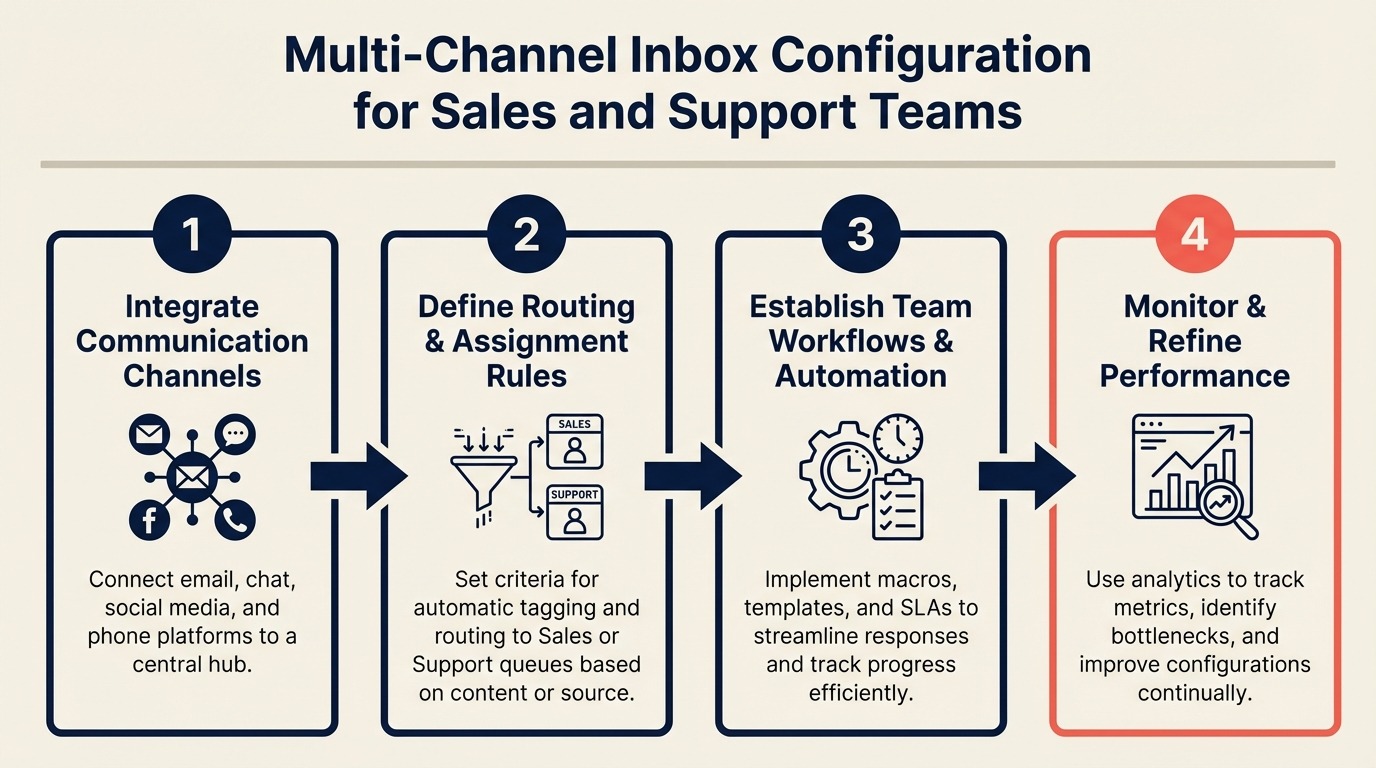
This guide shows how to configure a unified inbox for a sales and support team: tool selection, channel connection, routing rules, and the SLA setup that keeps conversations from dying in an unowned queue.
Step 1: Choose your unified inbox tool
The right tool depends on which channels you use most and what your team's primary workflow is. Wikipedia's overview of customer messaging platforms covers how the category has evolved from single-channel support tools into multi-channel sales and support platforms, giving useful context for evaluating the options below.
| Tool | Best For | WhatsApp Support | Price Range |
|---|---|---|---|
| Respond.io | WhatsApp-heavy teams, multi-channel B2B sales | Yes (native WhatsApp API) | $79-$299/mo |
| Tidio | SMB teams, website chat primary | Limited (via integration) | $29-$99/mo |
| Intercom | Product-led growth, support-heavy teams | Yes (via partner integration) | $74-$395/mo |
| Drift | Enterprise B2B, ABM teams | No | $2,500+/yr |
If WhatsApp is your primary channel for lead capture, choose Respond.io. It has the deepest native WhatsApp Business API integration and the most complete routing logic for sales workflows. The WhatsApp Business Platform overview from Meta clarifies what the Cloud API covers compared to third-party BSP options, which is useful context before choosing a provider. The Respond.io vs ManyChat comparison for B2B sales is useful if you're still deciding between the two for your primary automation layer.
If your team is primarily website chat + email with light WhatsApp usage, Tidio is cost-effective and easier to set up. But it won't scale well beyond 3 channels.
If you're running a product with in-app chat and support is heavier than sales, Intercom is the better fit. Its conversation routing for support SLAs is more mature than Respond.io's.
For this guide, the configuration steps use Respond.io since it covers the most common chat funnel setup for performance marketing teams.
Step 2: Connect your channels
Connect channels one at a time and test each one before adding the next. Teams that try to connect all 4 channels in one session usually end up with one or two not working correctly and no idea which one has the problem. If WhatsApp Business API is your primary channel, the Meta ads-to-WhatsApp funnel guide covers the API provisioning and Meta Business Manager steps that need to be complete before Respond.io can receive conversations.
WhatsApp Business API:
In Respond.io, go to Settings → Channels → Add Channel → WhatsApp Business API. Choose Cloud API (Meta's free direct API) or enter BSP credentials if you're using 360dialog, Twilio, or Vonage.
After connection, send a test message from a personal WhatsApp to the business number. It should appear in Respond.io within 30 seconds. If it doesn't, the phone number ID in your channel settings doesn't match what's in Meta Business Manager.
Instagram Messaging:
Go to Settings → Channels → Instagram. Connect via Facebook OAuth. You need admin access to both the Instagram Business account and the Facebook Page it's linked to. After connection, test by sending a DM to your Instagram profile from a personal account. The message should appear in Respond.io as a new conversation.
Note: Instagram only forwards DMs from accounts that follow you or that you've previously messaged. First-time DMs from strangers may not route through depending on your Instagram privacy settings. Check your Instagram account settings under Privacy → Messages → Allow Message Requests From and set it to "Everyone."
Facebook Messenger:
Go to Settings → Channels → Facebook Messenger. Connect via the Facebook OAuth flow and select the Page. Test by messaging the Page from a personal account.
Website chat widget:
Go to Settings → Channels → Website Widget. Copy the JavaScript snippet and add it to your website's <head> or just before </body>. Test by visiting your website and opening the chat widget. Messages should appear in Respond.io immediately.
Email:
Go to Settings → Channels → Email. Connect a dedicated support or sales email address (e.g., chat@yourcompany.com) via IMAP/SMTP. Don't connect your personal business email, because every email you send and receive will flow into the shared inbox.
Step 3: Inbox structure
Before setting routing rules, decide how your inbox is structured.
Team inboxes vs. individual inboxes:
Respond.io supports both. Team inboxes are shared, with all conversations visible to team members. Individual inboxes show only assigned conversations. For a sales + support setup, use this structure:
- Sales team inbox: Receives new lead conversations from WhatsApp and website chat
- Support team inbox: Receives conversations tagged with support keywords (pricing questions, bugs, account issues)
- Individual rep inboxes: Conversations assigned to a specific rep after qualification
Don't start with individual inboxes for new leads. You can't predict which rep will be available, and individual inboxes create bottlenecks when a rep is on vacation.
Conversation labels:
Use a small set of labels. Teams that create 20+ labels end up with inconsistent tagging and the labels become useless. Stick to 5:
- New Lead
- Qualified
- Disqualified
- Support
- Follow-Up Needed
Collision detection:
Enable this under Settings → Team Settings → Collision Detection. When two reps open the same conversation simultaneously, Respond.io shows a warning. Without this, it's easy for two reps to both start typing to the same lead and send conflicting messages, which looks unprofessional and confuses buyers.
Step 4: Routing rules
Routing rules determine which conversations go to which team or rep automatically. This is the step that eliminates the "did anyone reply to that WhatsApp?" problem.
In Respond.io, go to Settings → Routing Rules → New Rule.
Source-based routing:
Create a rule: If conversation source = WhatsApp AND contact tag = Lead → Assign to Sales Team.
Create another rule: If conversation message contains [support keywords: "invoice", "bug", "not working", "billing", "cancel"] → Assign to Support Team.
The keyword list is rough but effective for the first pass. Review and expand it after the first 2 weeks of monitoring.
Skill-based routing (language):
If you're serving leads across multiple languages, add a rule: If contact language = Spanish → Assign to [Spanish-speaking rep]. Respond.io detects conversation language automatically. This prevents the awkward situation where an English-only rep gets assigned a Spanish conversation they can't handle.
Time-based routing (after hours):
Create an off-hours routing rule: If current time is NOT within [business hours] → Assign to bot flow / send auto-reply. Configure your business hours in Settings → Business Hours. After-hours conversations get an automated holding message instead of going into an unowned queue.
The holding message matters. "We'll get back to you in 24 hours" kills leads. "We're out of the office right now but will reply at 9am [timezone]. In the meantime, here's a link to schedule time directly: [Calendly]" gives the buyer an action they can take without waiting.
Step 5: SLA configuration
SLAs set the maximum time a conversation can go unanswered before an escalation fires.
In Settings → SLA → New SLA Policy, set:
| Channel | First Response SLA | Escalation Recipient |
|---|---|---|
| WhatsApp (ad traffic) | 5 minutes | Team lead + backup rep |
| WhatsApp (organic) | 15 minutes | Team lead |
| Website chat | 3 minutes | Team lead |
| Instagram DM | 30 minutes | Sales manager |
| 4 hours | Sales manager |
The 5-minute SLA for WhatsApp ad traffic sounds aggressive but it's the right number. Leads who came in via a Click-to-WhatsApp campaign are actively comparing options. A 90-minute response window for those leads is expensive in conversion rate terms. Intercom's Customer Service Trends report consistently shows that response-time expectations for chat channels are far tighter than for email. Buyers expect replies within minutes, not hours. The data behind why first-response speed matters this much is documented in the research on lead response time. For SLA enforcement at the conversation level (not just the inbox level), the chatbot-to-rep handoff playbook covers escalation chain setup in Respond.io and the fallback flow that keeps qualified leads from going cold when a rep misses the notification.
The escalation recipient should be a real person, not a shared inbox. Escalations to a group Slack channel where nobody has clear ownership get ignored.
Step 6: Shared visibility without collision
When 5 reps can all see the same conversation queue, two things happen: either everyone assumes someone else is handling it (nobody responds), or two people start responding simultaneously (buyer gets confused).
Fix both with two settings:
Auto-assignment on open: When a rep opens a conversation, it's automatically assigned to them and locked for other reps. Other reps see the assignment badge and know not to respond.
Typing indicators: Respond.io shows when a rep is typing in a conversation. Other reps can see this and hold off. Enable in Settings → Team → Show Typing Indicator.
Shared conversation notes: When a rep needs to hand off a conversation to another rep, they write an internal note with context before reassigning. Make this a team standard, not optional. A reassigned conversation with no notes means the receiving rep has to re-read 20 messages to get context.
Step 7: Reporting setup
Check three reports weekly, not monthly. Chat funnel performance shifts quickly, and a monthly review cycle means you're optimizing 3 weeks too late.
Report 1: Conversation volume by channel. Which channels are generating the most conversations? Which are declining? Statista's data on global messaging app usage shows channel-level trends that are useful for benchmarking which channels are growing in your target markets versus which are plateauing. If WhatsApp volume drops 30% week-over-week, you want to know immediately. It might mean an ad campaign paused, a flow broke, or a WhatsApp template got flagged.
Report 2: Response time by rep. Who consistently hits the 5-minute SLA? Who misses it regularly? This isn't for performance management. It's for capacity planning. If one rep is consistently slow, they might be overloaded, not lazy.
Report 3: Resolution rate by channel. What percentage of conversations end with a clear outcome (qualified, disqualified, support resolved)? A high volume of conversations with no outcome label means your team isn't closing the loop.
To pull these reports in Respond.io, go to Reports → Overview. Set the date range to the current week. Export to CSV weekly and track trends in a simple Google Sheet.
Common pitfalls
No routing rules. Everything lands in a general inbox. Nobody owns it. Response time is terrible. Fix this before adding any more channels.
Too many labels. If you have 15 conversation labels, your team will tag inconsistently and the data will be useless. Five labels maximum, with clear definitions for each.
SLAs set but never reviewed. If you set a 5-minute SLA and the escalation is going off 40 times a day, either the SLA is too tight or you're understaffed. Review escalation frequency weekly.
Sales and support in the same inbox with no separation. A sales rep who has to sort through 30 support tickets to find their 5 new leads will become a frustrated sales rep. Separate the queues from day one.
What to do next
Connect one channel and test routing before adding the next. The most common mistake is connecting all 4 channels in one session, setting routing rules, and discovering on day 3 that the Instagram routing never worked. By then you can't tell if it's a settings issue or a platform bug.
Once your first channel is routing correctly and SLAs are tested, add the next channel. The full setup for 4 channels typically takes 2-3 days when done sequentially with proper testing.
Learn More